
Introduction
Do your salespeople ever compare prices and question why another salesperson offered a lower quotation to the same customer?
In many companies, multiple sales agents may serve the same customer. While this can encourage healthy competition, it can also create unnecessary disputes when salespeople can view each other’s quotations, invoices, and customer information.
To solve this problem, AutoCount provides a powerful feature called Filter by Salesman.
With this module, you can control exactly which sales agents’ documents a user account can access. Users will only see the customers, sales documents, and reports belonging to the sales agents assigned to their account.
In this guide, we’ll show you how to set up Filter by Salesman in AutoCount and explain how it works with practical examples.
What is AutoCount Filter by Salesman?
Filter by Salesman is an access control feature that limits what data a user can view based on assigned sales agents.
Instead of allowing users to see all customer records and sales transactions, AutoCount can filter the information according to specific sales agents.
How Filter by Salesman Works
The concept is simple:
User Account → Assigned Sales Agents → Visible Documents
For example:
| User Account | Assigned Sales Agents | Documents Visible |
|---|---|---|
| SALE | Cody | Cody’s documents only |
| SALE | Cody, Sarah, Patrick | Documents from all 3 agents |
| MANAGER | Cody, Sarah, Patrick, John | Documents from all 4 agents |
| ADMIN | No restriction | All documents |
The user account does not need to belong to a specific salesperson.
Instead, you decide which sales agents’ records the user is allowed to view.
Step 1: Enable the Filter by Salesman Module
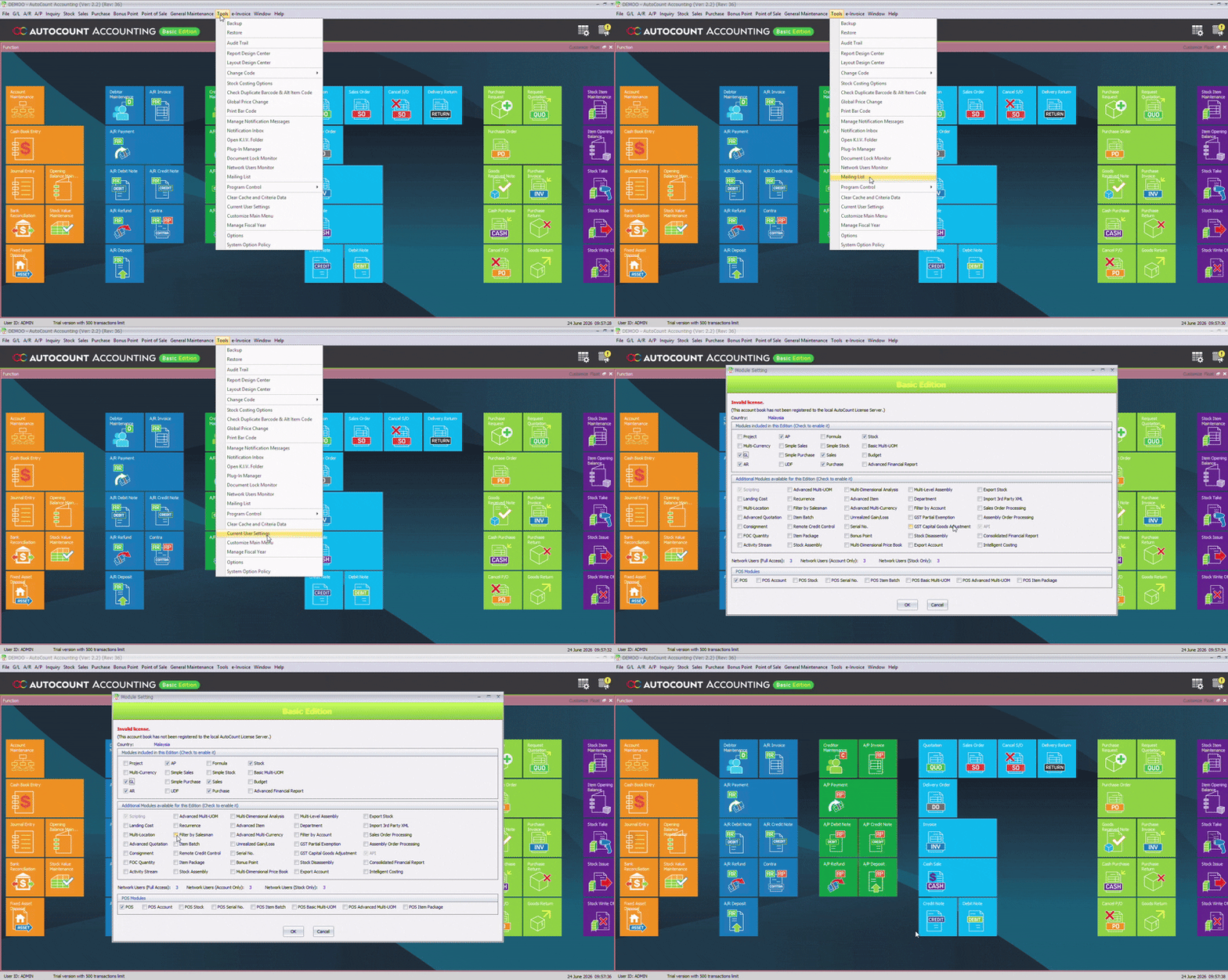
Before using this feature, make sure the module is enabled.
Navigate to:
Program Control → Module Setting
Look for:
Filter by Salesman
Enable the module.
Note: Simply enabling the module does not automatically restrict access. Additional user settings are required.
Step 2: Create or Edit a User Account
Next, configure the user account that will use the filter.
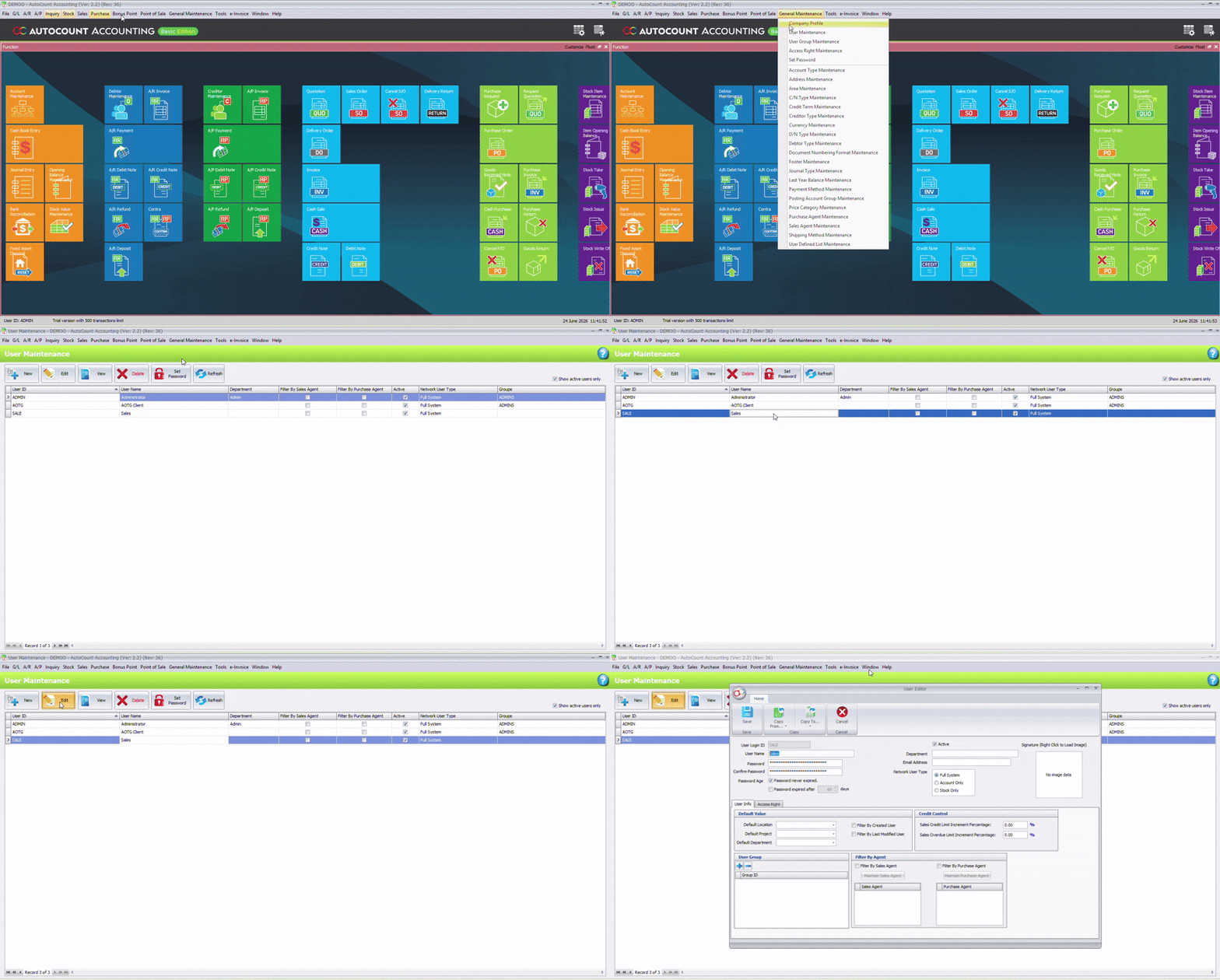
Navigate to:
General Maintenance → User Maintenance
Open an existing user account or create a new one.
Example:
User Account: SALE
This account will be used by a sales coordinator, manager, or department user.
Step 3: Enable Filter by Agent for the User
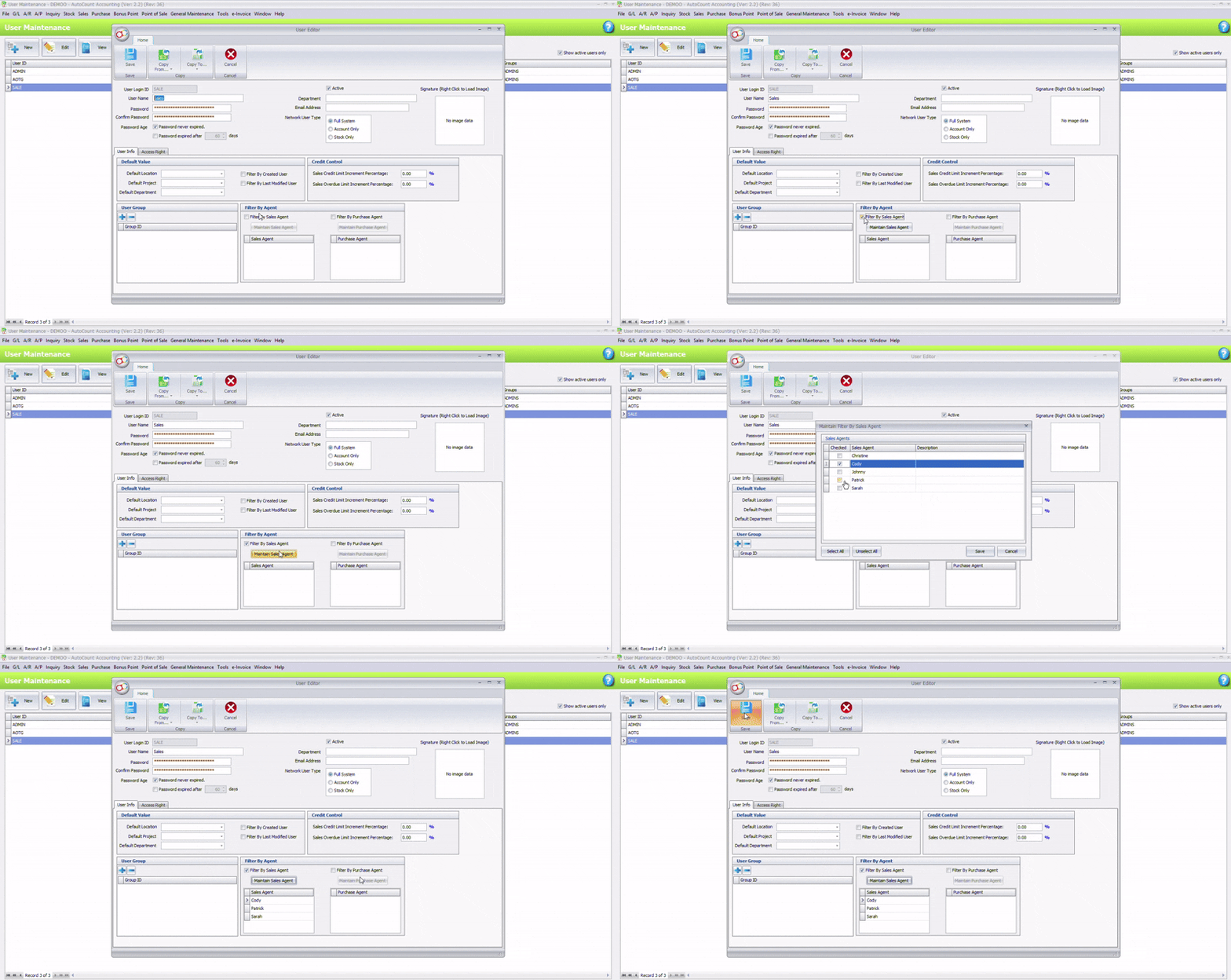
Inside User Maintenance:
- Open the user account.
- Enable Filter by Agent.
- Select the sales agents that the user is allowed to access. (e.g., Cody, Sarah, Patrick).
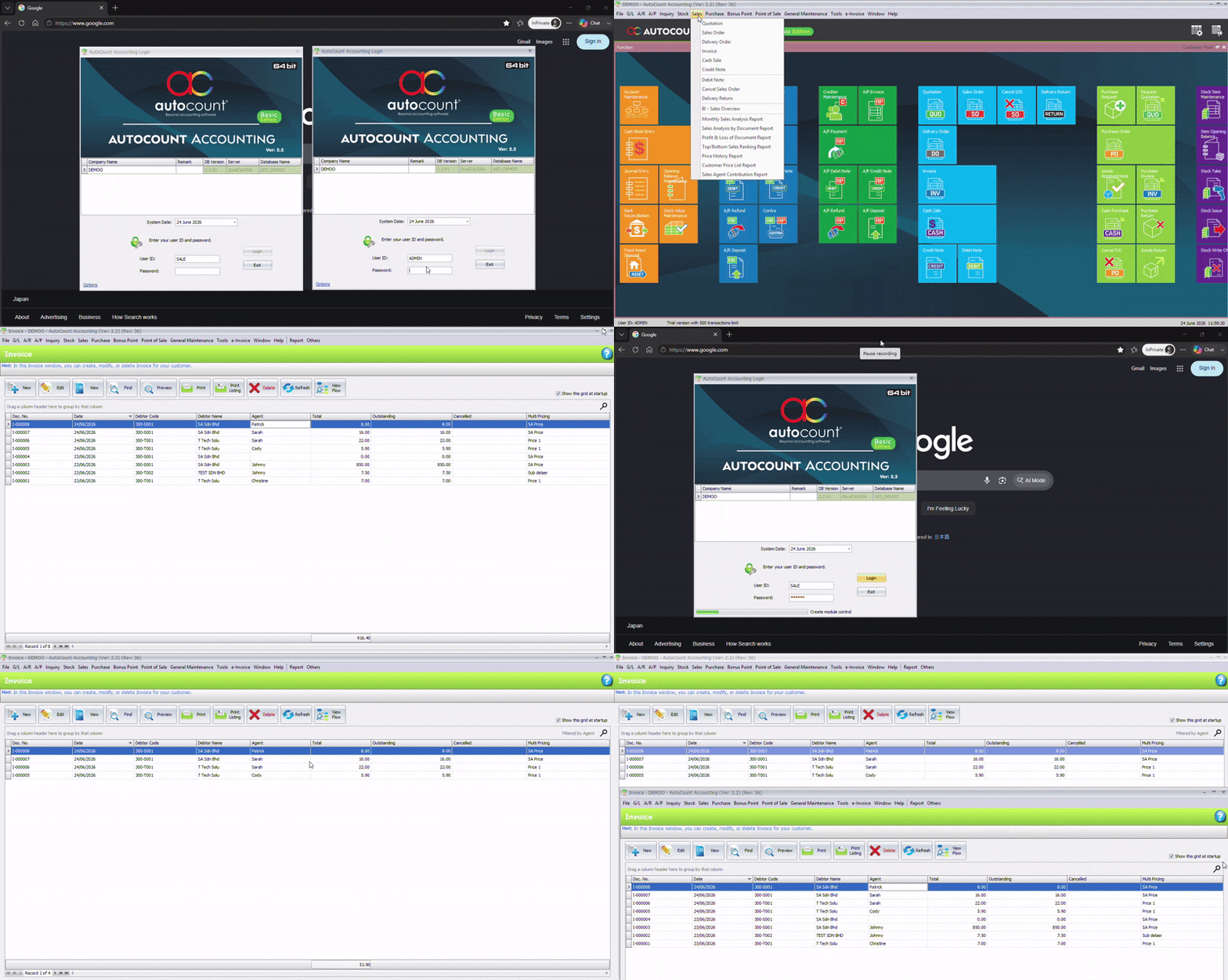
Result After Login
When the user logs into the SALE account:
They can see:
- Cody’s customers
- Sarah’s customers
- Patrick’s customers
- Quotations
- Sales Orders
- Delivery Orders
- Invoices
- Sales reports related to these three sales agents
They cannot see:
- Documents belonging to other sales agents not assigned to the account
What About the Admin Account?
The Admin account remains unrestricted.
Regardless of how Filter by Salesman is configured:
The Admin user can still:
- View all customers
- View all sales agents
- View all quotations
- View all sales orders
- View all invoices
- View all reports
This allows management to maintain complete visibility while restricting regular users.
Step 4: Verify Sales Reports
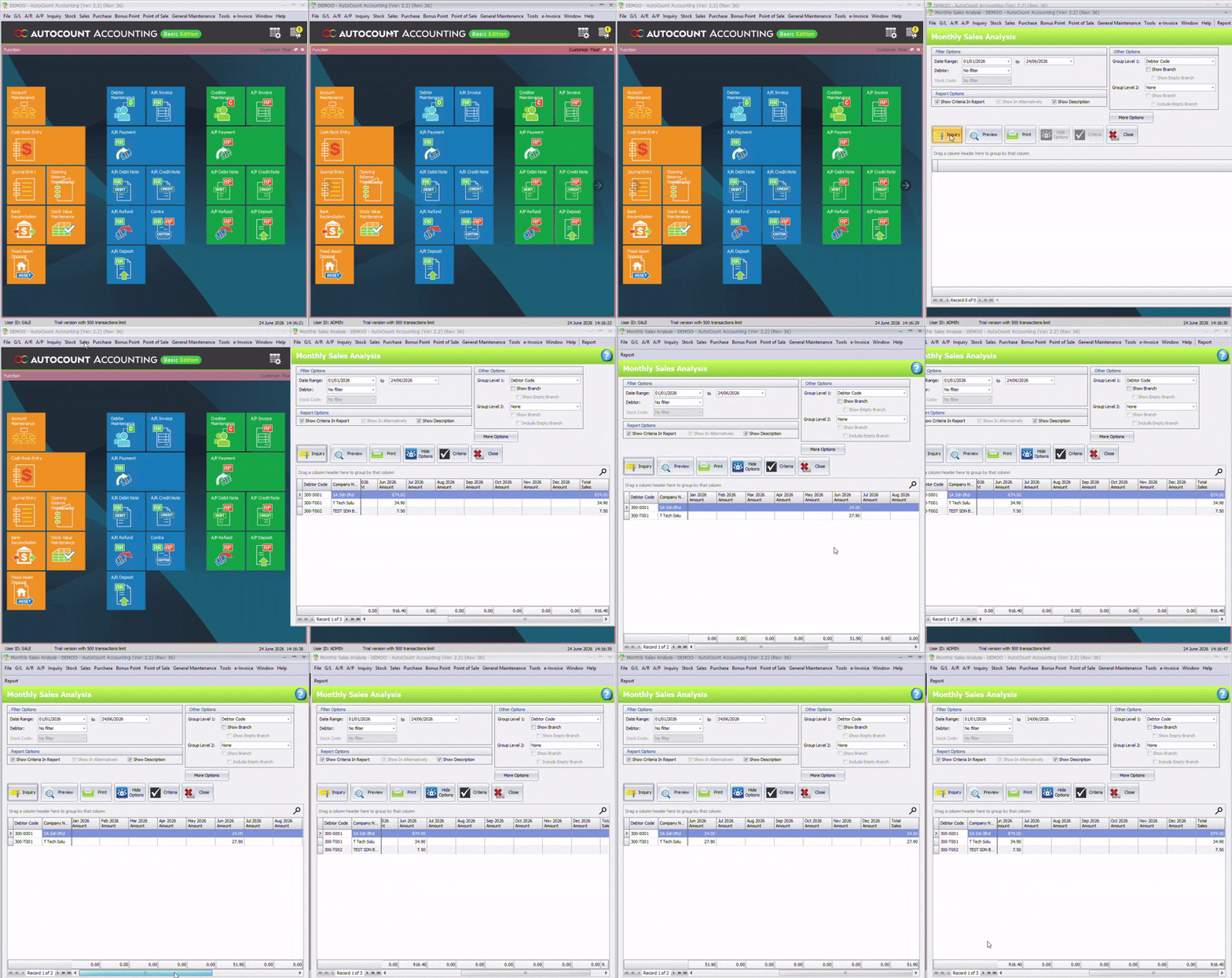
The filter also applies to reports.
Navigate to:
Sales → Reports
Even if the user has permission to access sales reports, the report results will only show data from the assigned sales agents.
For example:
If SALE is assigned to:
✓ Cody
✓ Sarah
✓ Patrick
The report will only contain transactions related to those three agents.
Optional: Restrict Salespeople to View Only Their Own Customers
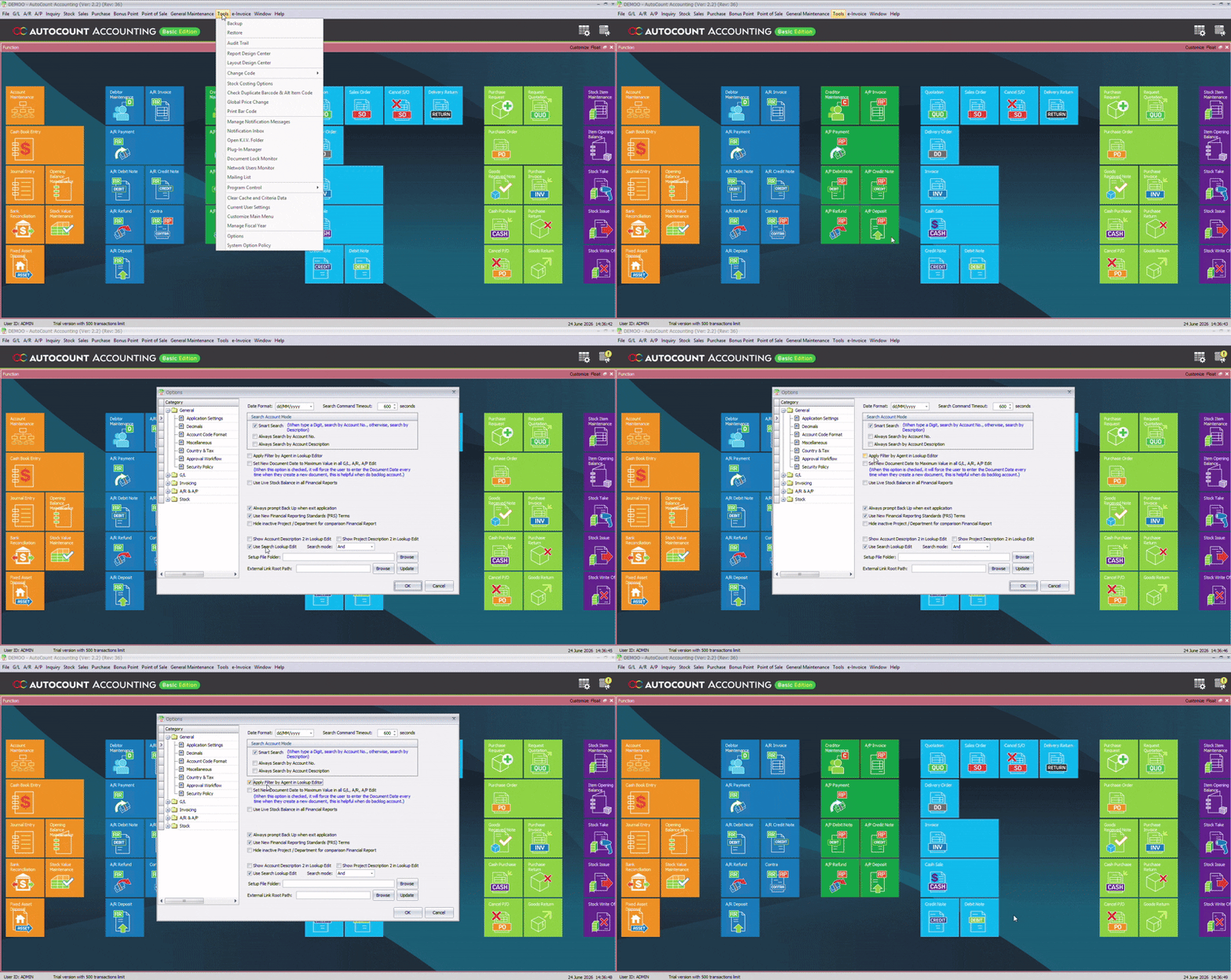
If you want salespeople to see only the customers assigned to their sales agent, enable Apply Filter by Agent Lookup Editor Function under Tools → Options.
By default, users may still be able to search and view other customer names during customer lookup. After enabling this option, the customer lookup list will only display customers belonging to the sales agents assigned to the user account.
Benefits of Filter by Salesman
Better Data Security
Users only see information relevant to their responsibilities.
Reduce Internal Conflicts
Salespeople cannot easily compare quotations and pricing from other agents.
Flexible Team Management
A single user account can monitor one, several, or many sales agents.
Protect Customer Information
Customer lists are only visible to authorized users.
Easy to Configure
Setup only requires assigning sales agents to a user account.
Conclusion
AutoCount’s Filter by Salesman module is a simple but powerful way to control access to customer records, sales documents, and reports.
By assigning specific sales agents to a user account, businesses can ensure users only see the information relevant to them while keeping the Admin account fully unrestricted.
Whether you’re managing a single salesperson or an entire sales team, Filter by Salesman helps improve data security, reduce internal disputes, and maintain better control over your sales information.