
What Is AutoCount Stock Assembly?
If your business manufactures products by combining multiple raw materials or components into a finished product, Stock Assembly in AutoCount helps you manage the entire production process efficiently.
Instead of manually adjusting inventory after production, AutoCount automatically:
- Deducts the required raw materials or components from inventory
- Adds the finished goods into stock
- Calculates the production cost accurately
- Maintains a complete transaction history
- Reduces manual errors during production
Example
Imagine you’re assembling a car.
To produce 1 Sedan Car, you need the following components:
| Component | Quantity |
|---|---|
| Car Body | 1 |
| Engine | 1 |
| Wheels | 4 |
| Car Doors | 4 |
| Car Seats | 5 |
| Steering Wheel | 1 |
| Battery | 1 |
↓
Finished Product
Sedan Car
Once the Stock Assembly process is completed, AutoCount automatically deducts all the required components from inventory and increases the stock quantity of the finished Sedan Car based on the configured Bill of Materials (BOM).
Let’s go through each step.
Step 1 – Set Up the Bill of Materials (BOM)
A Bill of Materials (BOM) is a list of all components and quantities required to produce a finished product. In AutoCount, the BOM is created once and reused for future Stock Assembly transactions.
How to Set Up BOM in AutoCount
Before creating a Bill of Materials (BOM), you need to switch your Stock Item Maintenance to Advanced Layout to access the BOM settings.
Steps to Set Up BOM:
- Go to Stock → Stock Item Maintenance.
- Select the Finished Good you want to manufacture (e.g., Sedan Car).
- If you are using Simple Layout, right-click the item and select Use Item Advanced Layout.
- Open the BOM section.
- Add the required components and specify the quantity needed for production.
- Define the Assembly Cost and Overhead Cost if required.
- Click Save to complete the BOM setup.
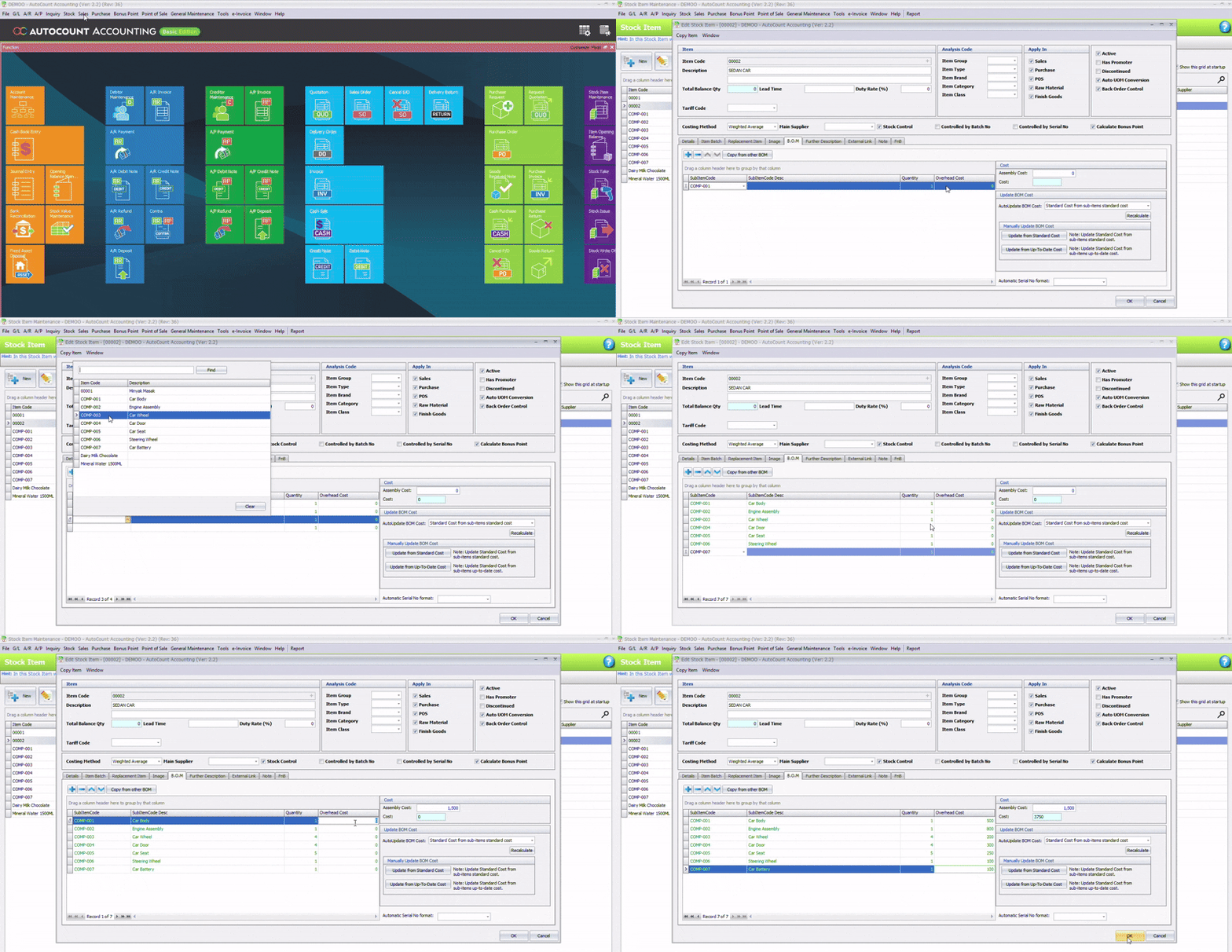
*Subitem can be added in Stock > Stock Item Maintanance > +New
Step 2 – Create a Stock Assembly Order (Job Order)
A Stock Assembly Order (Job Order) is created before production starts to plan and control manufacturing.
It acts as a production instruction that tells the manufacturing team:
- What product needs to be assembled
- How many units need to be produced
- Which materials are required based on the BOM
Link with Sales Order
If a customer places an order but stock is not ready:
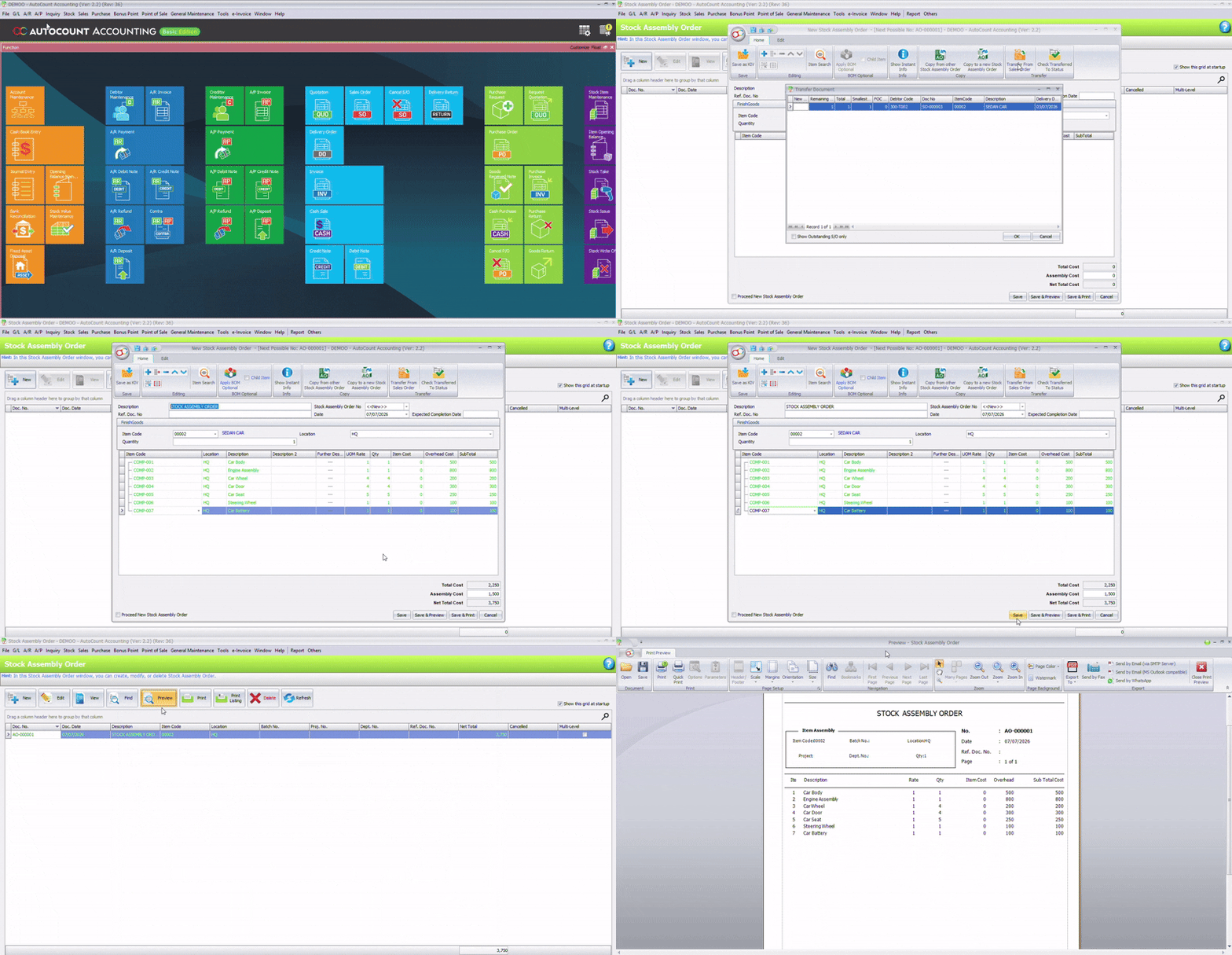
- Go to Stock → Stock Assembly Order
- Click New
- Select Transfer From Sales Order
- Adjust quantity if needed
- Click OK and Save
Cost Calculation
AutoCount automatically calculates:
- Required raw materials (based on BOM)
- Assembly and production costs
Example:
- Assembly Cost = RM1500 per unit
- Quantity = 2 units
- Total Assembly Cost = RM3000
Step 3 – Convert to Multi Level
Businesses with complex products can use Multi-Level BOM to ensure all sub-assembly components are correctly included during production.
Using Multi-Level BOM
AutoCount supports Multi-Level BOM, allowing you to manage multiple levels of components under one finished product.
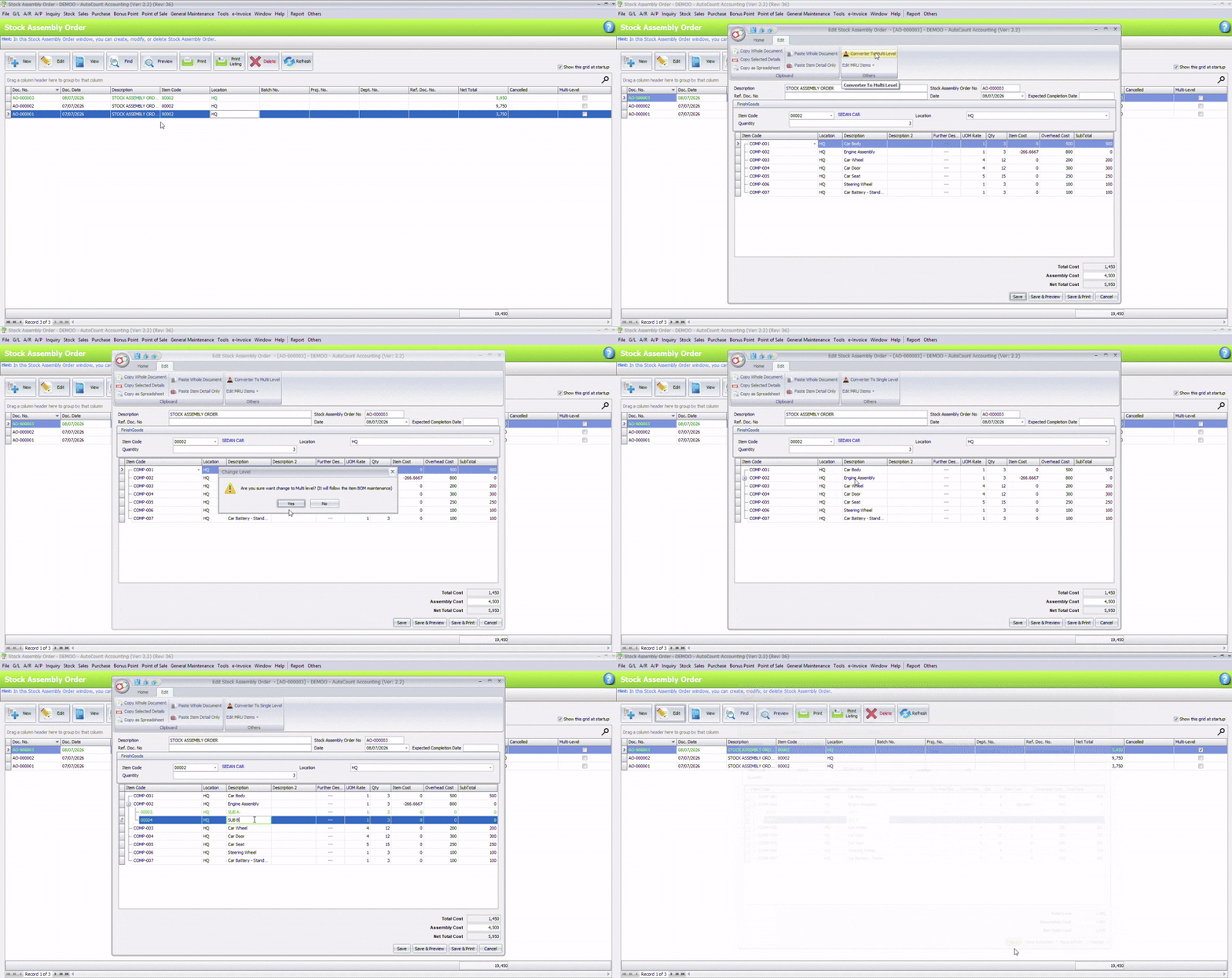
How to Convert BOM to Multi-Level BOM
- Go to Stock → More Stock Maintanance → Item BOM Maintainance
- Click New
- Select a BOM (Engine Assembly)
- Add SUB A and SUB B for the component
- Click Save
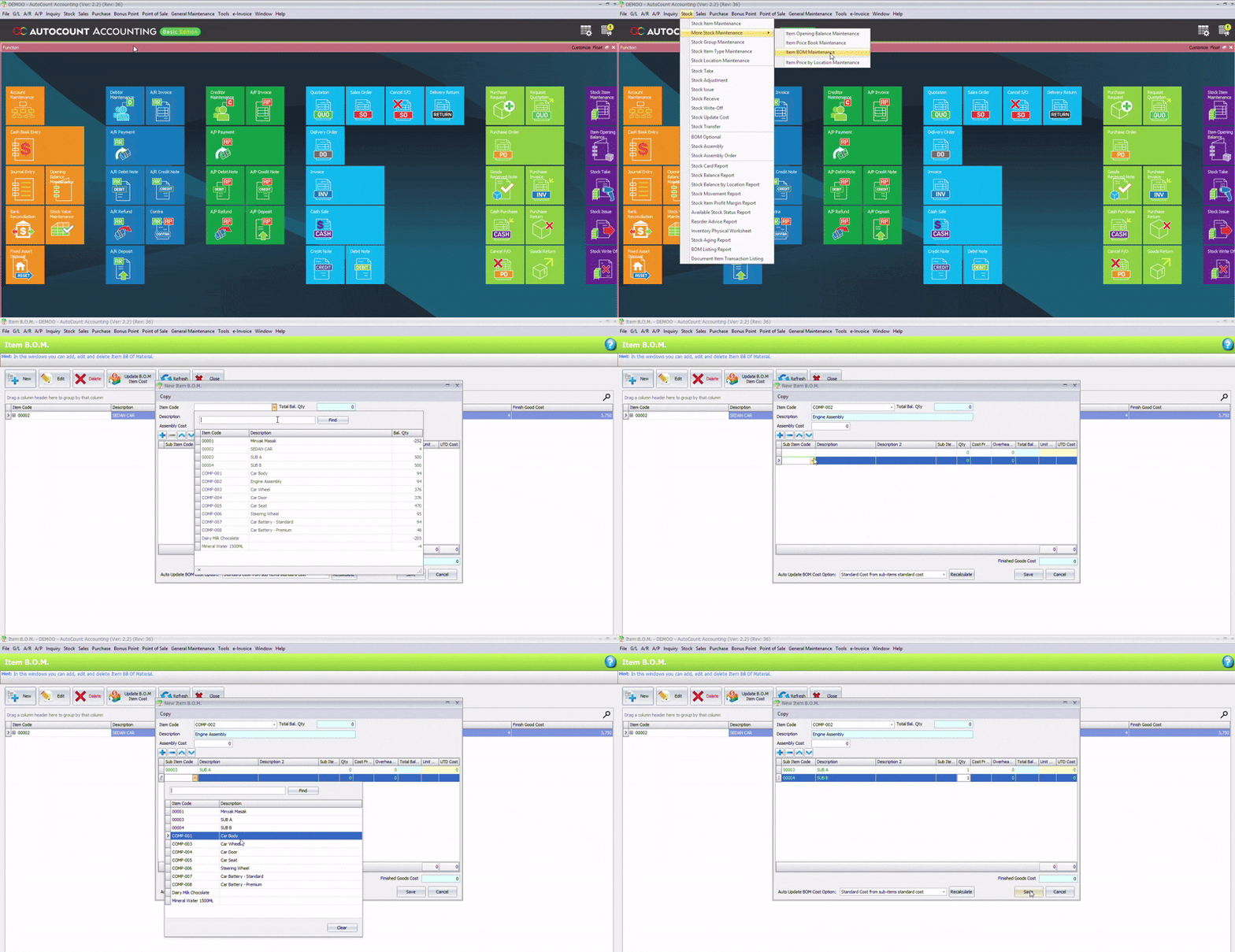
- Go to Stock Assembly or Stock Assembly Order
- Select a Finished good
- Click Edit
- Click Converter To Multi Level
The item BOM will show all the sub-level.
Step 4 – Execute Stock Assembly (Production)
Once the Stock Assembly Order is ready, production can begin in AutoCount.
Using Assembly Order:
- Go to Stock → Stock Assembly
- Click New Select Transfer
- From Assembly Order Verify details (materials, quantity, cost)
- Click Save
AutoCount will automatically:
- Deduct raw materials
- Add finished goods Update stock and production cost
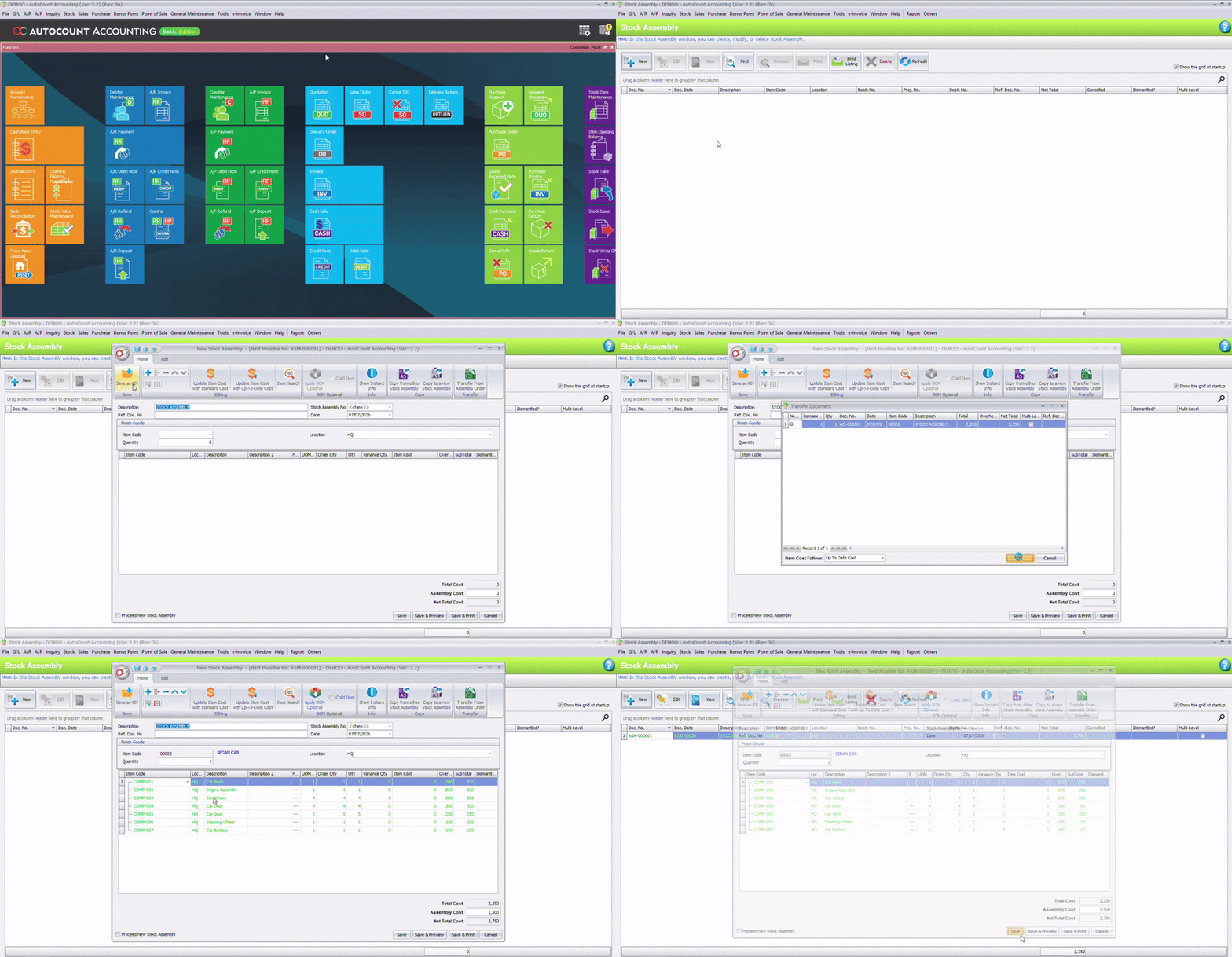
*If you create Stock Assembly directly without an order, just go to Stock → Stock Assembly → New, enter details manually, and save.
How Do I Use BOM Options for Flexible Production?
BOM Options allow you to substitute raw materials during production without changing the original Bill of Materials (BOM).
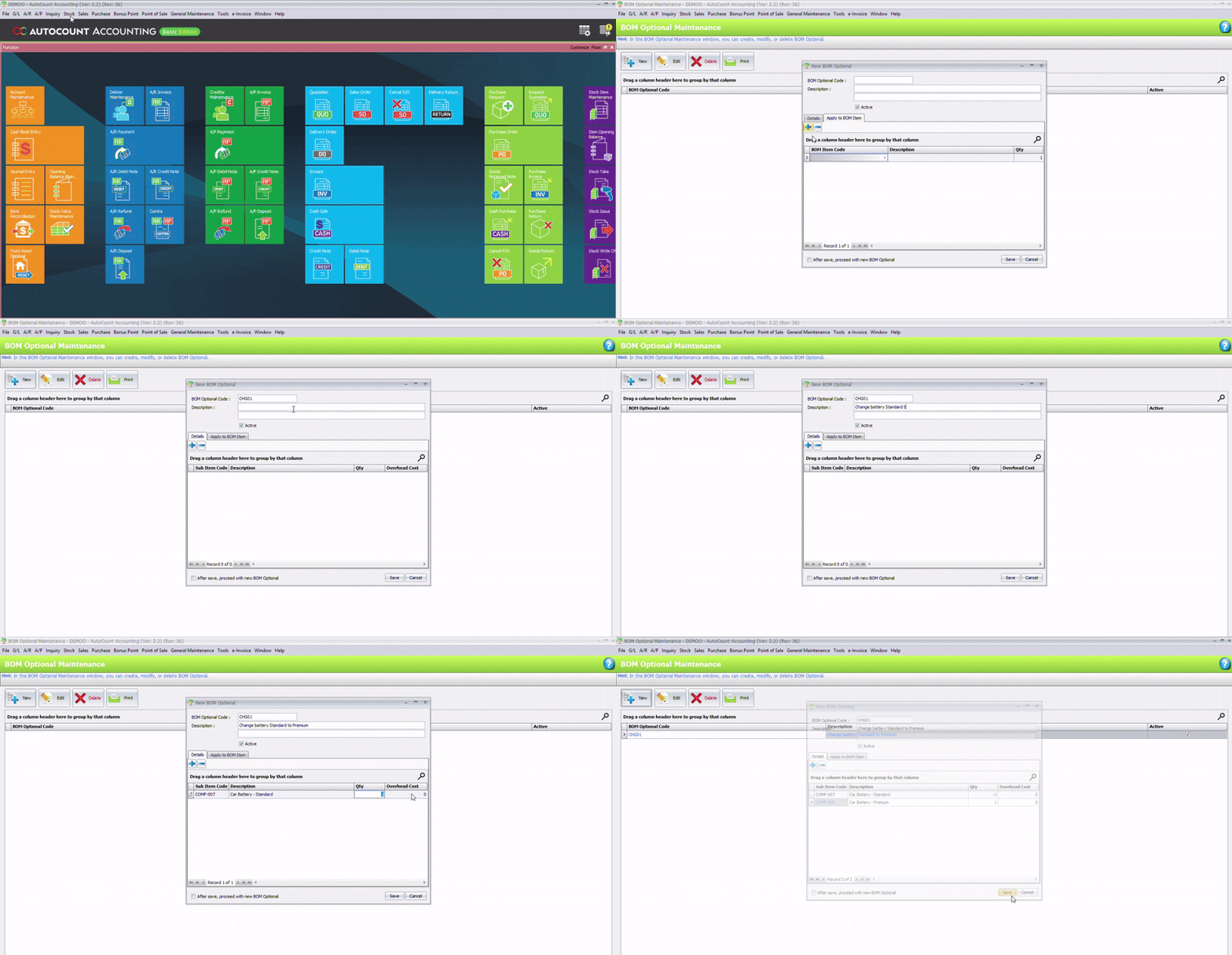
How to Set Up a BOM Option
To create a substitution option:
- Go to Stock → BOM Optional
- Click New
- Select the relevant Finished Good
- In the Details section, add the substitute material
- Define the substitution ratio
(Example: 1 unit of Standard Battery = 1 units of Premium Battery) - Click Save
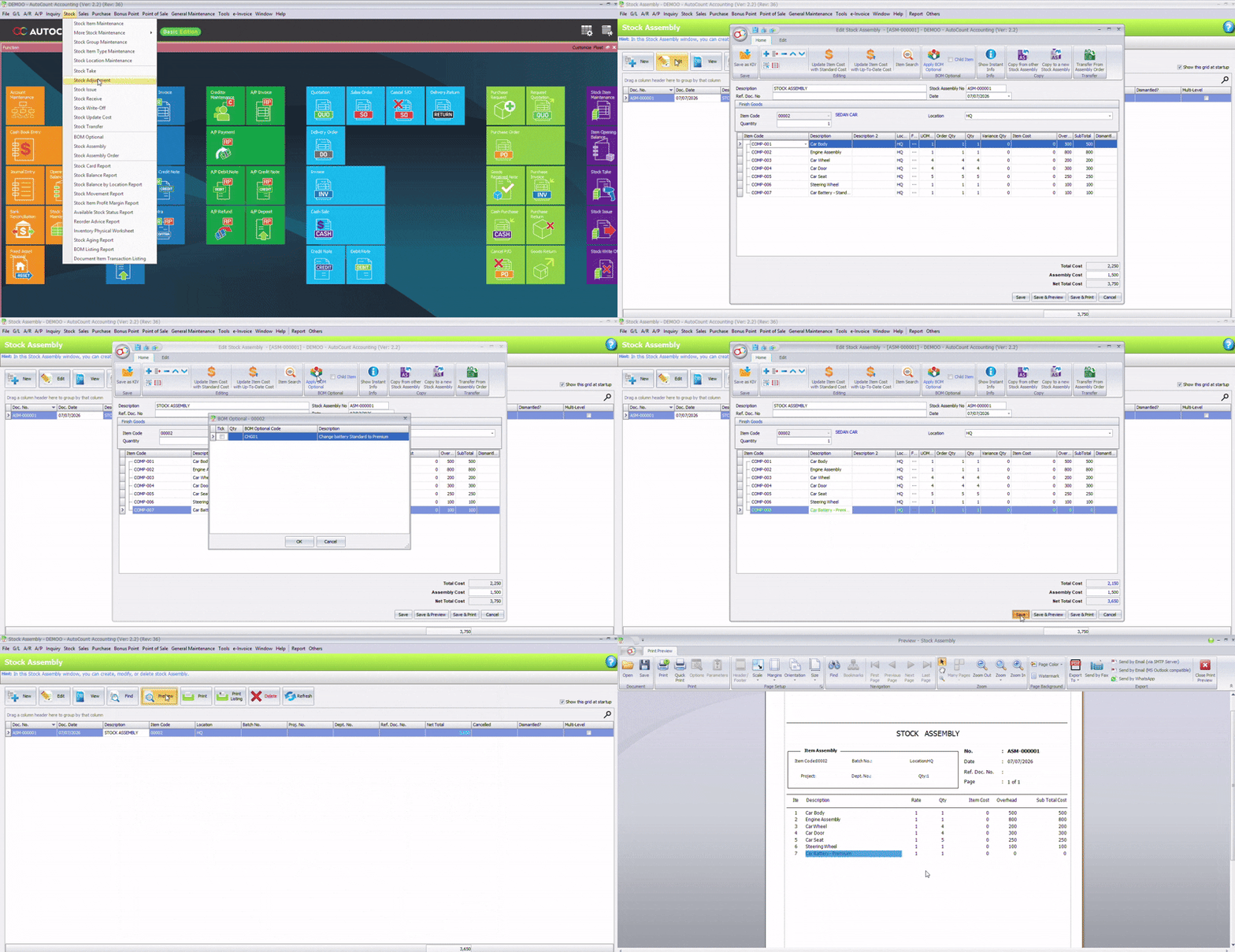
How to Apply a BOM Option
During Stock Assembly, select the saved BOM Option.
AutoCount will automatically adjust:
- Material quantities
- Production cost
How to Manage Variance in Stock Assembly?
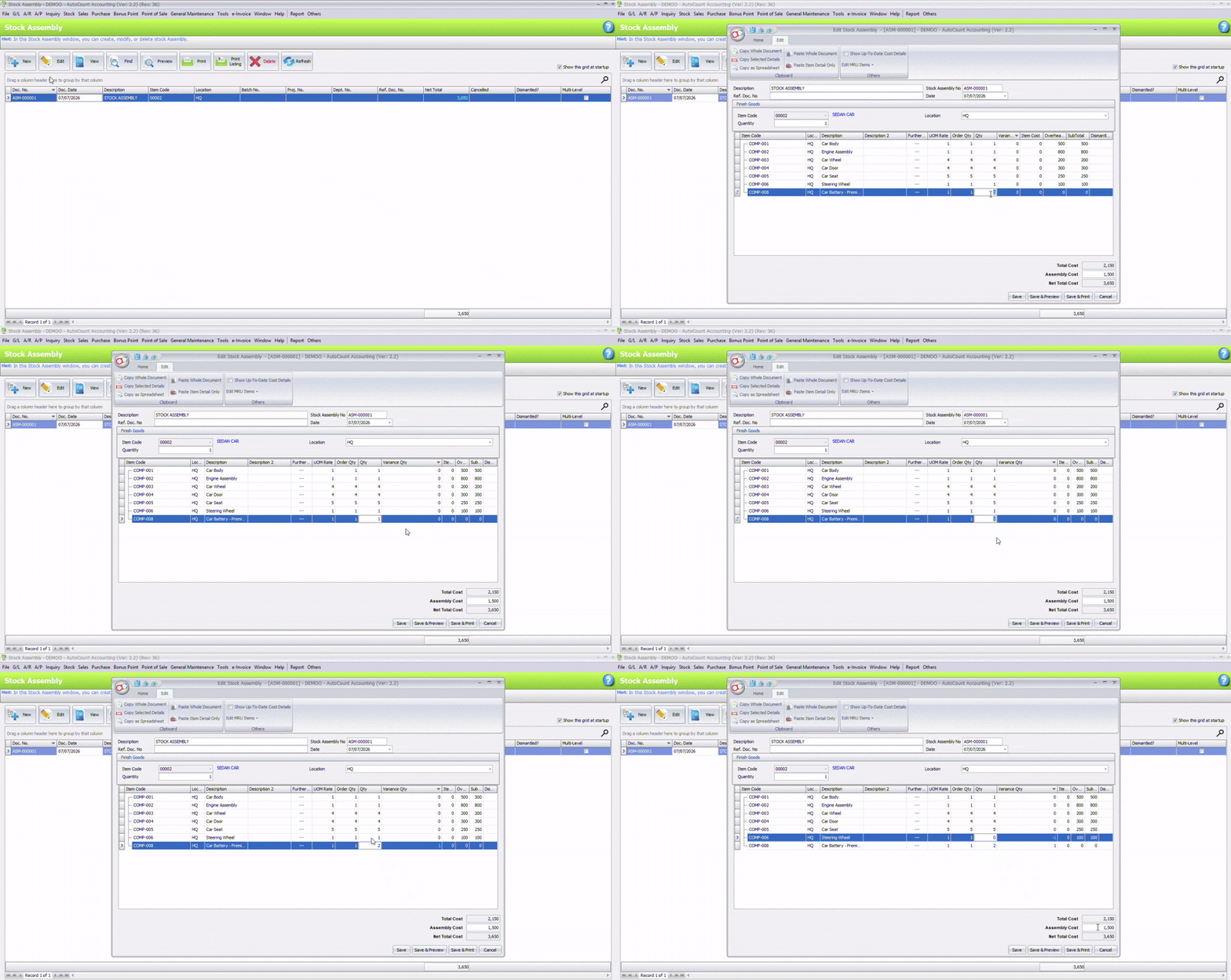
Variance occurs when the actual quantity of raw materials used during production differs from the quantity defined in the Bill of Materials (BOM).
Review Variance
If fewer materials are used than planned, the Variance Qty becomes negative and the production cost is adjusted accordingly. Likewise, using more materials increases the overall production cost.
When Do I Use Dismantled Quantity in Stock Assembly?
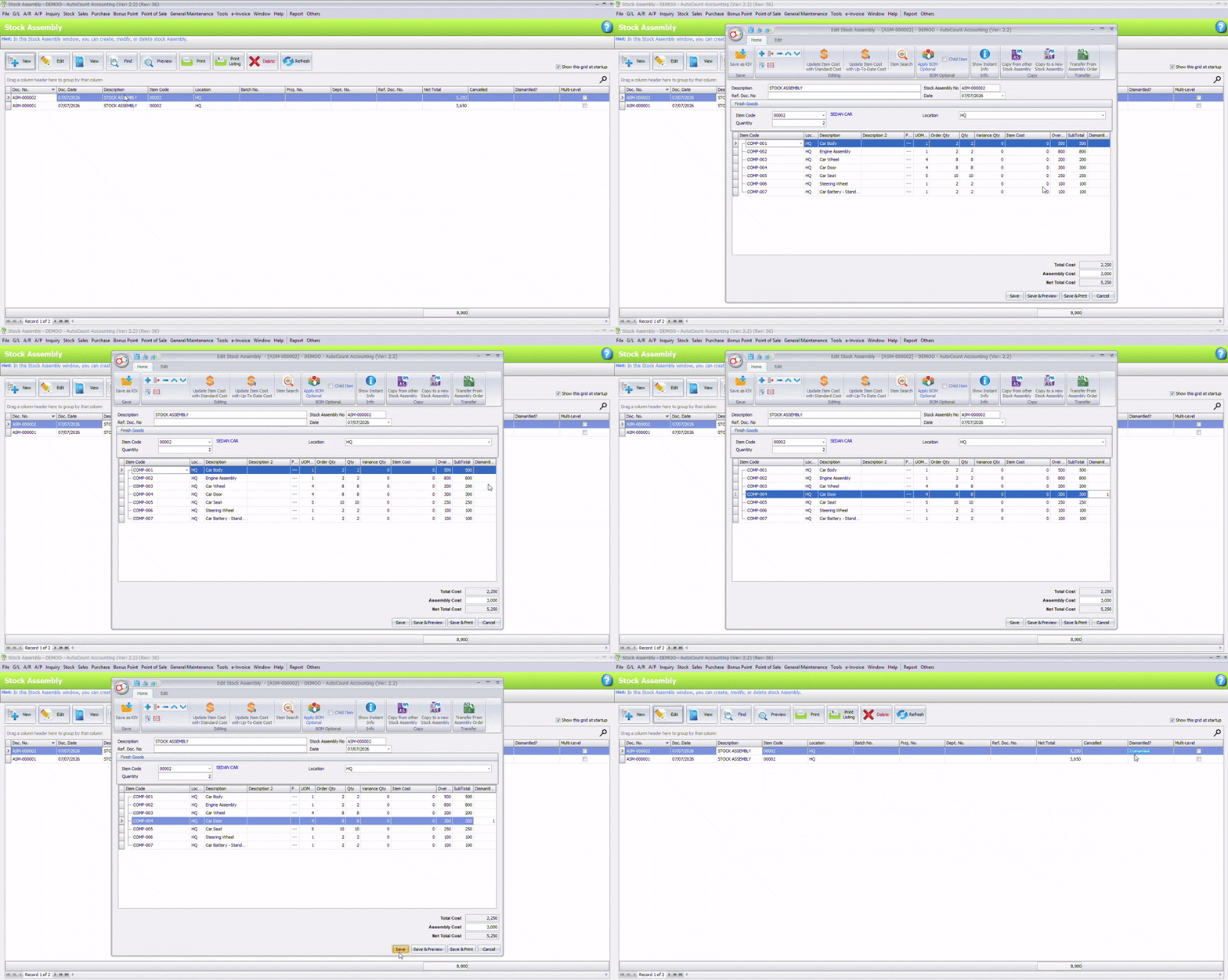
Dismantled Quantity is used when some units in a production batch cannot be completed due to defects, quality inspection failures, or production issues.
When It Happens
- Product fails quality check
- Partial or incomplete assembly
- Example: 500 units planned, only 498 completed
AutoCount will only calculate the cost for the completed (498 units), providing a more accurate production record.
Stock Write-Off is recommended over Stock Adjustment because it properly allocates production costs to finished goods, resulting in more accurate inventory valuation and costing.
Where to Enable Sales Order Notifications in AutoCount?
AutoCount provides a notification feature that alerts users when finished goods are available to fulfill customer Sales Orders.
To activate this feature:
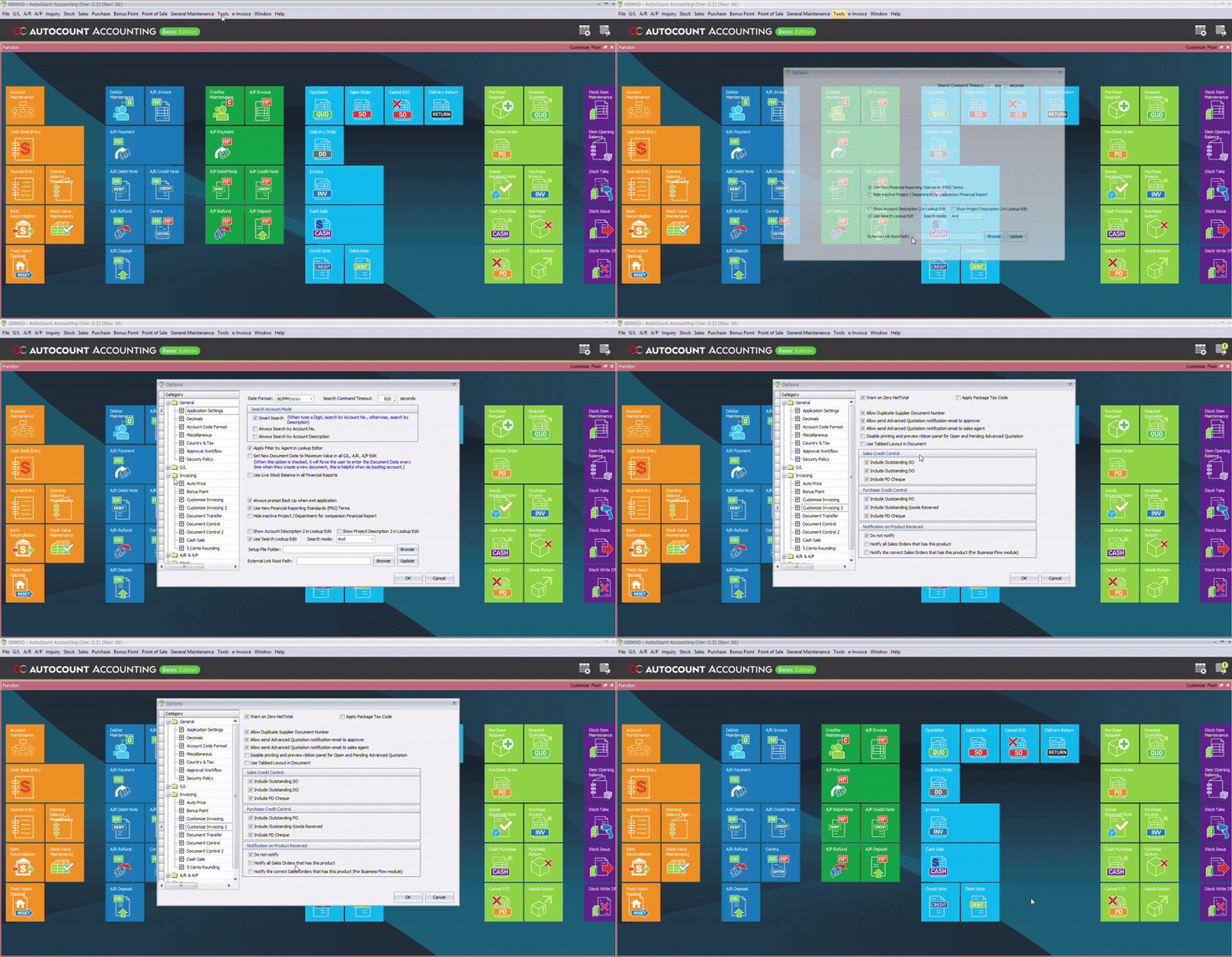
- Go to Options → Invoicing → Customize Invoicing 2.
- Enable “Notify all Sales Orders that has this product”.
- Save the settings.
How to Check Notifications
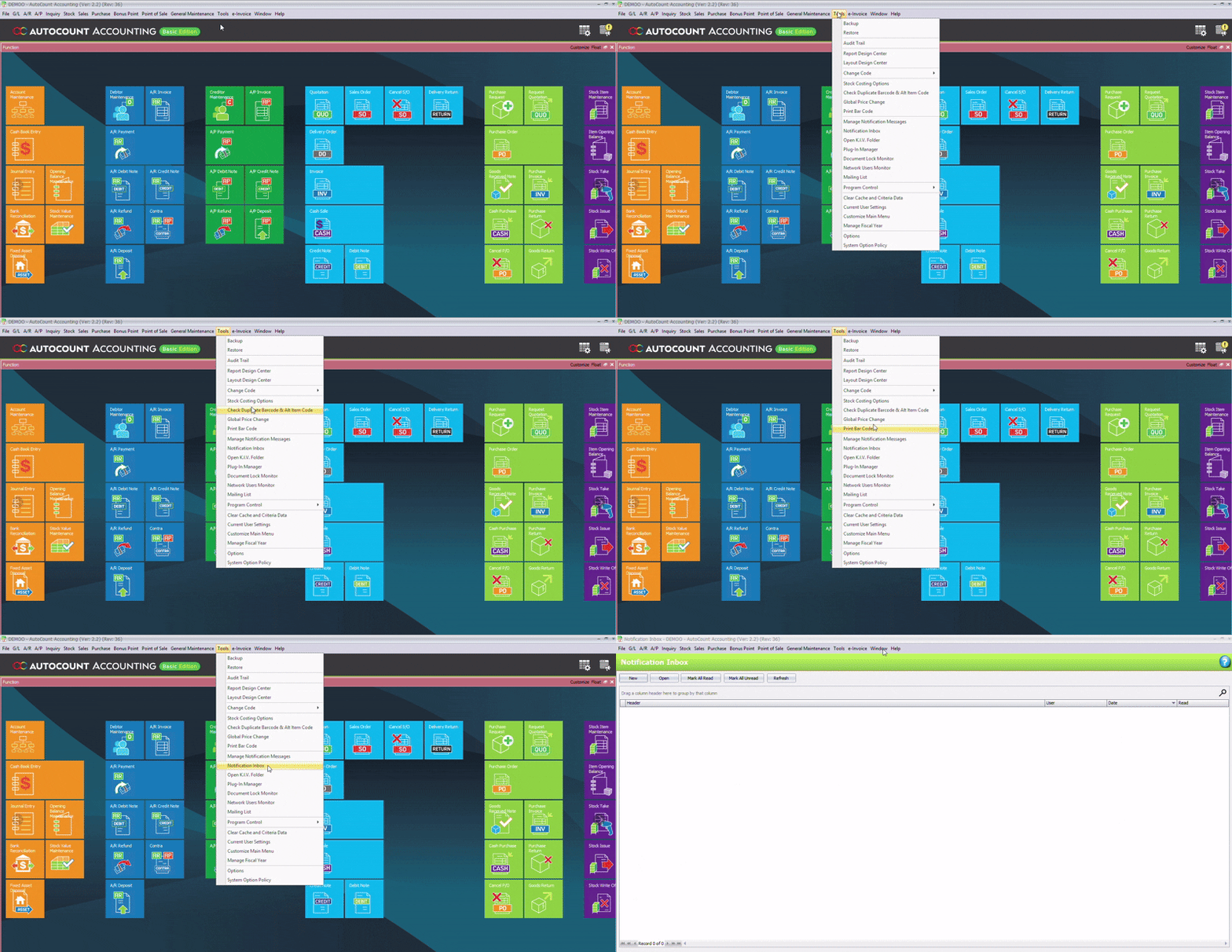
After production is completed, users can view available alerts from:
Tools → Notification Inbox
The notification system helps teams quickly identify ready stock, improve order fulfillment, and reduce delays in customer delivery.
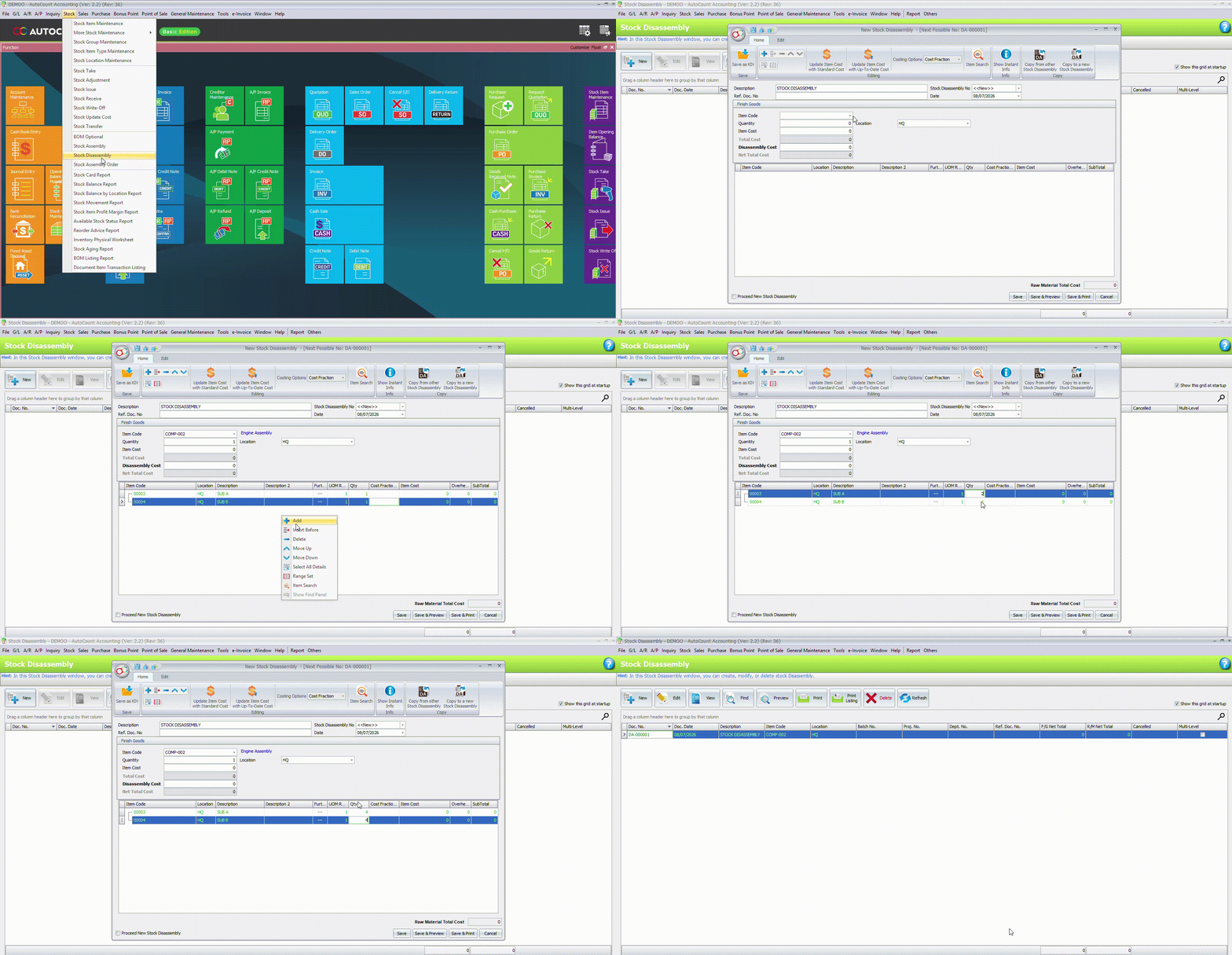
How to Perform Stock Disassembly?
Stock Disassembly is the reverse of Stock Assembly, allow to break down finished goods into their original raw materials.
- Go to Stock → Stock Disassembly.
- Click New to create a new Stock Disassembly transaction.
- Select the Finished Good (Item Code) that you want to disassemble.
- Enter the quantity to be disassembled.
- Review the materials that will be returned to inventory.
- Click Save to complete the transaction.
Once saved, AutoCount will automatically deduct the finished goods from stock and add the recovered raw materials back into inventory.
How to View the BOM Listing Report?
The BOM Listing Report provides an overview of all Bill of Materials (BOM) items and shows the maximum quantity of finished goods that can be produced based on the current stock of raw materials. This helps to determine whether you have sufficient materials before starting production.
- Go to Stock → BOM Listing Report.
- Configure the required filter options.
- Click Inquiry.
- Click the “+” icon next to the Item Code (or right-click the column header and select Expand All) to view the BOM components.
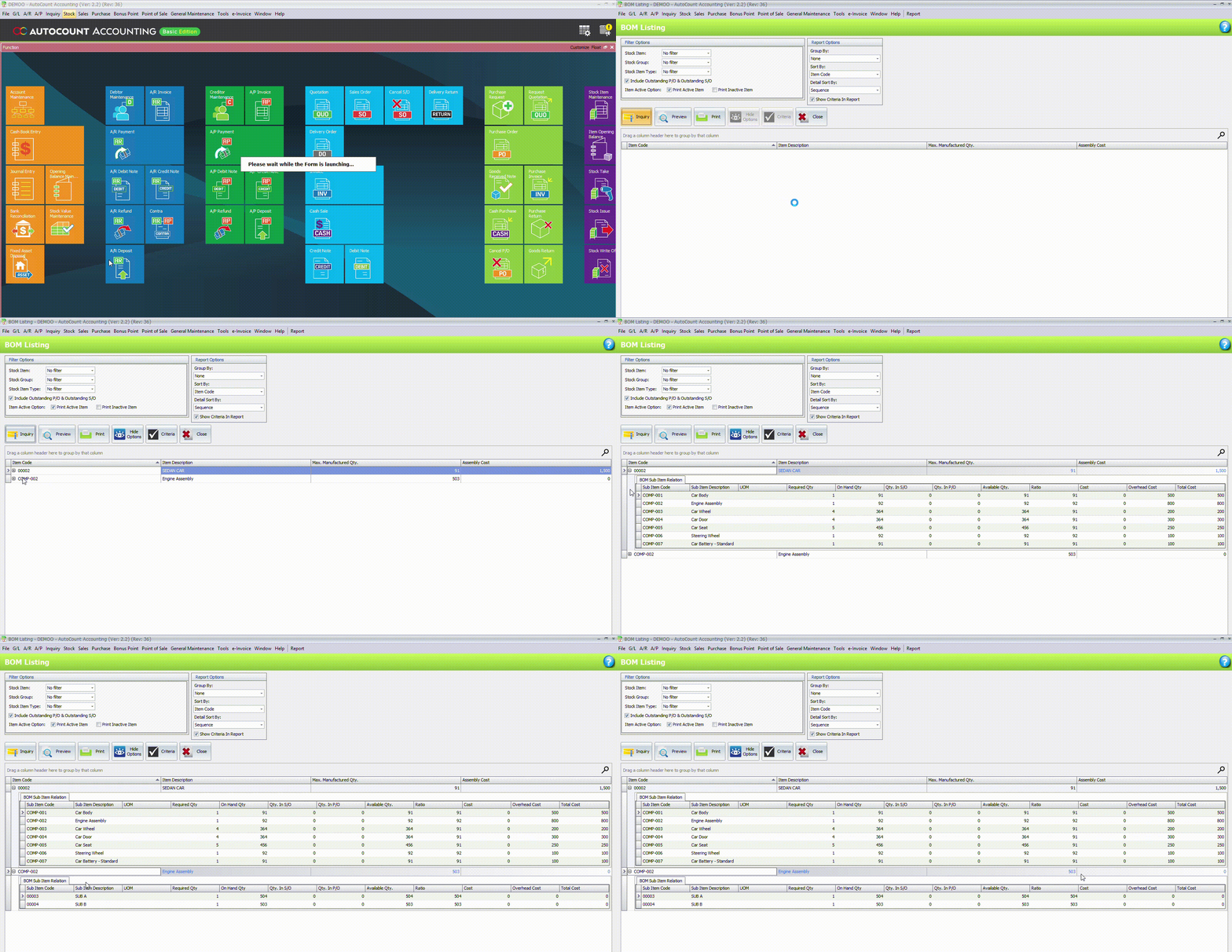
The report displays useful information, including:
- Max. Manufactured Qty. – The maximum number of finished goods that can be produced based on the current available stock of raw materials.
- Ratio – The maximum producible quantity for each material, calculated by dividing the Available Quantity by the Required Quantity.
What Is the BOM Material Usage Inquiry?
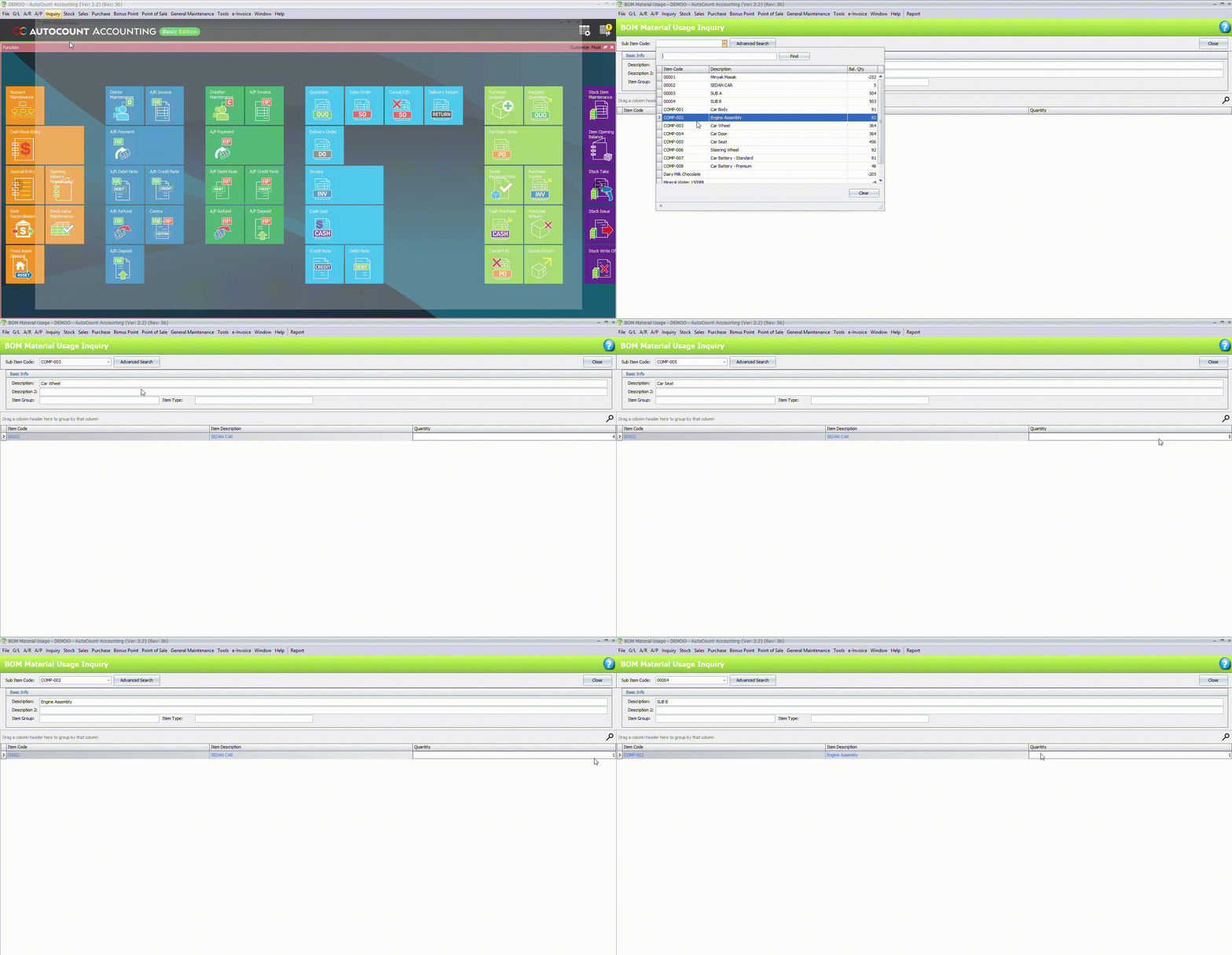
The BOM Material Usage Inquiry helps you identify where a raw material or component is used across different Bill of Materials (BOM). It shows which finished products use the selected material and the quantity required to produce one unit of each finished product.
- Go to Inquiry > BOM Material Usage Inquiry
- Select a material item code (Sub Item Code),
The selected material item code that have been used by any items will show as a list of results.
Quantity of that material item code needed to build will also show in the list of each item.
How to Check Material Availability?
The Check BOM Material Inquiry verifies whether sufficient raw materials are available to manufacture a specified quantity of finished goods. It compares required material quantities against current inventory levels, helping identify shortages before production begins.
- Go to Inquiry → Check BOM Material Inquiry.
- Click the “+” button to add a BOM Item Code (Finished Good).
- Enter the Qty To Be Manufactured.
- Repeat the steps if you want to check multiple finished products.
- Click Inquiry to generate the results.
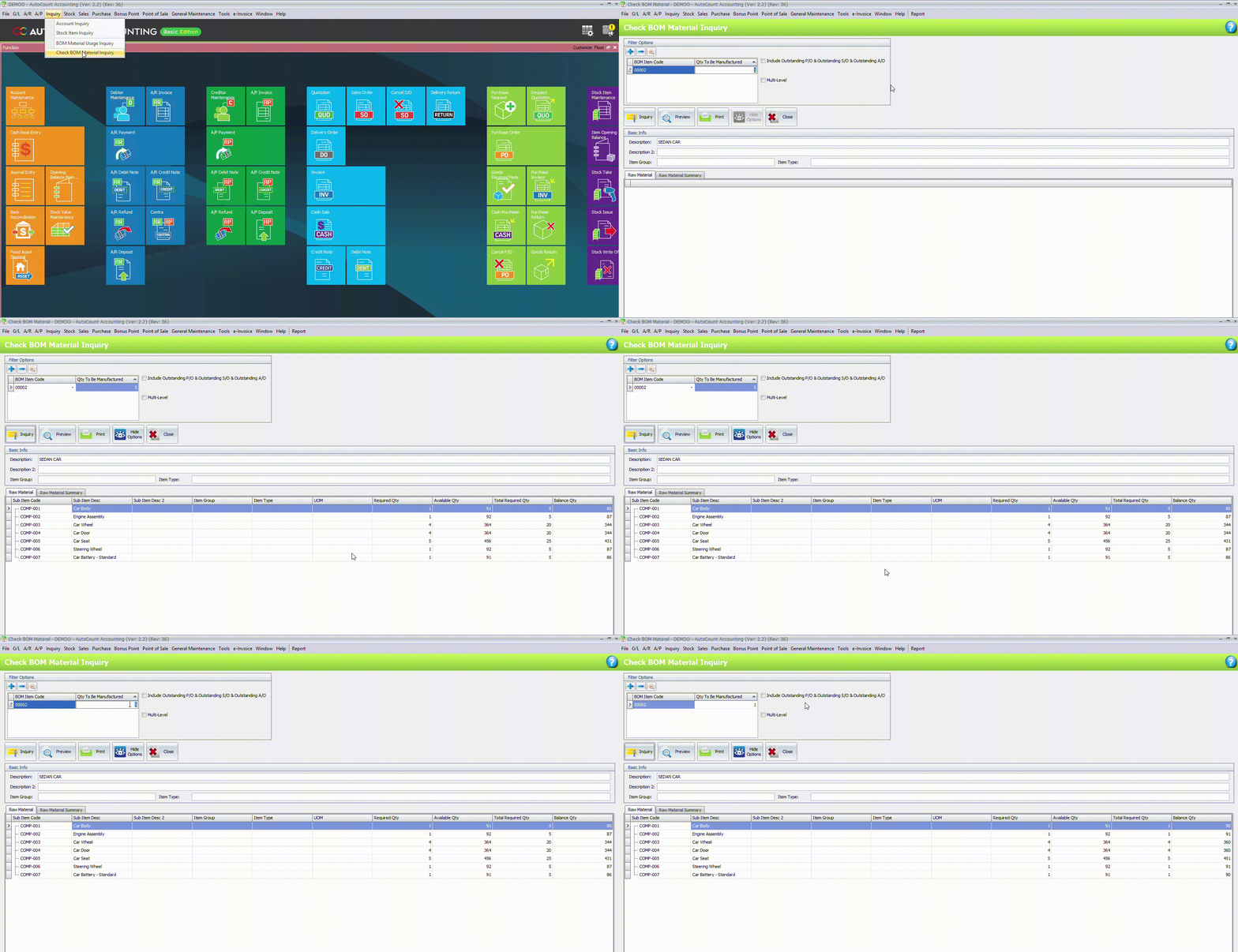
Note: A negative Balance Qty indicates that there is insufficient stock for the corresponding raw material.
Conclusion
AutoCount Stock Assembly provides a complete manufacturing workflow, from BOM setup to production execution and automated costing. Whether you operate a small workshop or a large manufacturing business, this module helps streamline production, improve inventory accuracy, and automate the entire assembly process.
If you’re looking to implement AutoCount Stock Assembly or need guidance on configuring it for your business, contact us today for a free consultation. Our experts are ready to help you choose the right setup and optimize your manufacturing workflow.