In this post, we’ll walk you through how to create a clock in/out system with FeedMe. If you’ve found your way here, you likely already know how to track attendance are for managing your business. Even better, FeedMe provides this powerful feature completely free for all our merchants. Let’s jump in and see just how easy it is to get started!
FeedMe Clock In
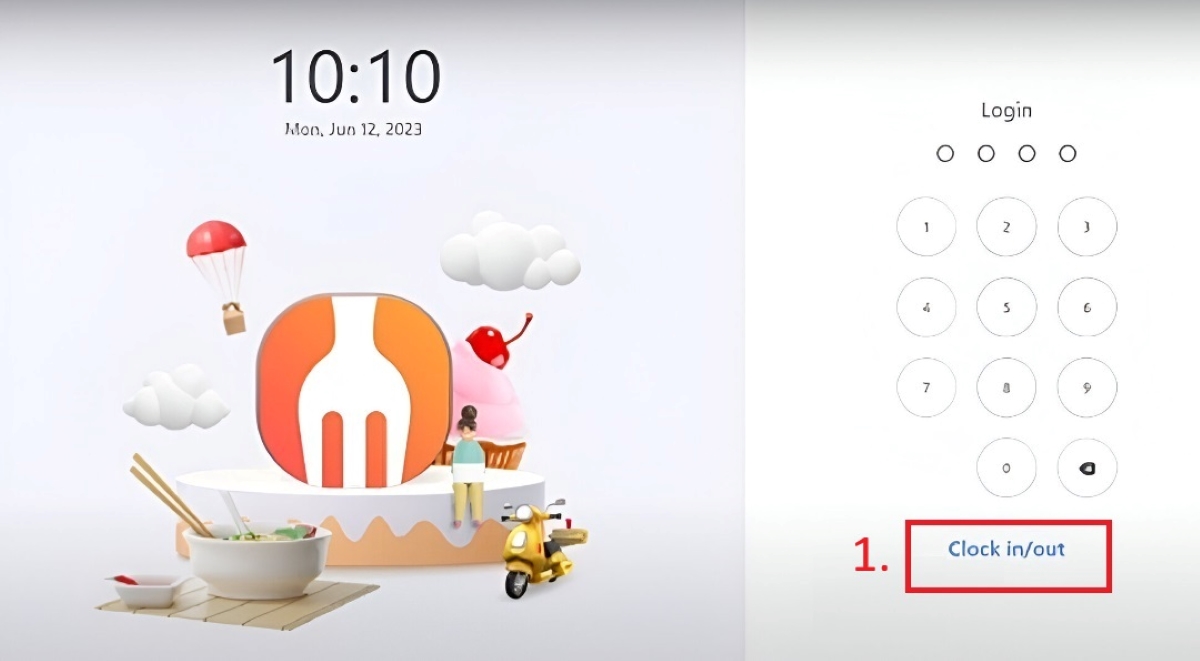
(1) First, you can find the clock in / out on the FeedMe pos before login, click the “Clock in / out”.
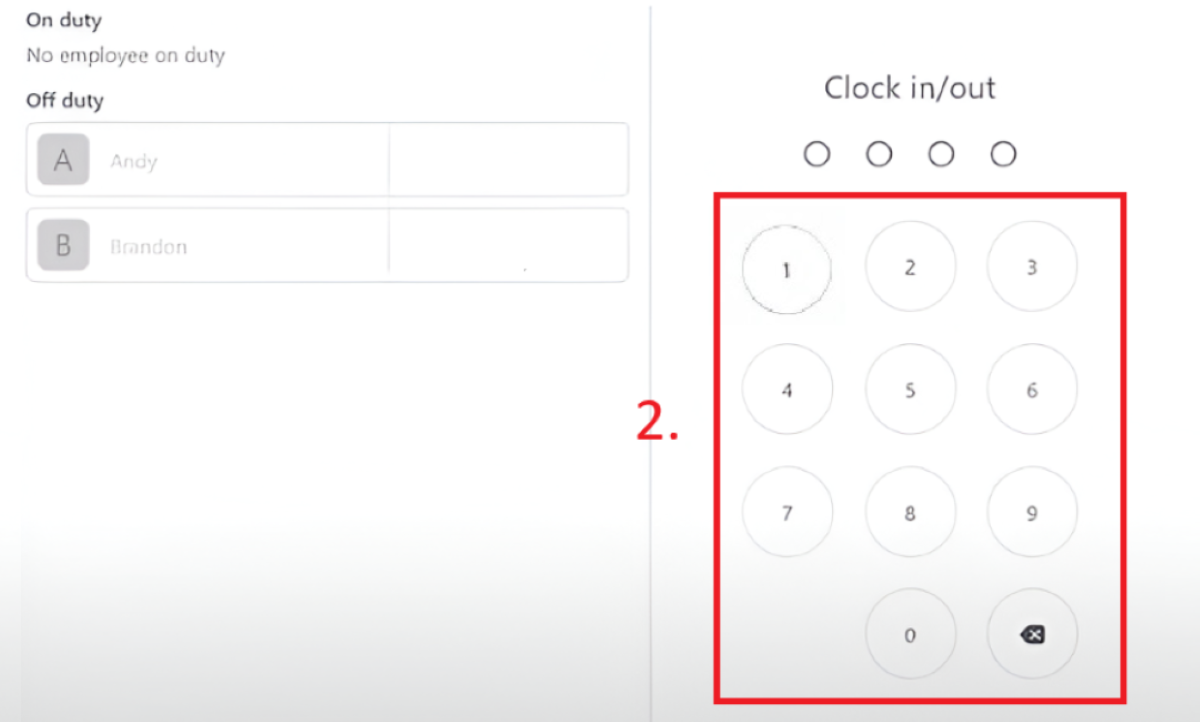
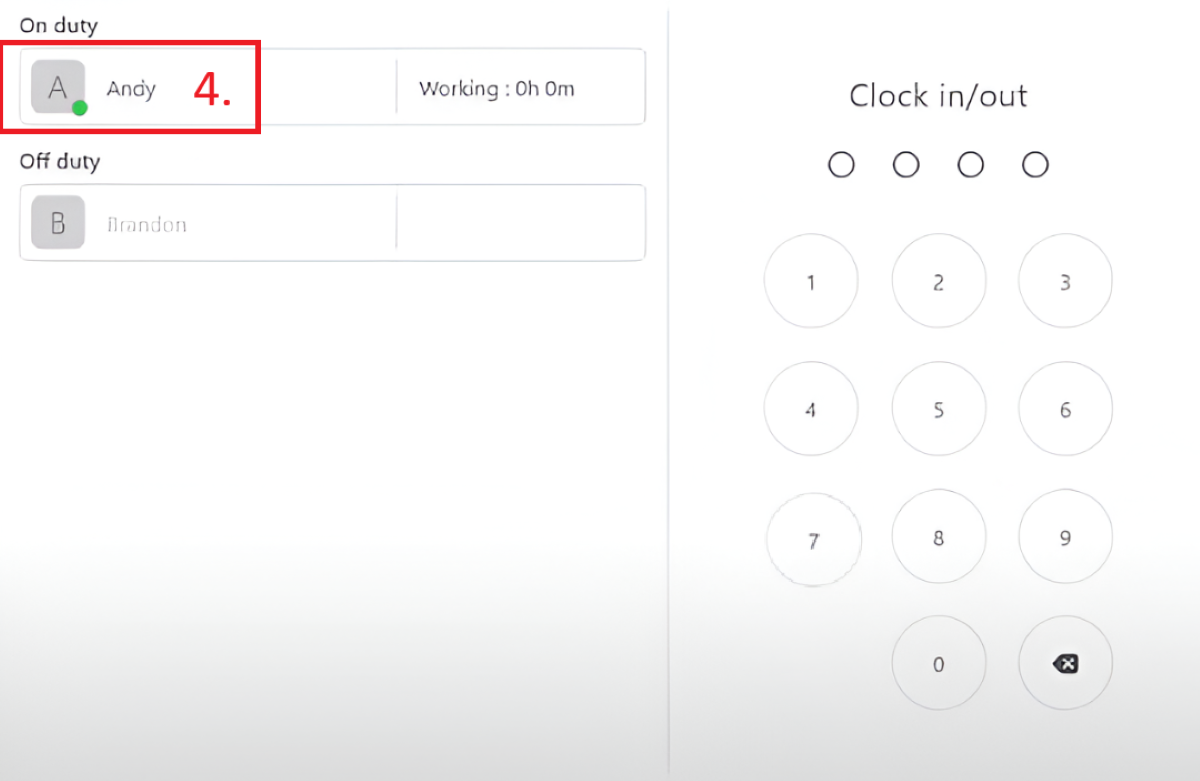
(2) Enter the passcode of the roles (e.g.: staff’s, manager’s). .
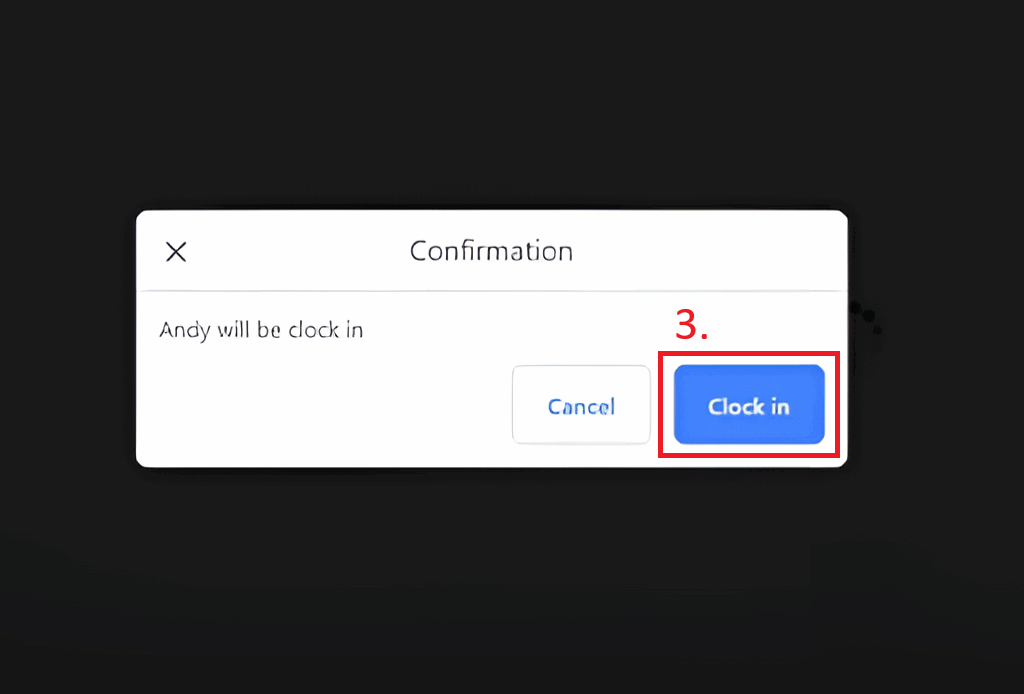
(3) The icon of that role will show out the green circle icon, which means already clock in.
FeedMe Clock Out
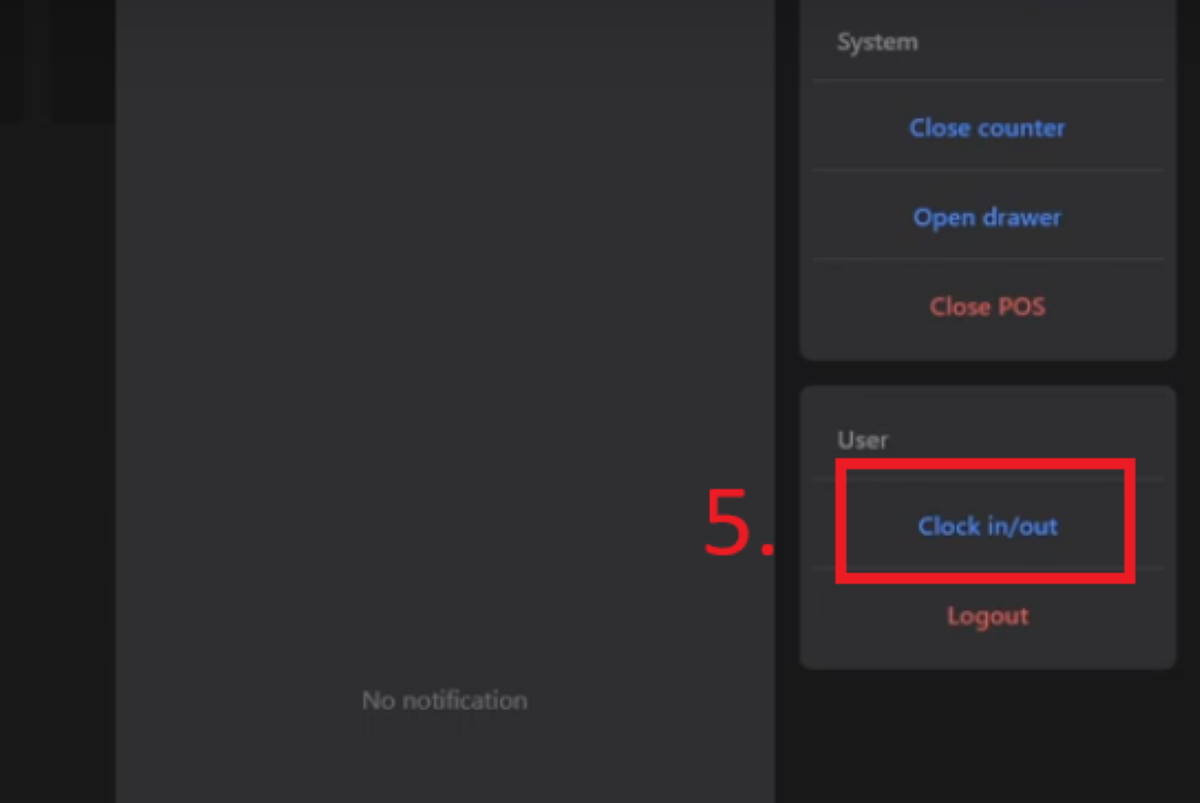
(1) For the clock out, click the Robot in the bottom-right, then will pop out a vertical bar like this:
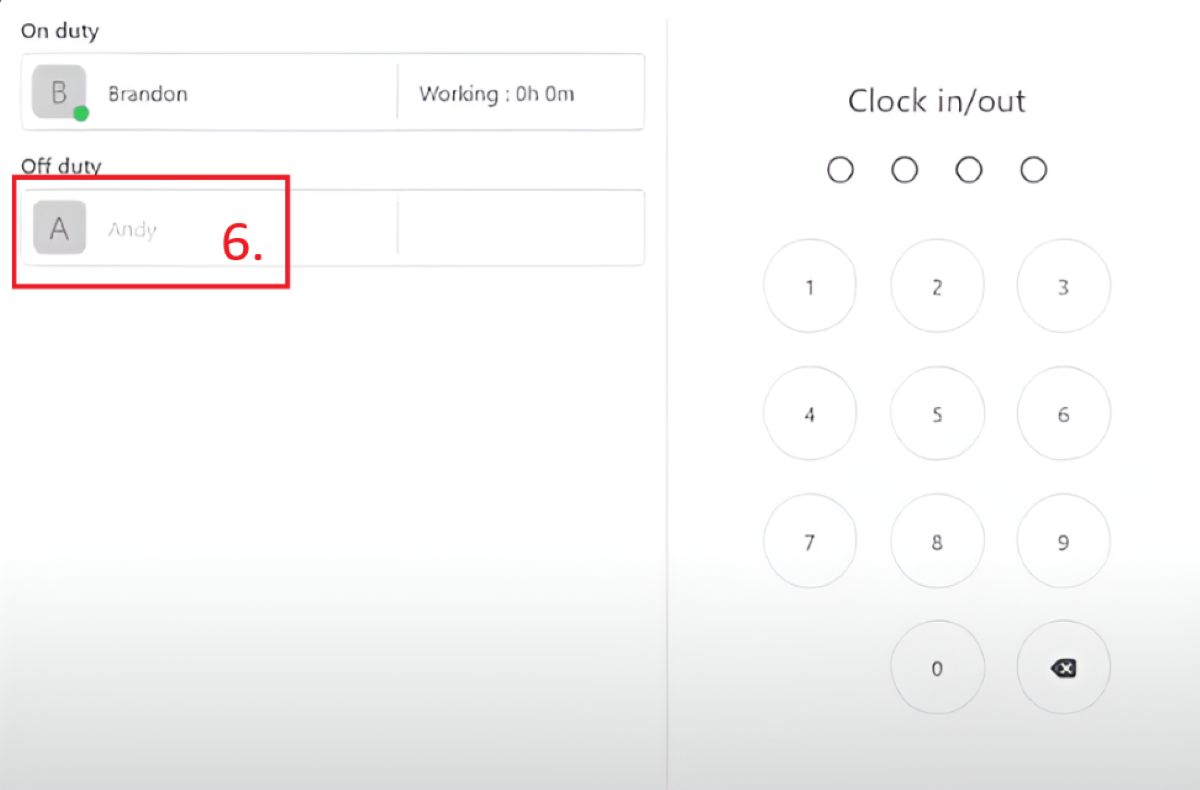
(2) Under the “Users” section, click the “Clock in/ out”. Enter the 4 digits passcode again for that role (e.g.: staff’s, manager’s), the green circle icon will dissapears.

Add a Comment
You must be logged in to post a comment