2026 Step by step Guide: Adding FeedMe as an Intermediary in MyInvois
If you’re a restaurant owner or merchant using FeedMe POS and you’re required to issue e-invoices (electronic invoices) compliant with Malaysian tax regulations, this guide walks you through the entire setup — from start to finish — in a way that’s simple and business-friendly.
This guide covers everything you need to know for a smooth e-invoice setup using FeedMe and the official MyInvois Portal.
What Is E-Invoicing?
E-invoicing is a digital way of issuing invoices that are submitted in real-time to Malaysia’s tax authority (LHDN) through the MyInvois Portal. It replaces manual invoices and helps your business stay compliant.
1) Add FeedMe as an Intermediary in MyInvois Portal
To allow FeedMe to submit e-invoices on your behalf, you must assign it as an intermediary inside the MyInvois Portal.
📌 Why This Matters
Without intermediary permission, FeedMe cannot send your invoice data to LHDN — meaning you won’t comply with mandatory e-invoice submission.
🔹 How to Do It
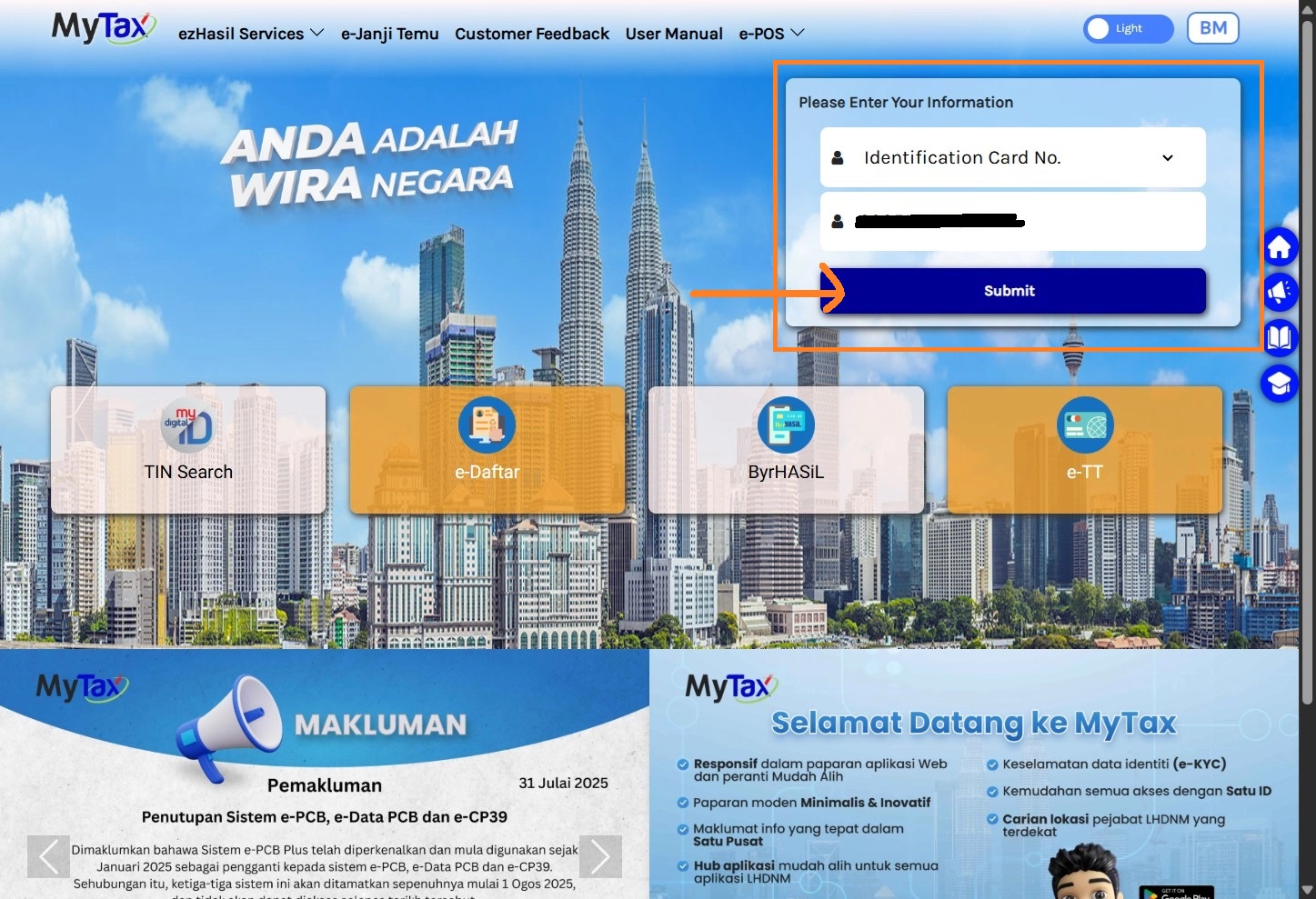
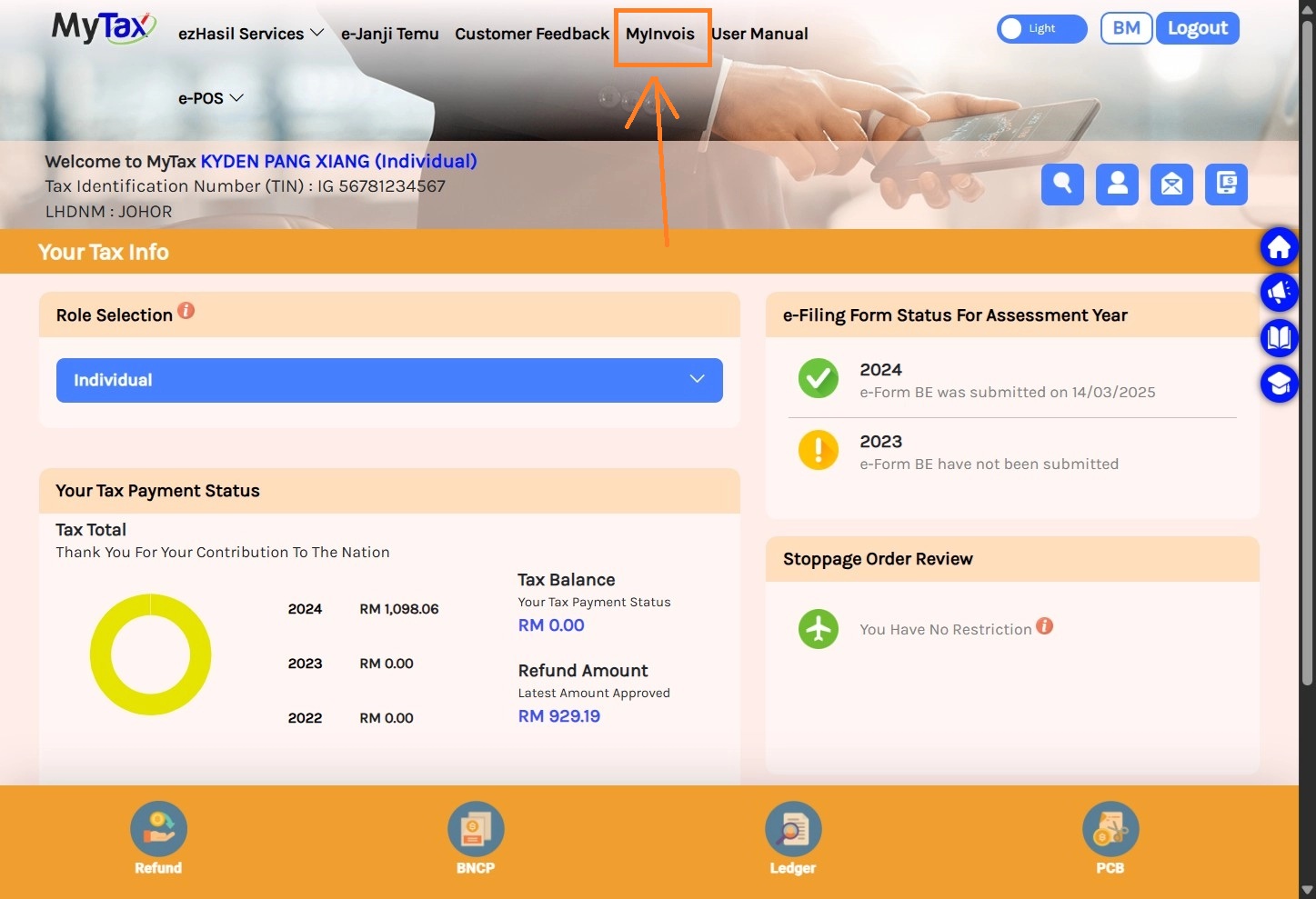
1. Type in your ID and log into the MyInvois Portal with your taxpayer credentials.
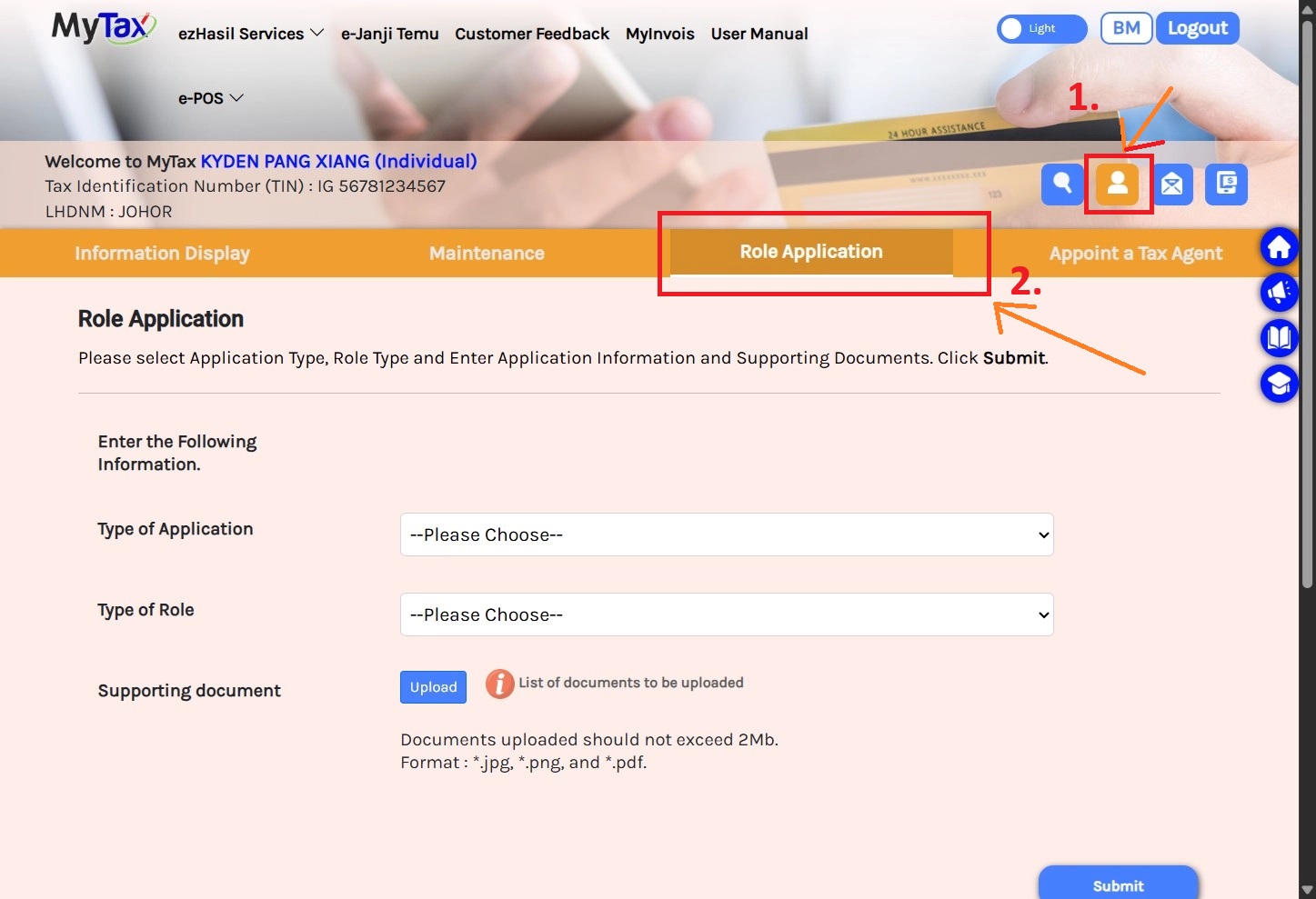
2. Go to Taxpayer Profile> Role Application
3. Scroll down and find yourself in your company’s list
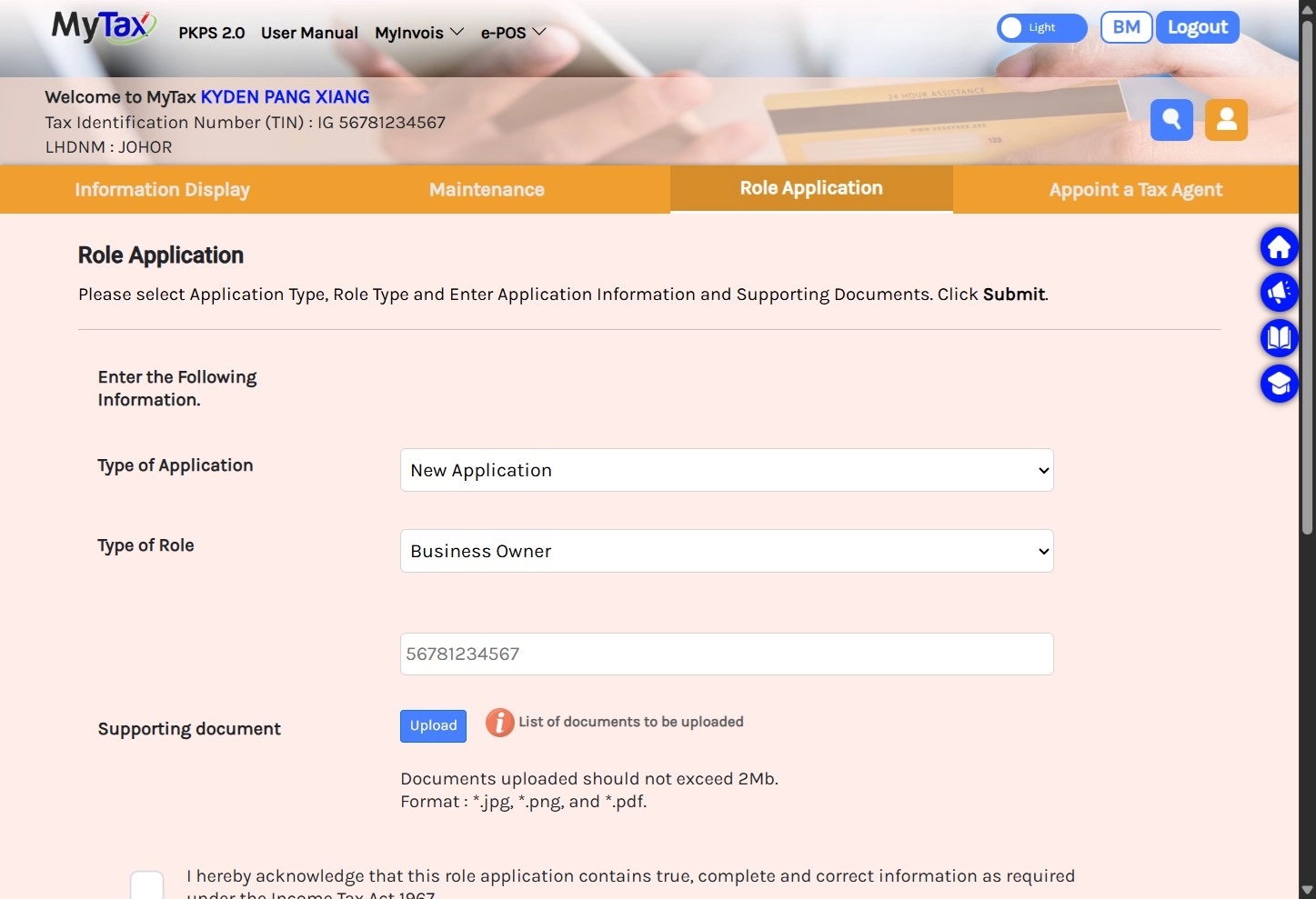
selectNew Application & Type of Roleto register yourself in your company’s list if you have not registered before
Note: Please allow 3–5 working days for approval from the MyTax Portal. Once approved, you may proceed with the next step.
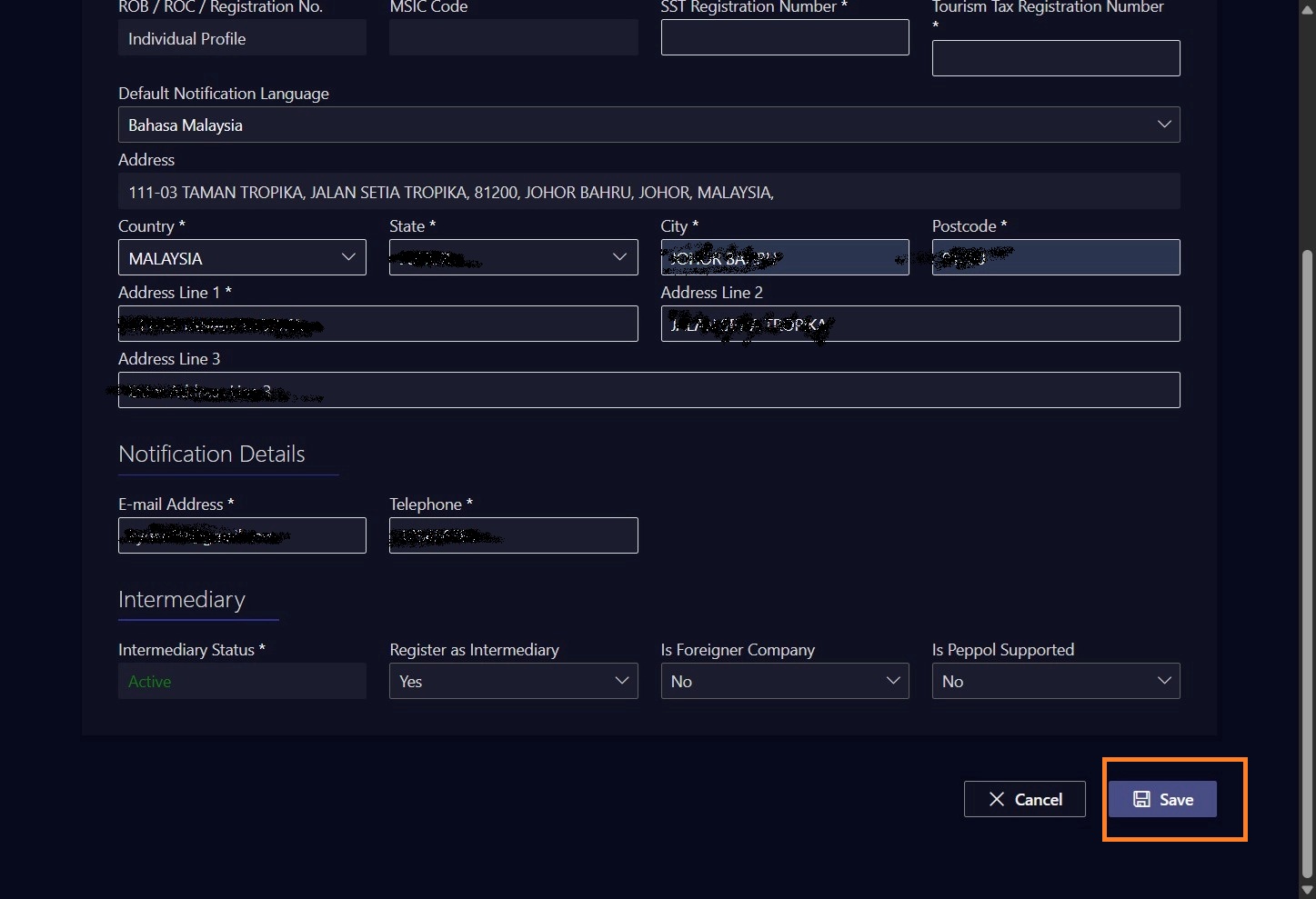
4. Find MyInvois > Continue, and check all information is accurate and complete, then “Save” > Finish Setup.
( Jump to 5. if your MyInvois Portal registered)
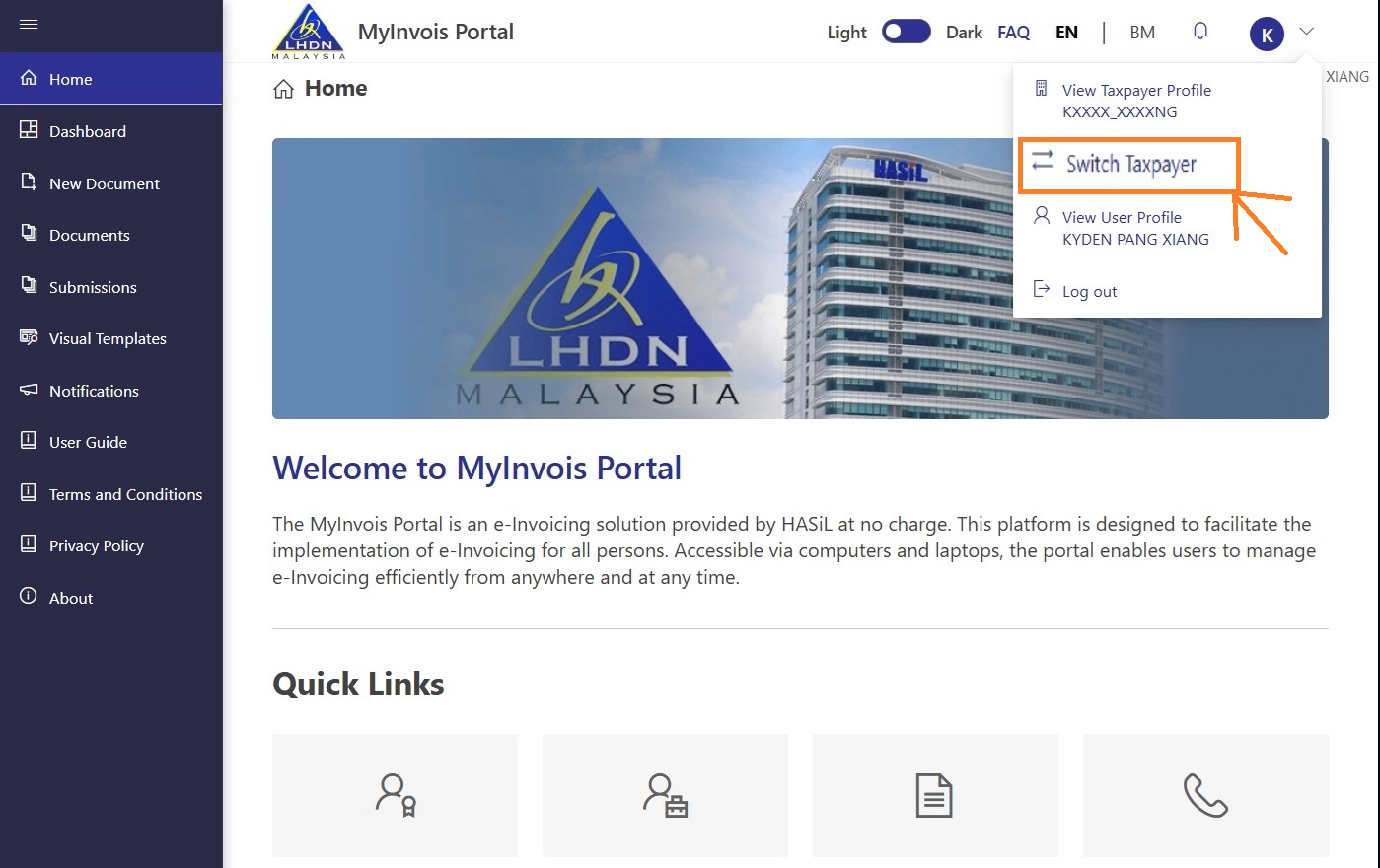
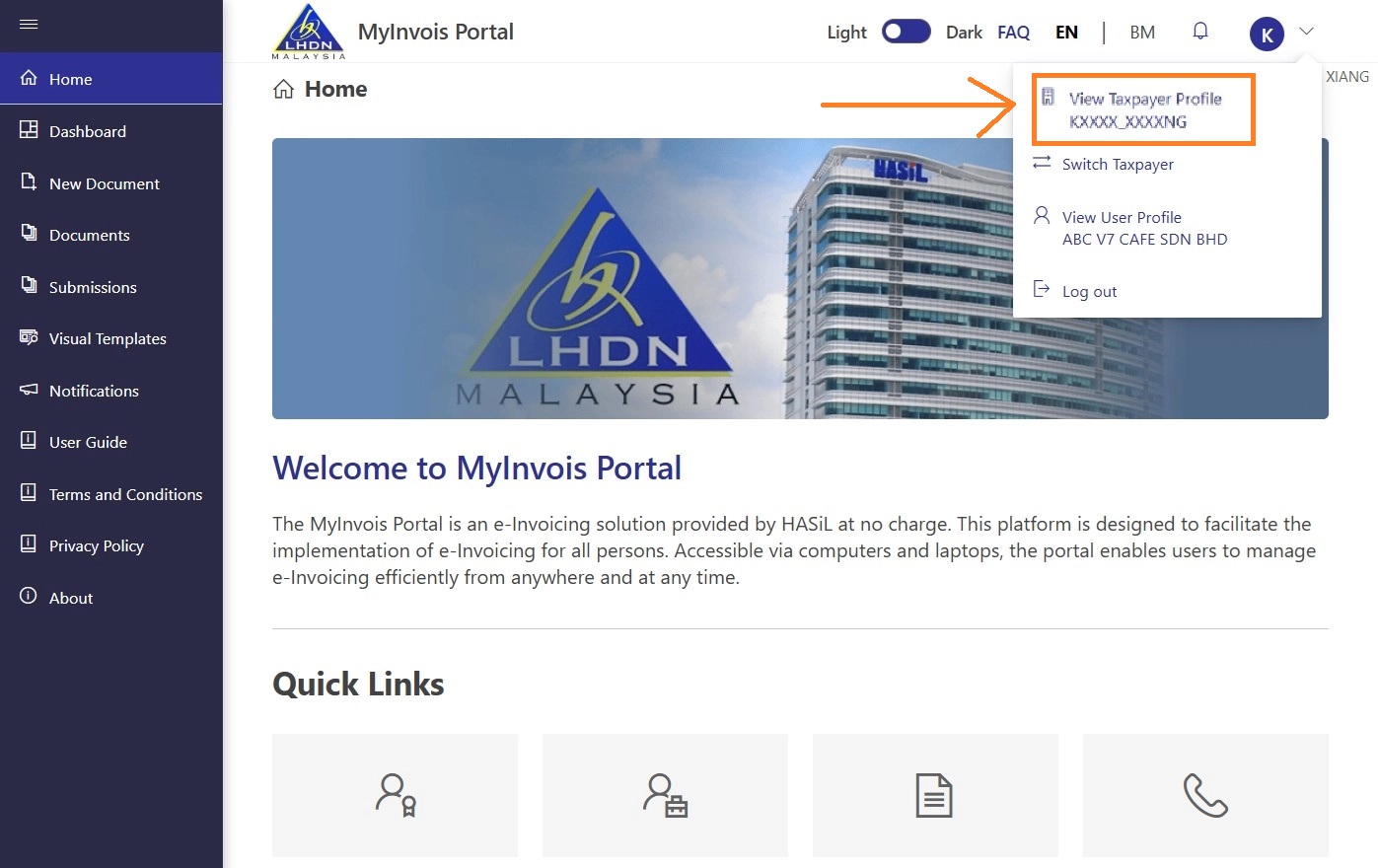
5. Go to MyInvois Portal > switch taxpayer
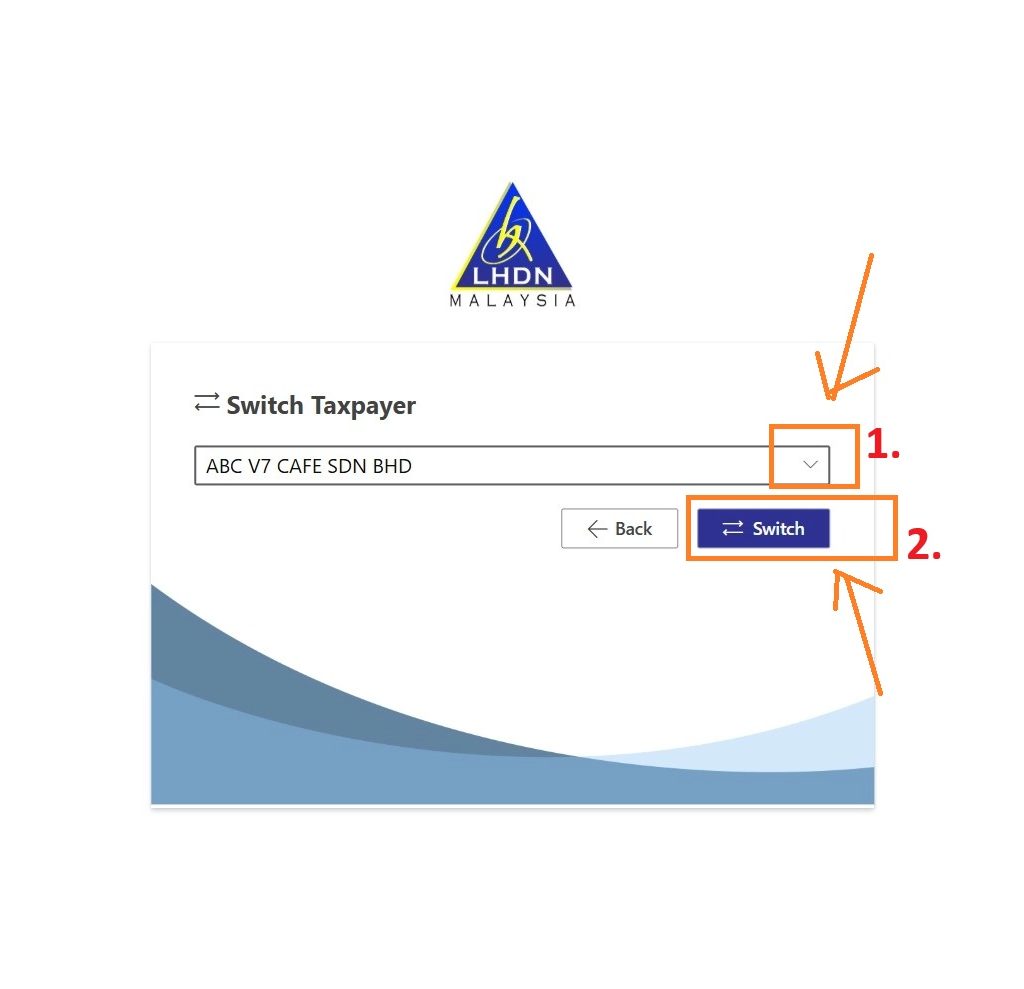
6. Dropdown to find your company name, and “Switch”
can’t find your company name? check back your status here
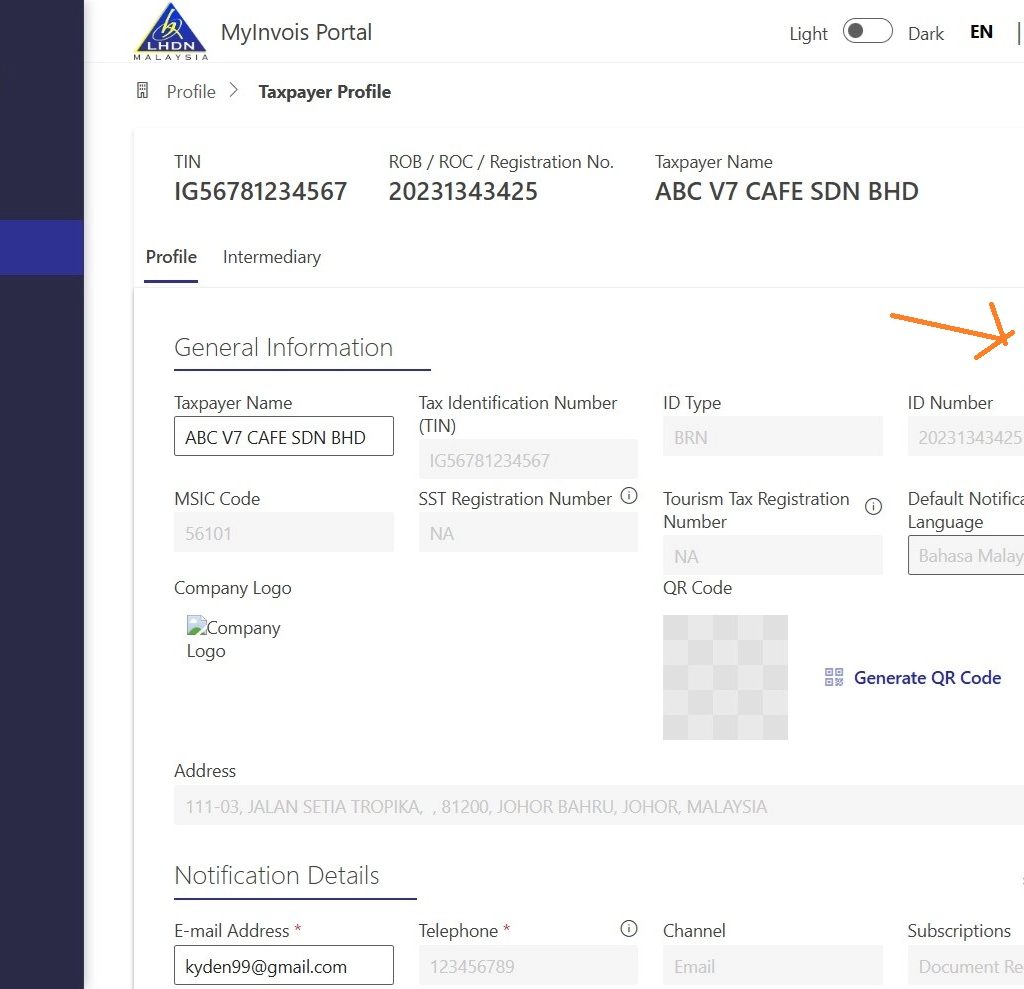
7.Find View Taxpayer YOUR COMPANY
8. Click “Edit” to Update Taxpayer Profile
SST Registration Number — Put “NA” if not yet registered for SST
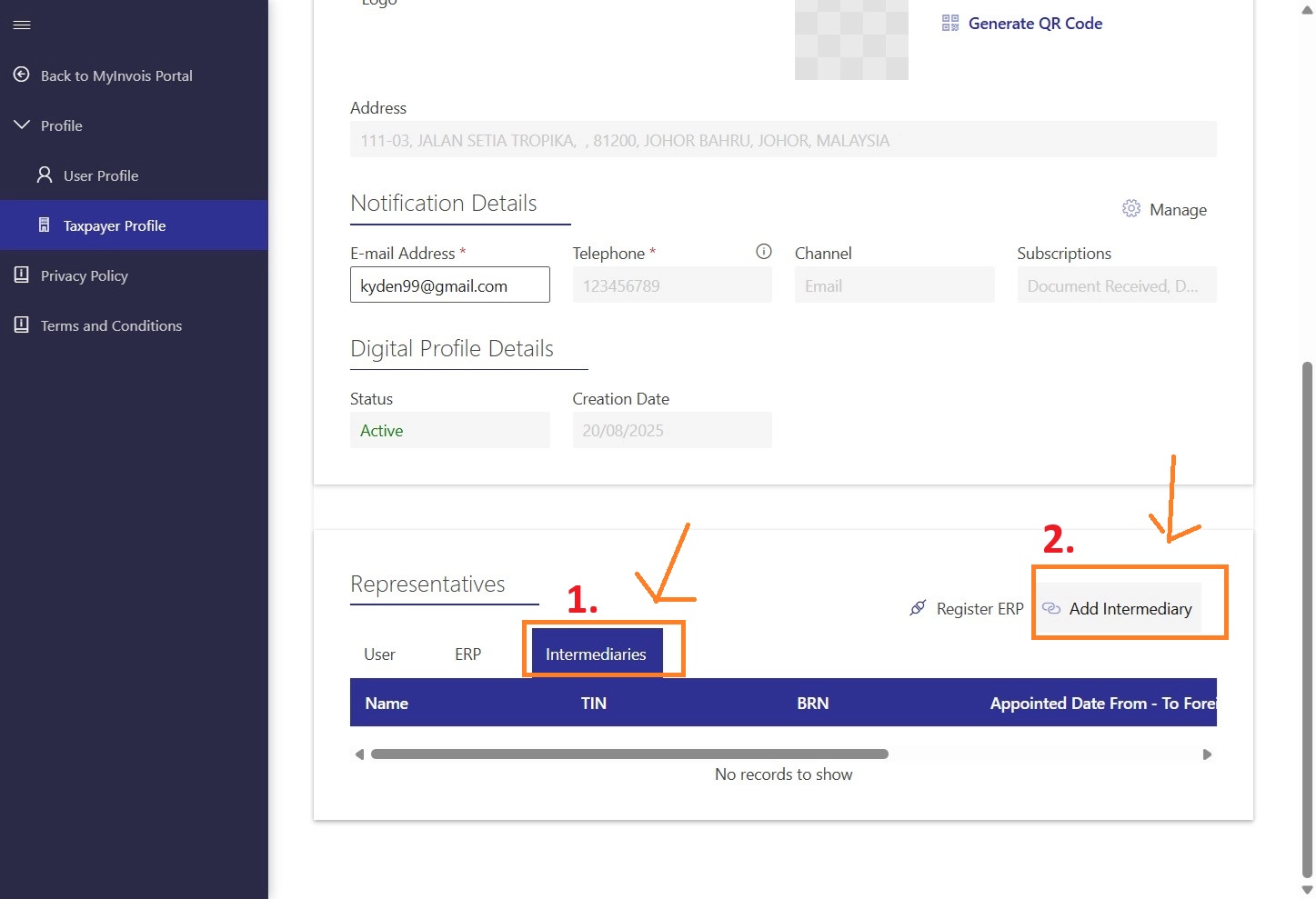
9. Click and Add Intemediary
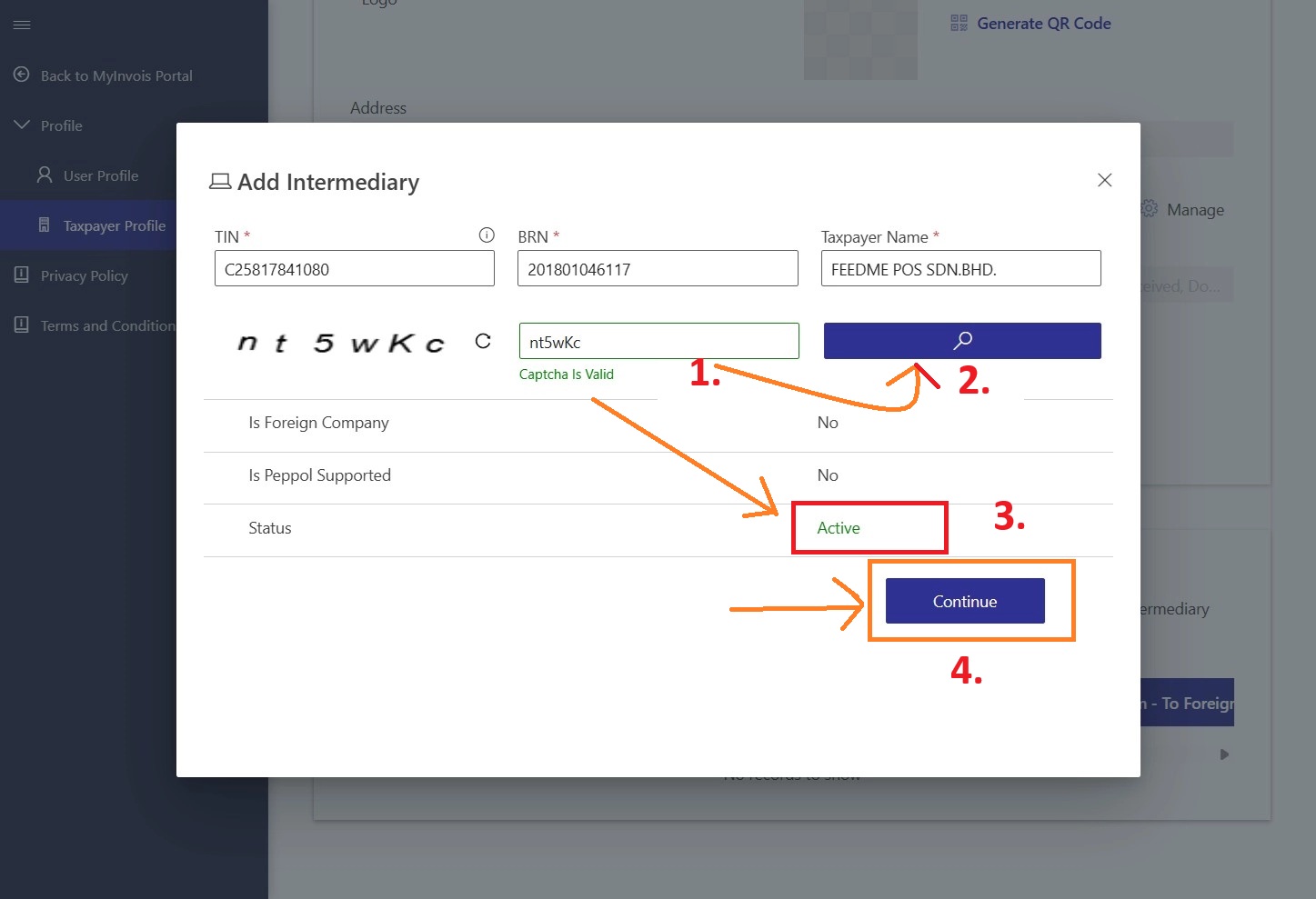
Add FeedMe as the intermediary for your company
TIN: C25817841080
BRN: 201801046117
Taxpayer Name: FEEDME POS SDN.BHD.
Note: no space and with dot for SDN.BHD.
10. Key in Captcha and Search, FeedMe has been successfully identified, if the status shows “Active”. Then “Continue”.
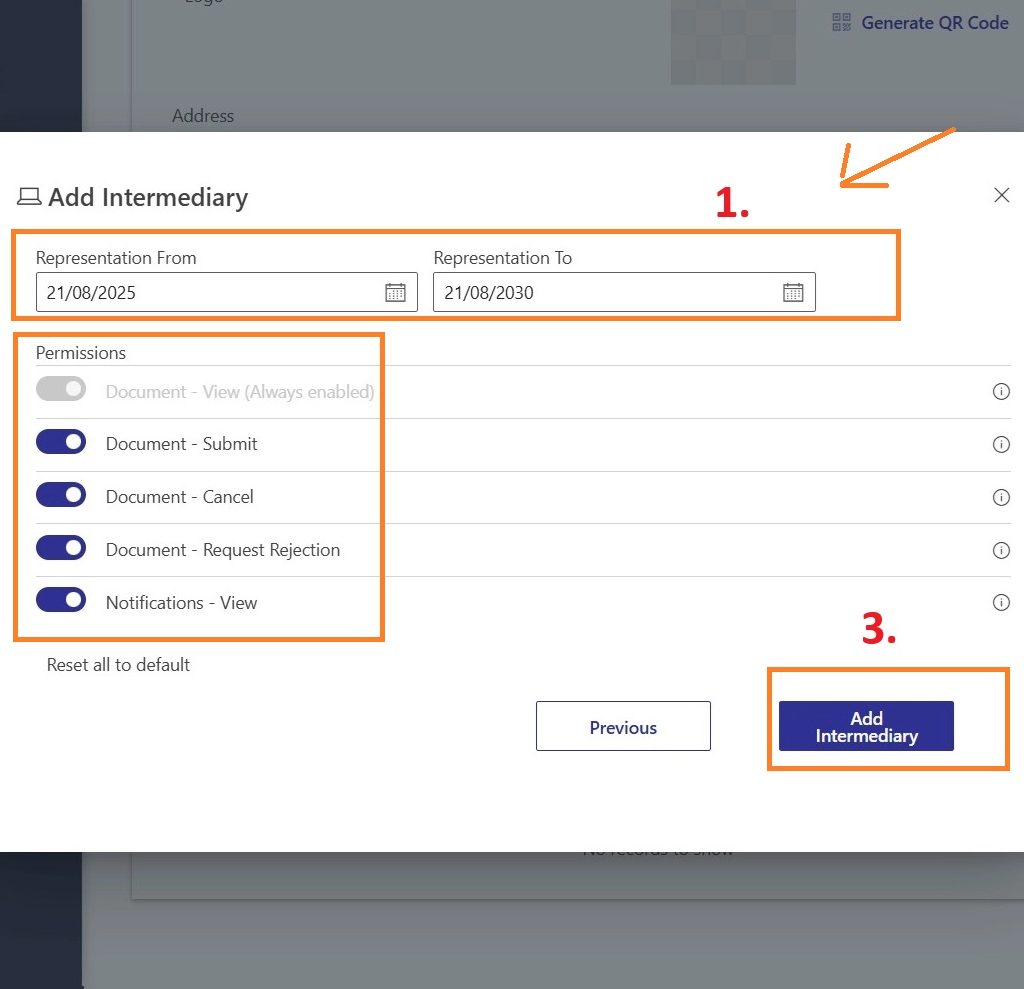
11. Enter the Date Range ( starting from Today and extending 5 Years into the future), on all Permissions, and Add Intermediary.
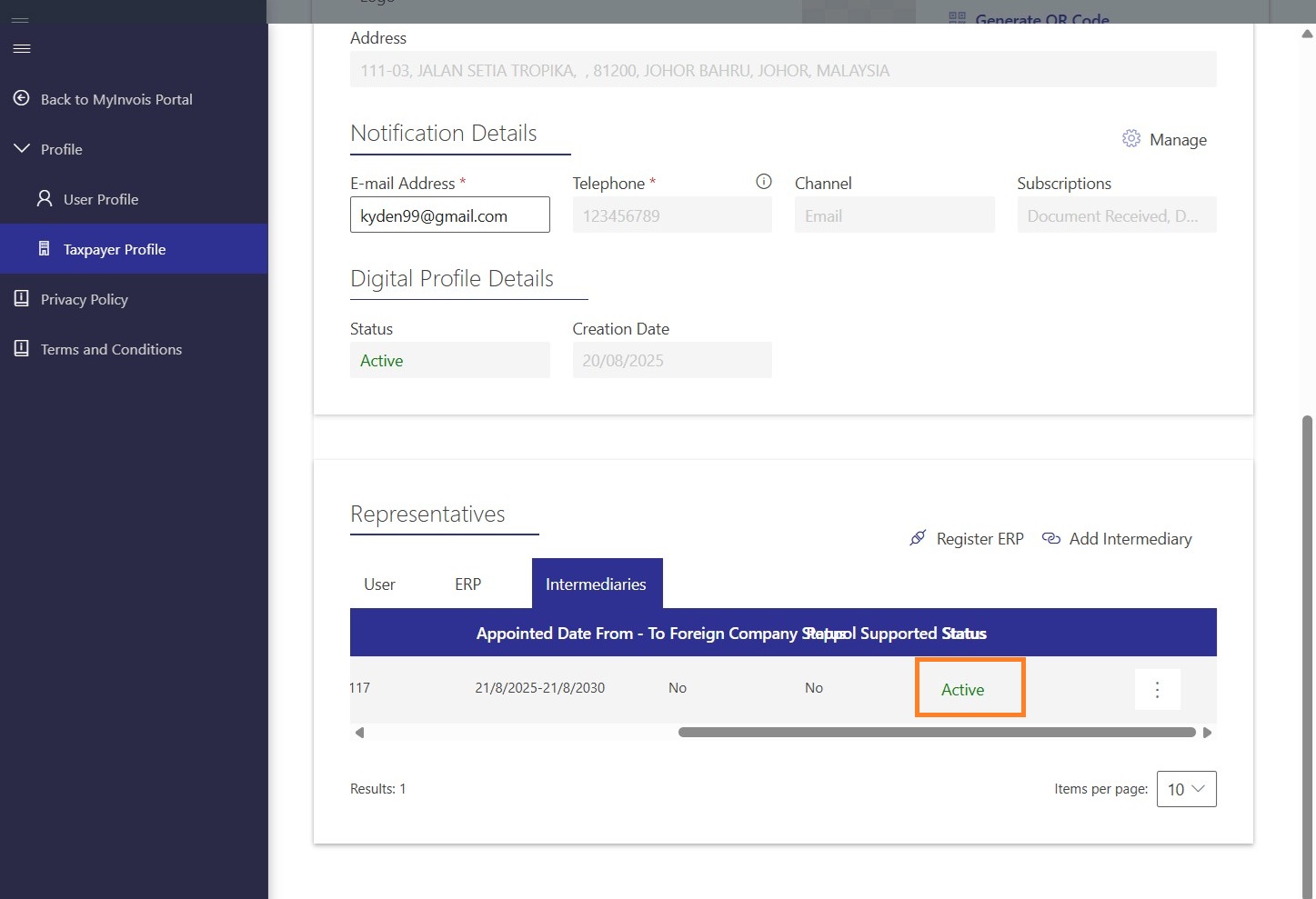
12. After status showing “Active”, then means that you have successfully added FeedMe as the intermediary for your company.
2) Setup E-Invoice Profile In FeedMe Portal
This step has already been explained in detail in our previous guide. Please refer to Step-by-Step Guide to Activate FeedMe E-Invoice 2025 for full instructions on setting up your e-invoice profile in the FeedMe Portal.
3) Understand the Types of E-Invoice Submissions
FeedMe supports two key e-invoice types:
🟢 Individual E-Invoice
Includes both supplier and customer details.
Used for invoices where the customer wants to claim tax.
Must be claimed by the end of the month or it won’t be accepted.
🟡 Consolidated E-Invoice
Includes only the supplier info.
FeedMe automatically submits consolidated invoices within 7 days after month-end.
FeedMe retries failed submissions and sends email reminders until submission is successful.
4) Cancel, Void & Resubmit (If Needed)
If you discover mistakes after submitting an e-invoice, here’s how to handle them:
🔹 Within 72 Hours
You can cancel or void an e-invoice directly in MyInvois.
If the customer requested an individual e-invoice, they cancel the claim in MyInvois first.
Merchant then approves and the customer can resubmit.
🔹 After 72 Hours
Cancellation must be done via:
Credit note OR
Debit note
These actions adjust the invoice after validation.
5) How E-Invoice Submission Works (Behind the Scenes)
Once everything is set up:
🔹 FeedMe generates invoices as sales happen. 🔹 FeedMe submits consolidated invoices to MyInvois every month (usually starting on the 2nd day of the following month). 🔹 If submission fails, FeedMe keeps retrying and sends notices to your registered email.
✔️ This means you don’t need manual uploads — FeedMe handles the backend work for you.
📥 How to Check & Download Submission Records
You can view submission history in:
📌 FeedMe Portal 📌 MyInvois Portal
In MyInvois, look for submissions made via FeedMe (Intermediary TIN: C25817841080) to review your records.

Add a Comment
You must be logged in to post a comment