3 Steps to Organise Restaurant Orders Using FeedMe POS
If your restaurant or café in Sabah is using the FeedMe POS system, resetting the order number is a simple process that helps keep daily operations organized.
This guide explains how to reset order numbers in FeedMe POS quickly and correctly.
Why Reset Order Numbers?
Many F&B businesses in Sabah, including restaurants in Kota Kinabalu, cafés in Sandakan, and eateries in Tawau. Reset order numbers daily to:
Start fresh each business day
Reduce cashier confusion
Organize dine-in and takeaway orders
Keep receipts cleaner and easier to track
Improve POS workflow during busy hours
Step-by-Step: Reset Order Number in FeedMe POS
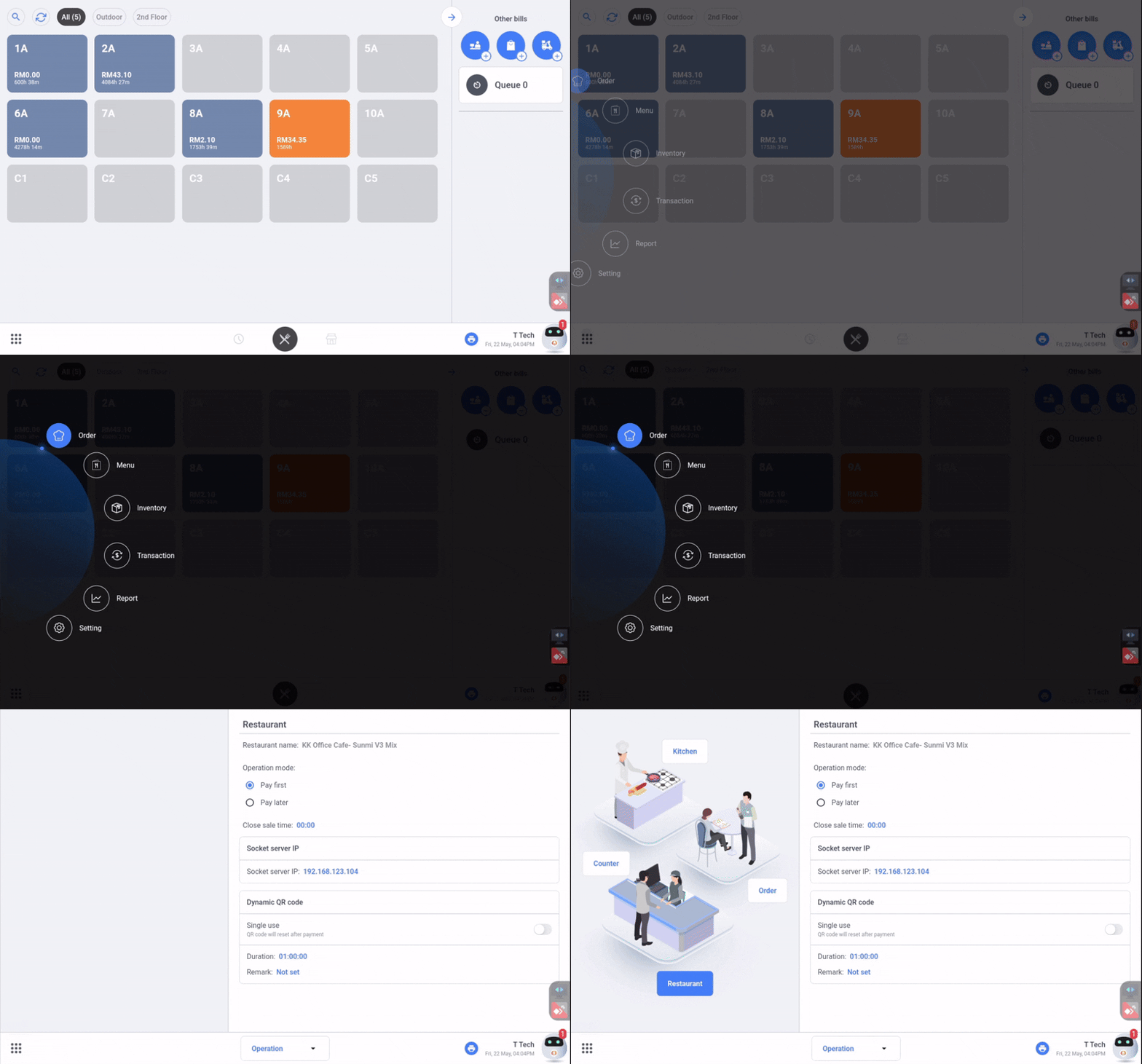
Step 1 — Open Settings
Open your FeedMe POS system and navigate to Settings
This is where the order configuration is managed.
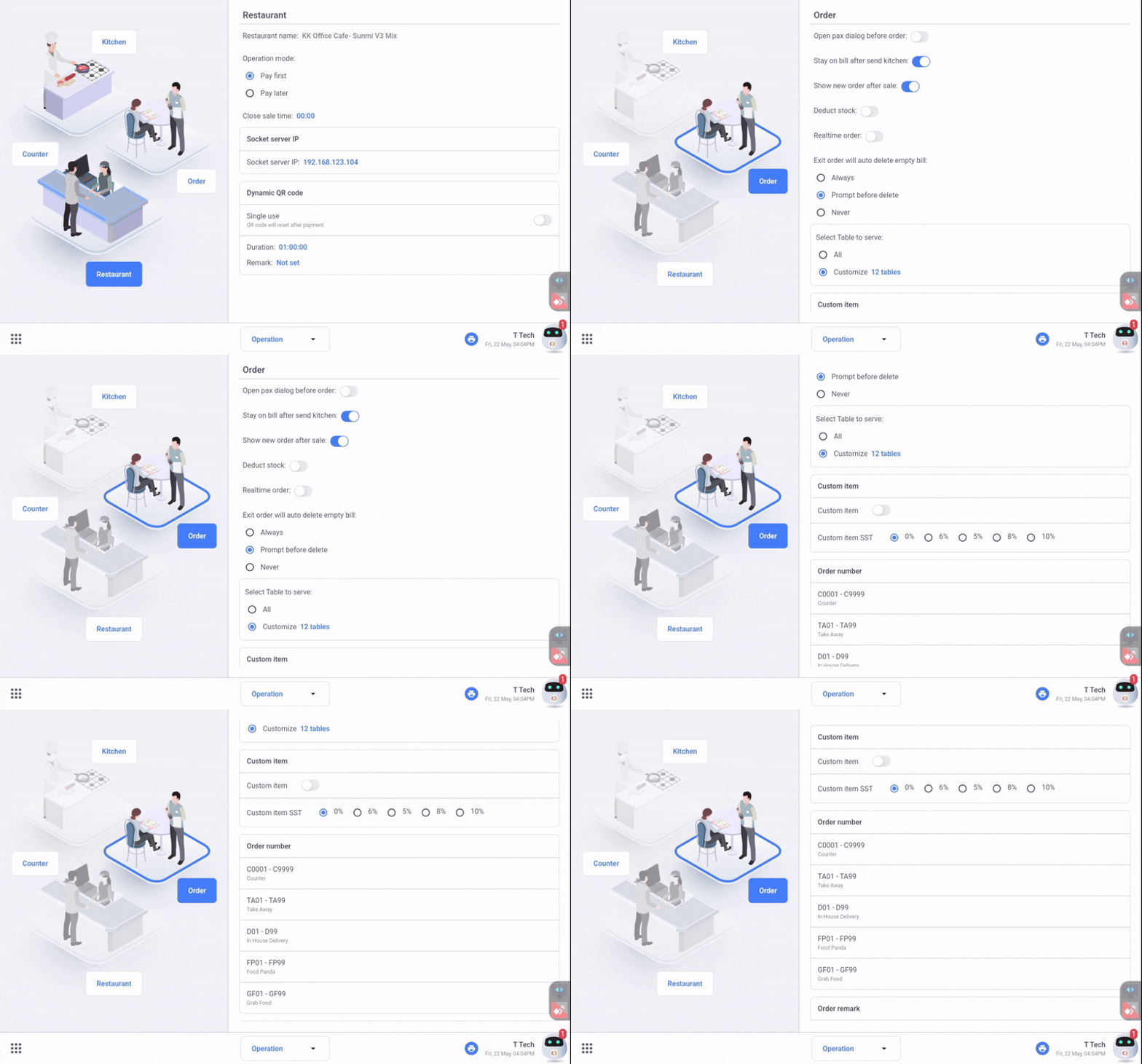
Step 2 — Select Order and Scroll to Order Number Section
Inside the settings menu, press Order. You will now see the order-related settings.
Scroll down until you find Order Number. This section controls the numbering sequence for your POS orders.
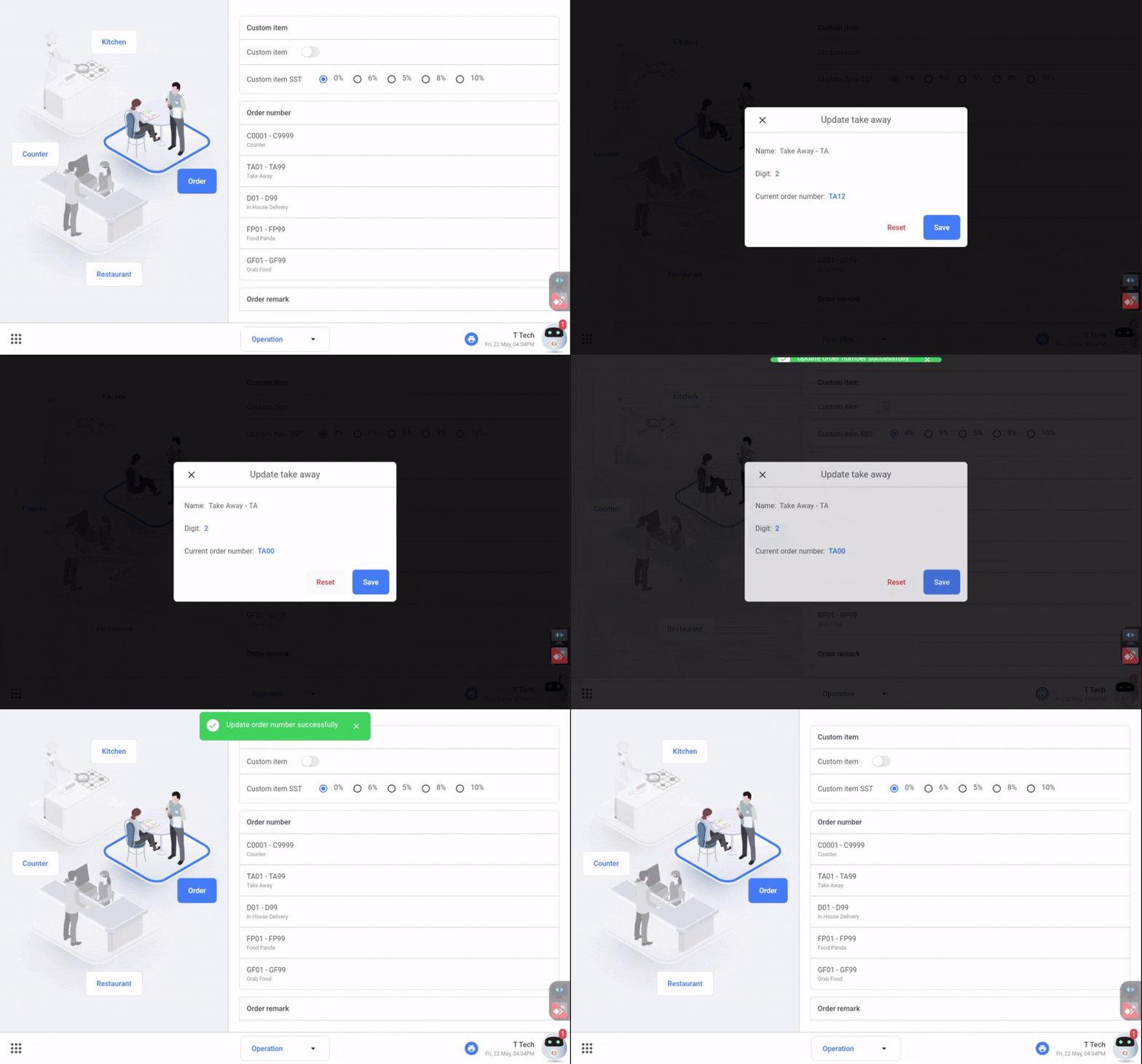
Step 3 — Choose the Table Number
Choose the specific table number you need to reset, tap Reset, and click Save.
Need help setting up your restaurant POS system in Sabah? Contact us today for FeedMe POS support, training, and setup services in Kota Kinabalu, Sandakan, Tawau, Keningau, and across Sabah.