2026 Step by Step Check & Download E-Invoice Submission Records from FeedMe Portal
With Malaysia’s e-Invoicing system becoming mandatory, businesses using FeedMe need to regularly track, verify, and download their submission records for compliance with LHDN (IRBM).
This guide will walk you through simple, step-by-step instructions to check and download your e-Invoice records from the FeedMe Portal, even if you’re new.
Why You Need to Check E-Invoice Submission Records
Before jumping into the steps, here’s why it matters:
✅ Ensure your invoices are successfully submitted
✅ Detect errors (invalid or rejected invoices)
✅ Keep proper records for tax compliance
✅ Download copies for audit or reporting
Where to Check E-Invoice Records
You can check your submission records in two main platforms:
1. FeedMe Portal (primary system for users)
2. MyInvois Portal (LHDN) – for official validation records
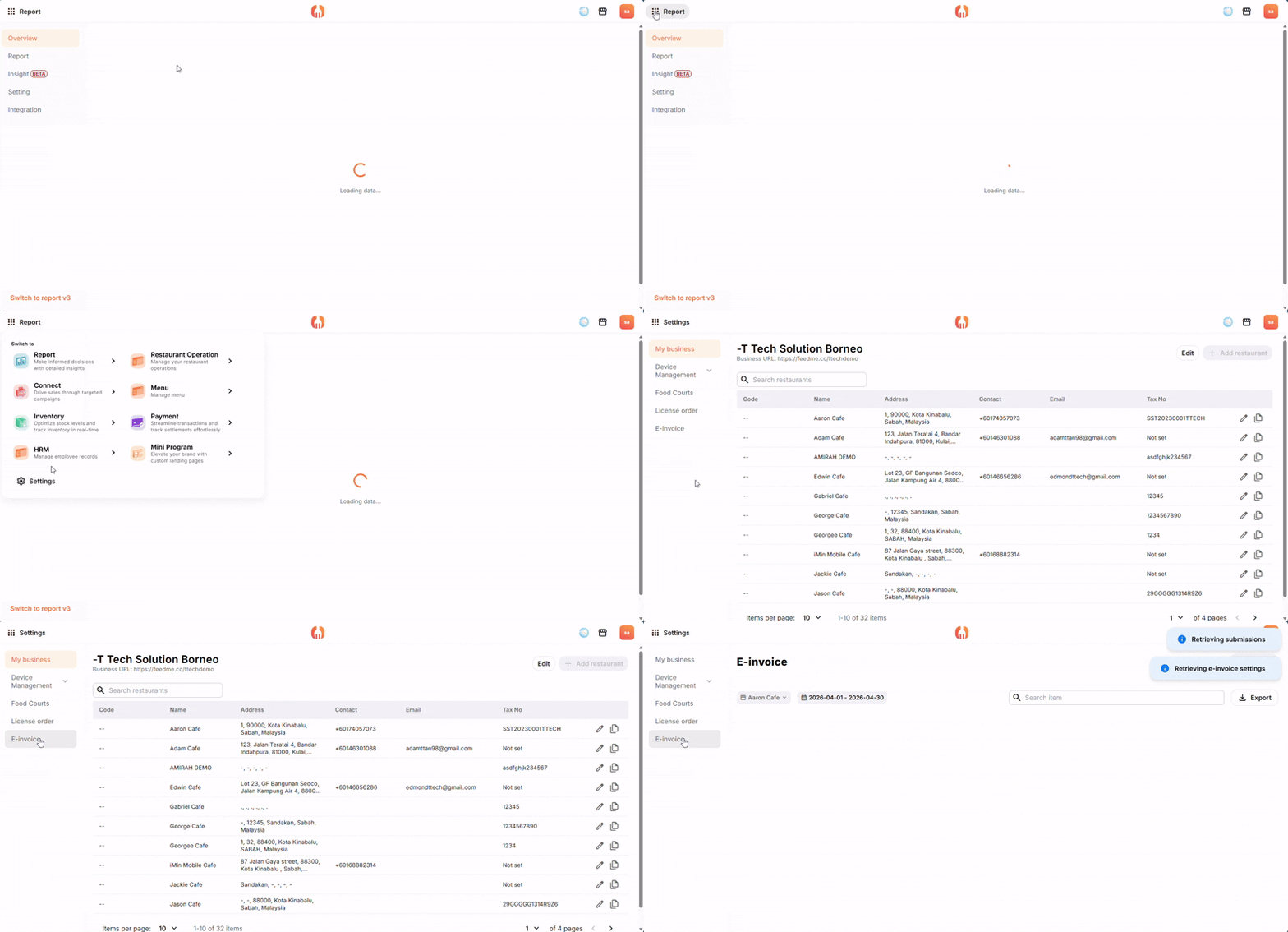
Step-by-Step: Check E-Invoice Submission Records in FeedMe Portal
First Submission Status The refund note may initially show as invalid because LHDN must validate the original bill first. FeedMe submits both the bill and refund note together, so the refund note may be rejected at first.
FeedMe will automatically re‑submit the refund note at 1:00 AM the following day. Once the bill is auto‑resubmitted the following day and marked as validated, the refund note will be accepted and marked valid.
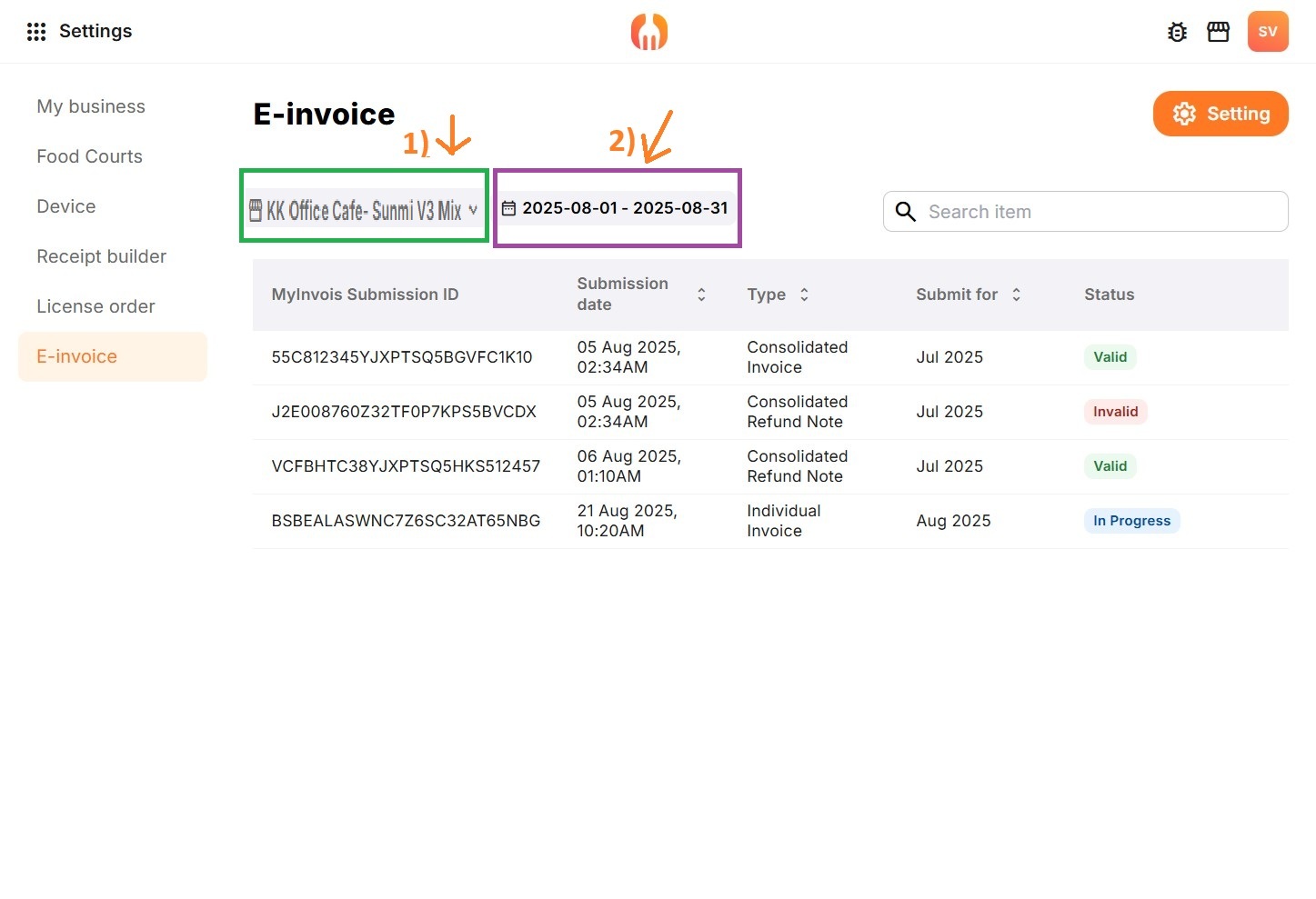
Step 3: Filter Your Records
To find specific invoices:
Select 1)Restaurant and 2)Date Range
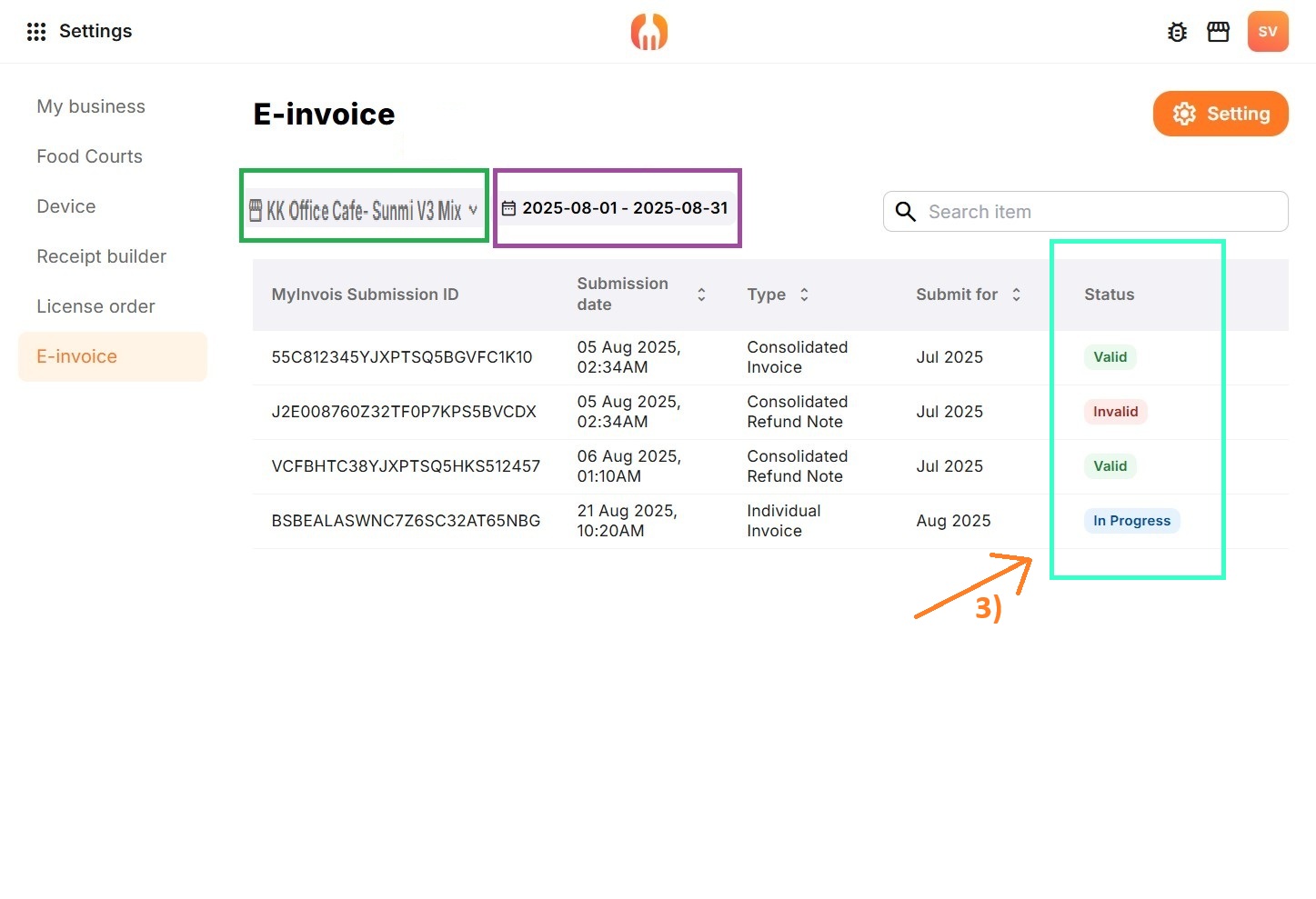
Step 4: Check Submission Status
3) Each invoice will have a status such as:
Submitted – Sent to LHDN
Validated – Approved successfully
Invalid / Rejected – Contains errors
💡 If invalid, errors will be shown so you can fix and resubmit.
Step 5: View Detailed Record
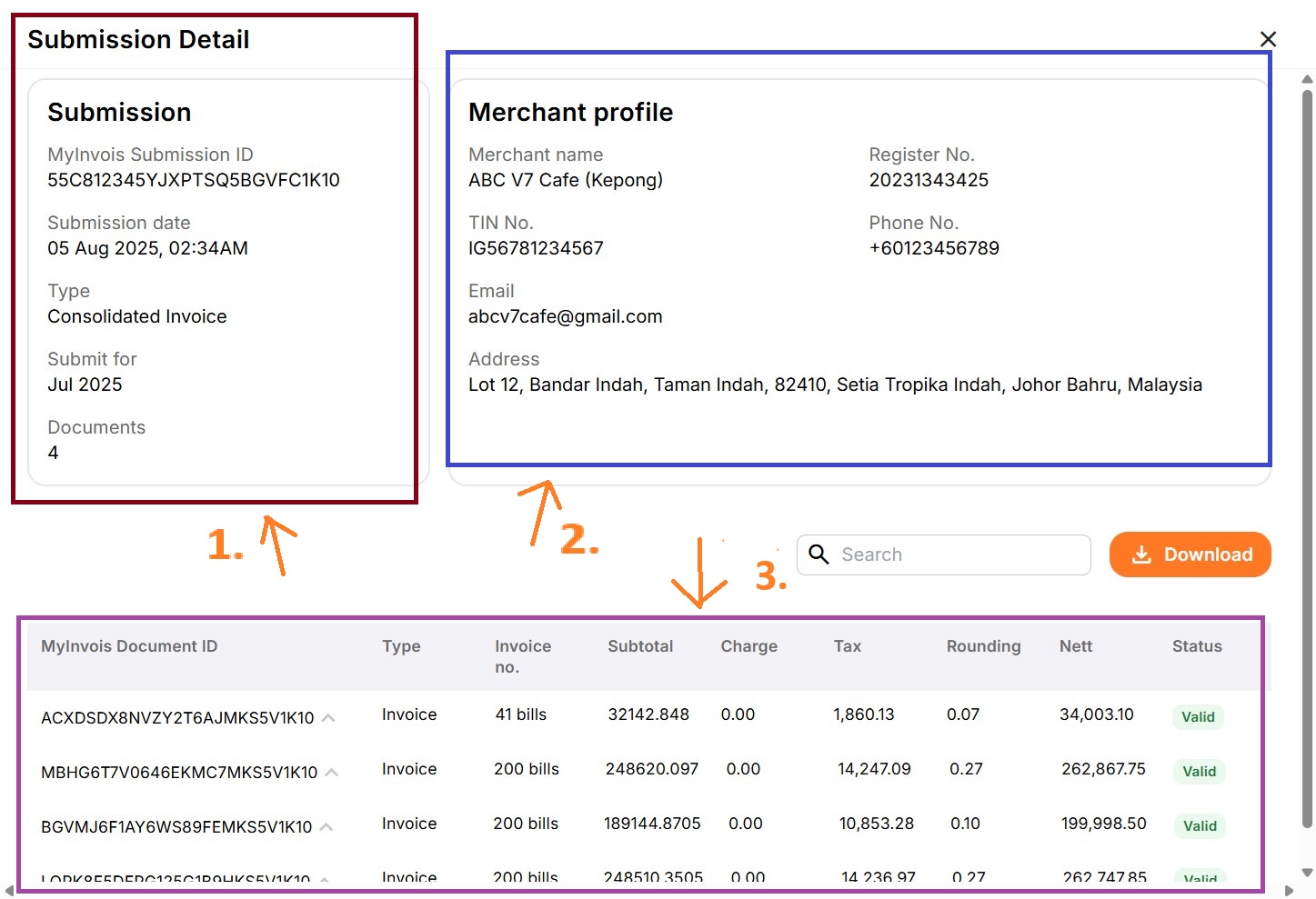
In Consolidated E-Invoice, click on any invoice to see:
1. Submission Information
2. Merchant Profile
3. Invoice Documents
Consolidated E – Invoice
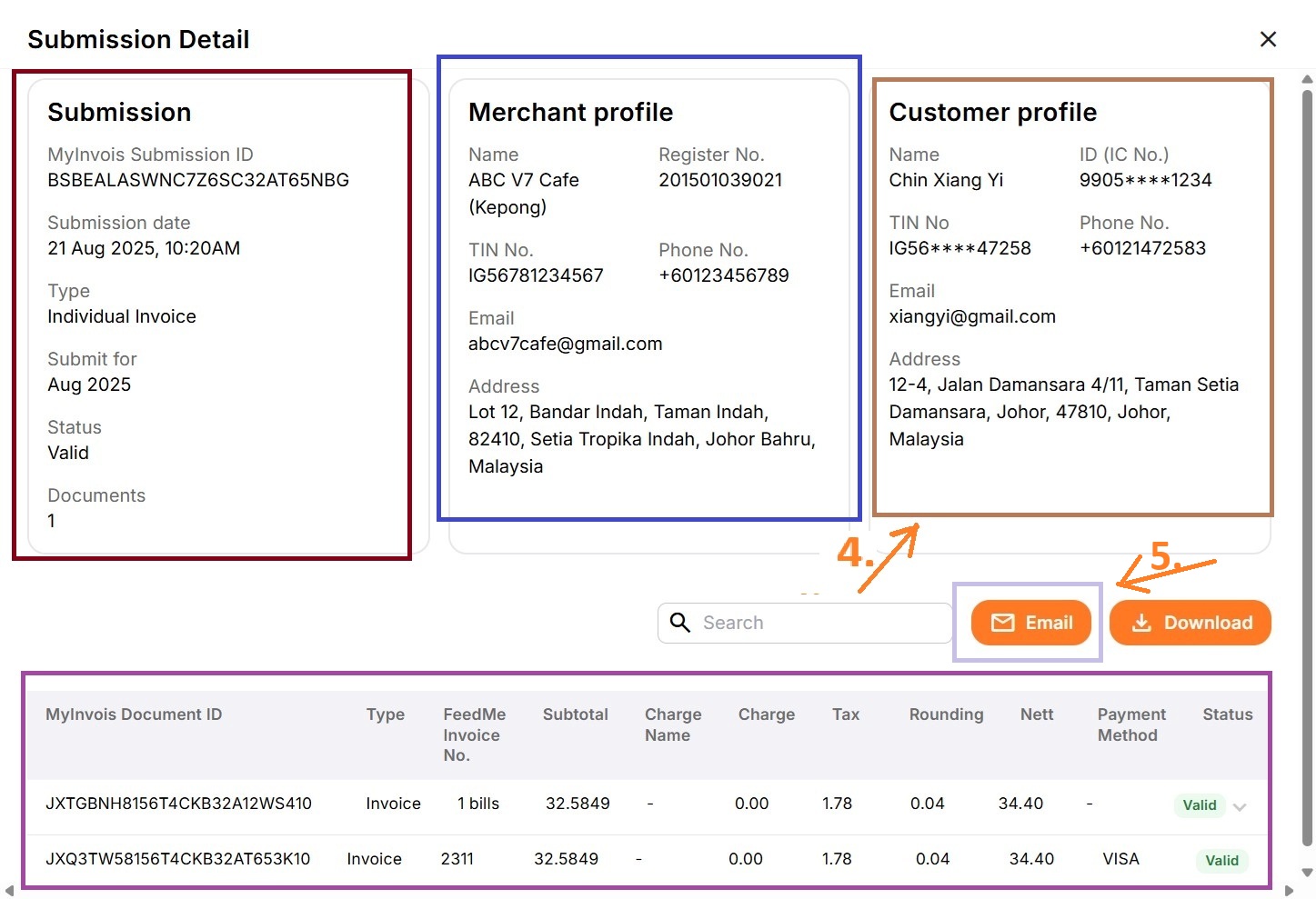
4. There is 1 more Customer Profile section for Individual’s Invoice & Individual’s Refund Note
5. Resend Email (Individual Buyer Only)
If the customer has not received the email by the next day, you may resend it.
Note: After submission is verified (within one day), the customer will automatically receive a copy at the email address provided.
Individual E – Invoice
Step 6: Download E-Invoice Submission Records
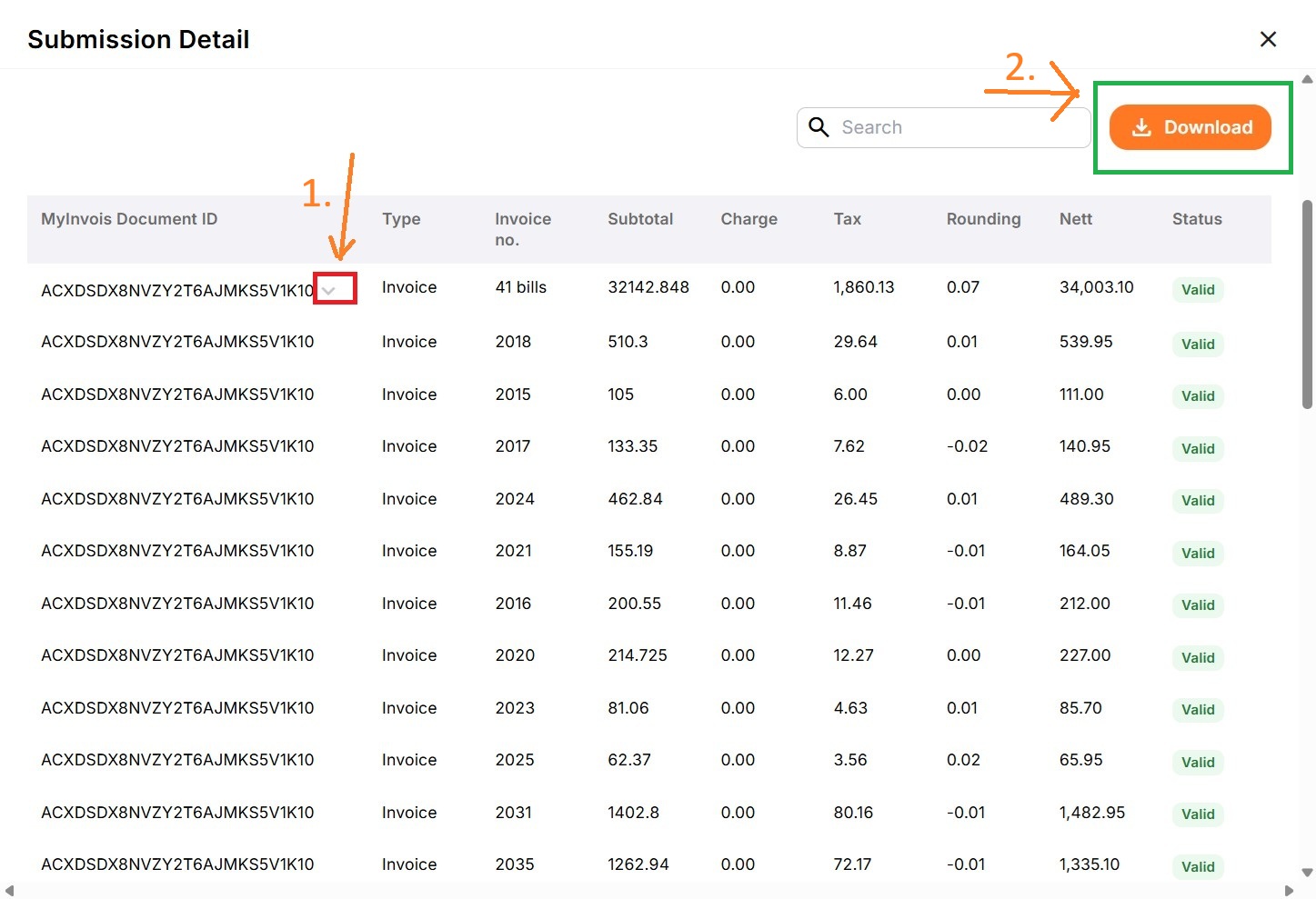
1. In Consolidated E-Invoice, can dropdown to view the Invoice Bills.
(Each submission may include up to 10 invoice documents, with a maximum of 200 bills per document.)
In individual E-Invoice/ Refund Note, each Invoice or Refund Note submission contains only one invoice bill.
2. Click Download to export the records in Excel format.