As the year comes to an end, businesses should review and manage their fiscal year to ensure financial records are complete and accurate. Proper fiscal year management helps maintain clean accounts, supports reporting requirements, and prepares the system for the new accounting period.
This guide explains how to manage the fiscal year using AutoCount Accounting.
Managing Fiscal Years in AutoCount Accounting (Quick Start)
AutoCount Accounting allows you to manage multiple fiscal years while protecting historical data.
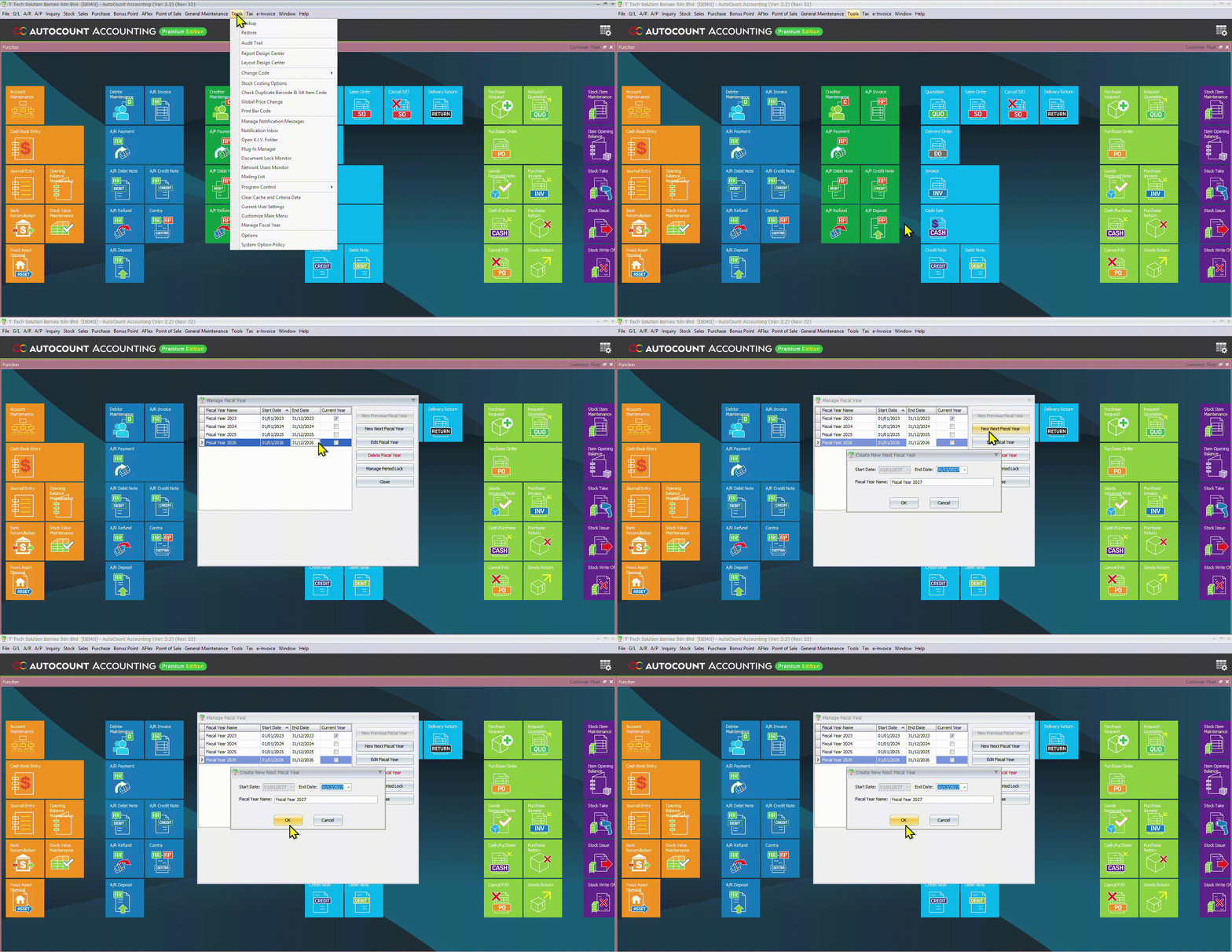
1. Create New Fiscal Year
i) Go to Tools > Manage Fiscal Year.
ii)Click New Next Fiscal Period.
iii)Click OK.
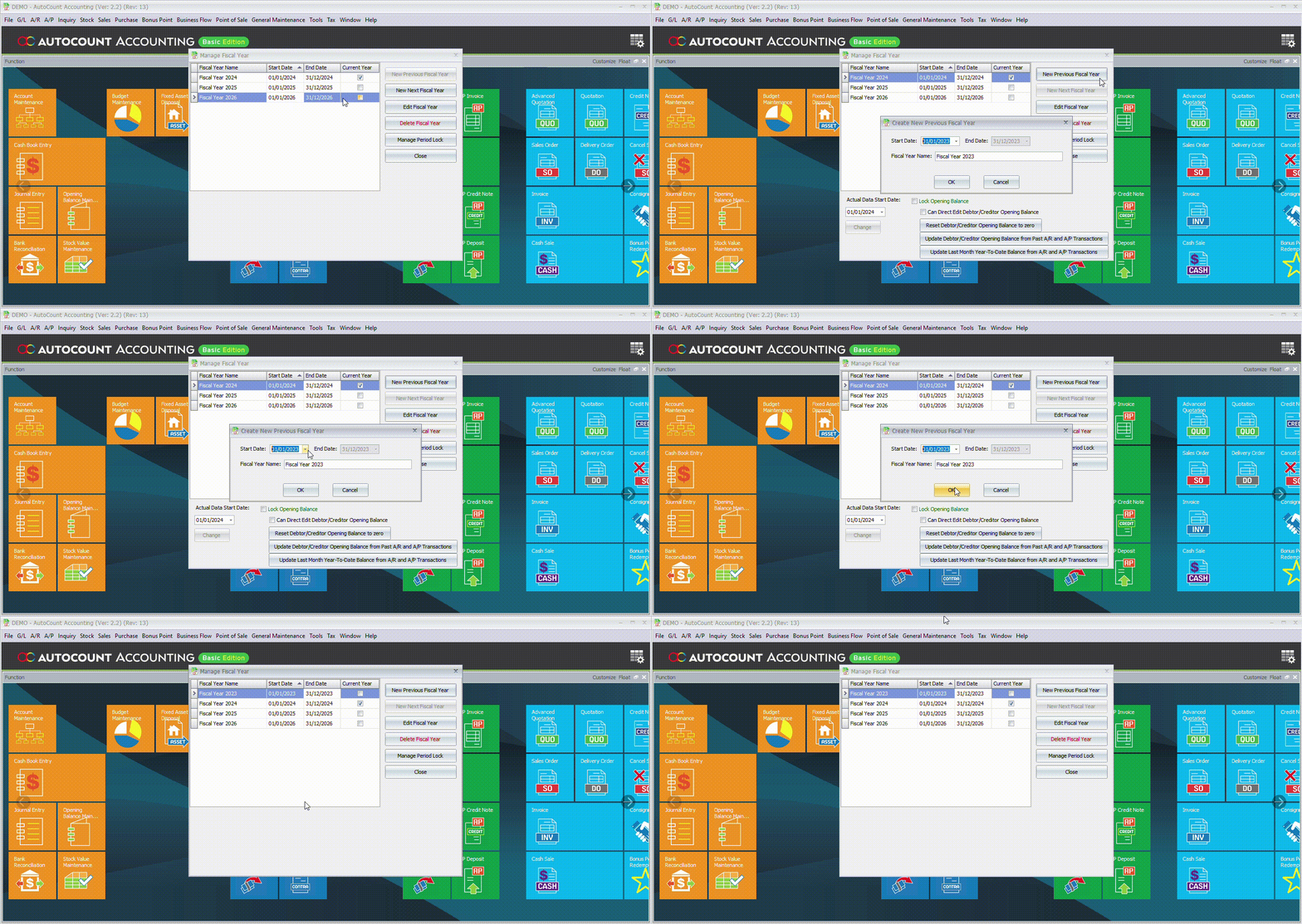
2. Create Previous Fiscal Year
i) Open Tools > Manage Fiscal Year.
ii) Click New Previous Fiscal Year.
iii) Click OK.
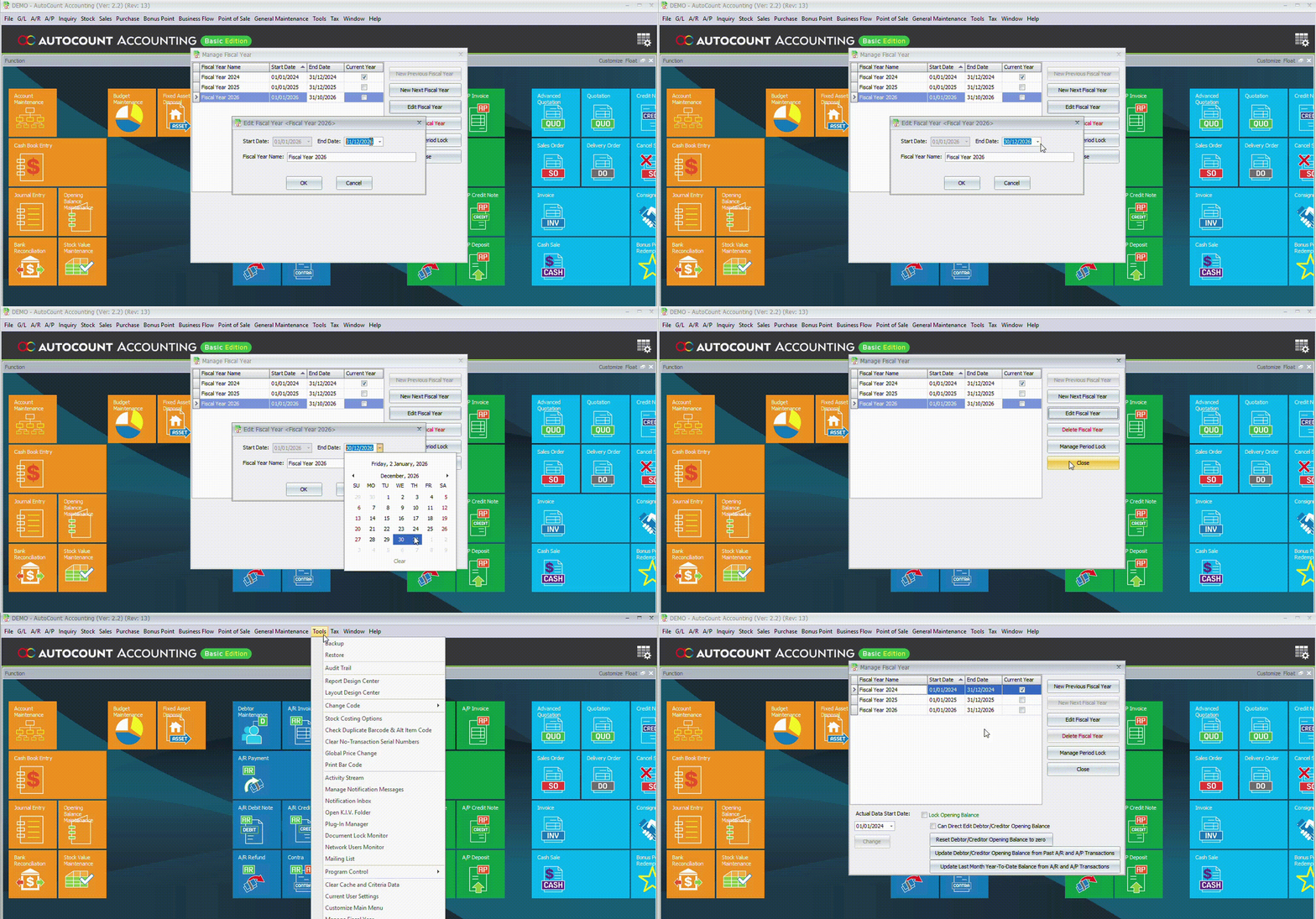
3. Edit Fiscal Year
i) Select a fiscal year.
ii) Click Edit Fiscal Year.
iii) Make changes and OK.
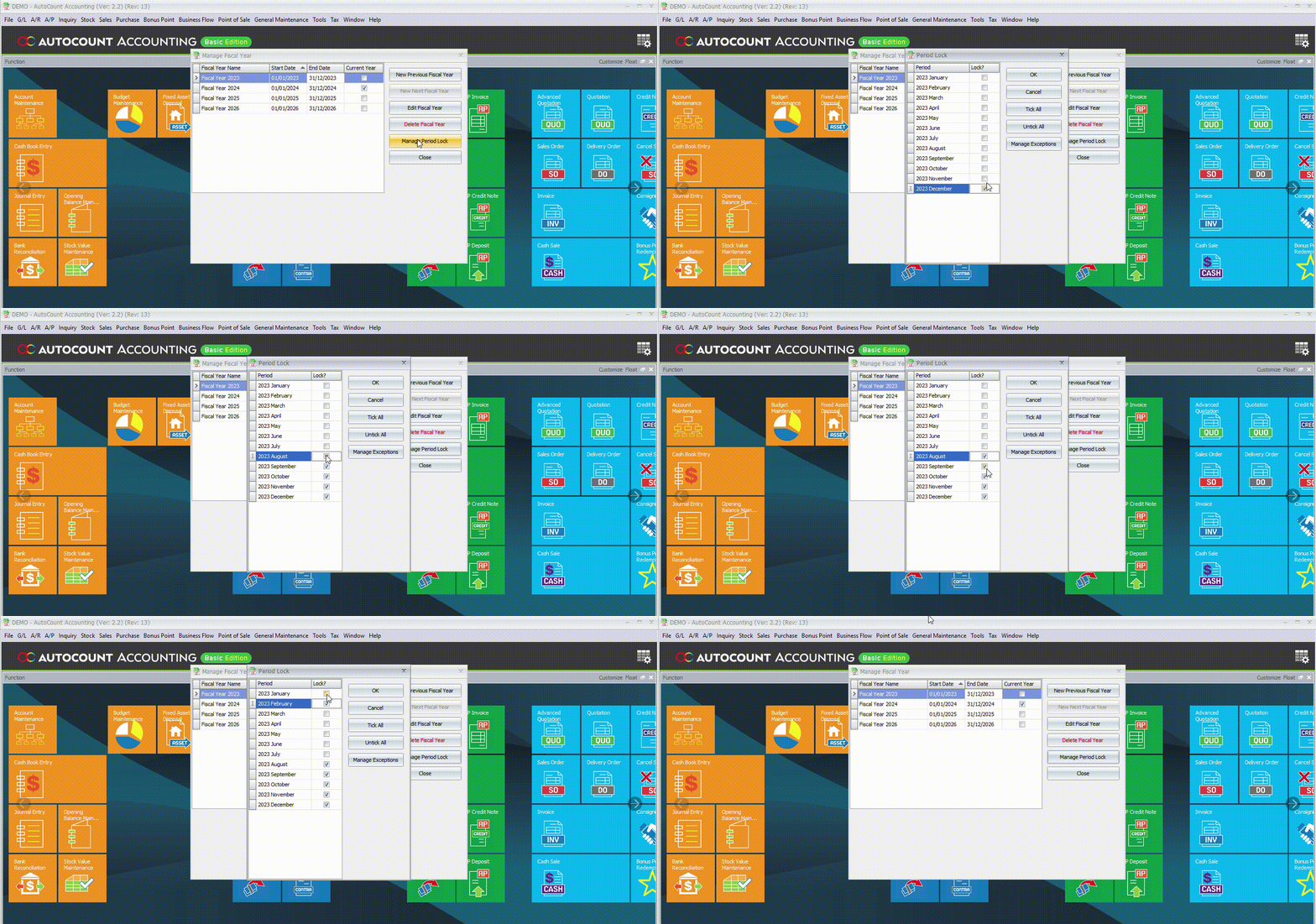
4. Lock Period
i) Click Manage Period
ii) Tick/ Untick to enable Lock Period or Close Fiscal Year
iii) Confirm to changes.
Editing is not allowed for locked periods.
Preparing for the New Fiscal Year
After closing the current fiscal year, the new fiscal year can be used immediately for daily operations. This ensures that transactions are recorded in the correct period and reports remain accurate.
Using accounting software together with an All in one POS system for retails helps keep sales and financial data organized across different fiscal years.
Managing your fiscal year at year end is crucial for accurate and reliable accounting. Closing the current year and setting up the next in AutoCount Accounting ensures continuity, clarity, and consistency. When paired with an All in one POS system for retails, fiscal year management becomes more structured, efficient, and easier to maintain.
If you’re interested in implementing a POS system or would like more information on features and pricing, feel free to contact us, we’re happy to assist you.


Add a Comment
You must be logged in to post a comment