How to Set Up Halloween Limited Edition Items: A Quick Guide to Launching Holiday Menus with the FeedMe!
Halloween is almost here! In today’s food and retail market, limited-edition products have become a key strategy for attracting attention, boosting conversions, and creating buzz. Whether it’s a Christmas set meal, a Halloween-themed drink, or a weekly dessert special, all these strategies rely on a powerful and flexible POS system to bring them to life.
Why Set Up Limited-Edition Menus?
Launching limited-time, holiday-themed, or store-exclusive menus isn’t just a gimmick — it’s a proven marketing strategy that works:
Create scarcity to trigger impulse purchases
Boost repeat visits, as customers return before the offer ends
Keep your brand fresh with unique, memorable products
Leverage social media and seasonal promotions to drive buzz and traffic
This article will show you how to quickly create, manage, and automatically launch or remove limited-edition items using the FeedMe POS system — helping you easily craft buzzworthy products and boost your revenue!
Tutorial Start | 5 Steps to Set Up Limited-Edition Menus with FeedMe POS
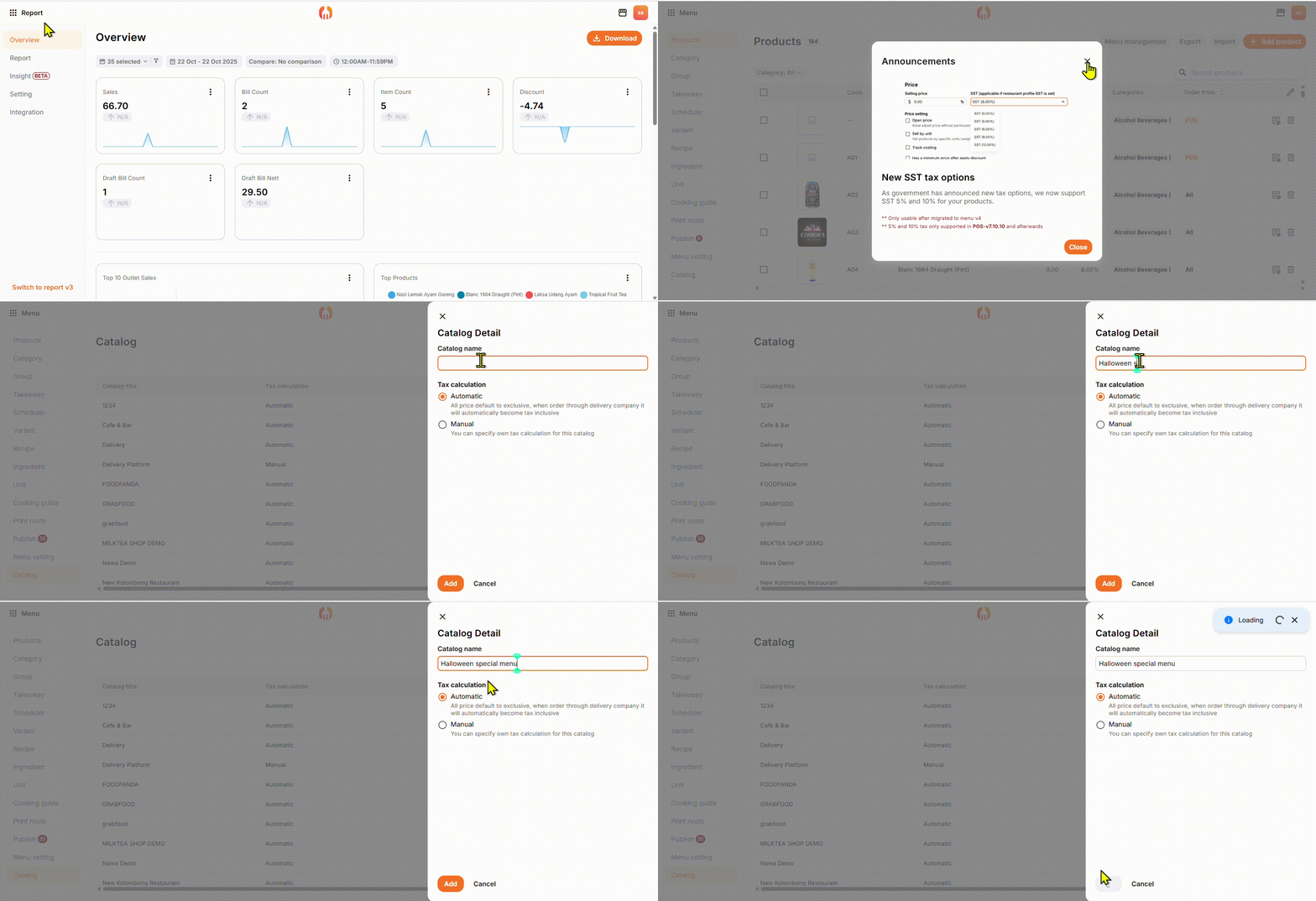
Step 1: Log in to the FeedMe Portal
Go to the system backend and select “Menu”.
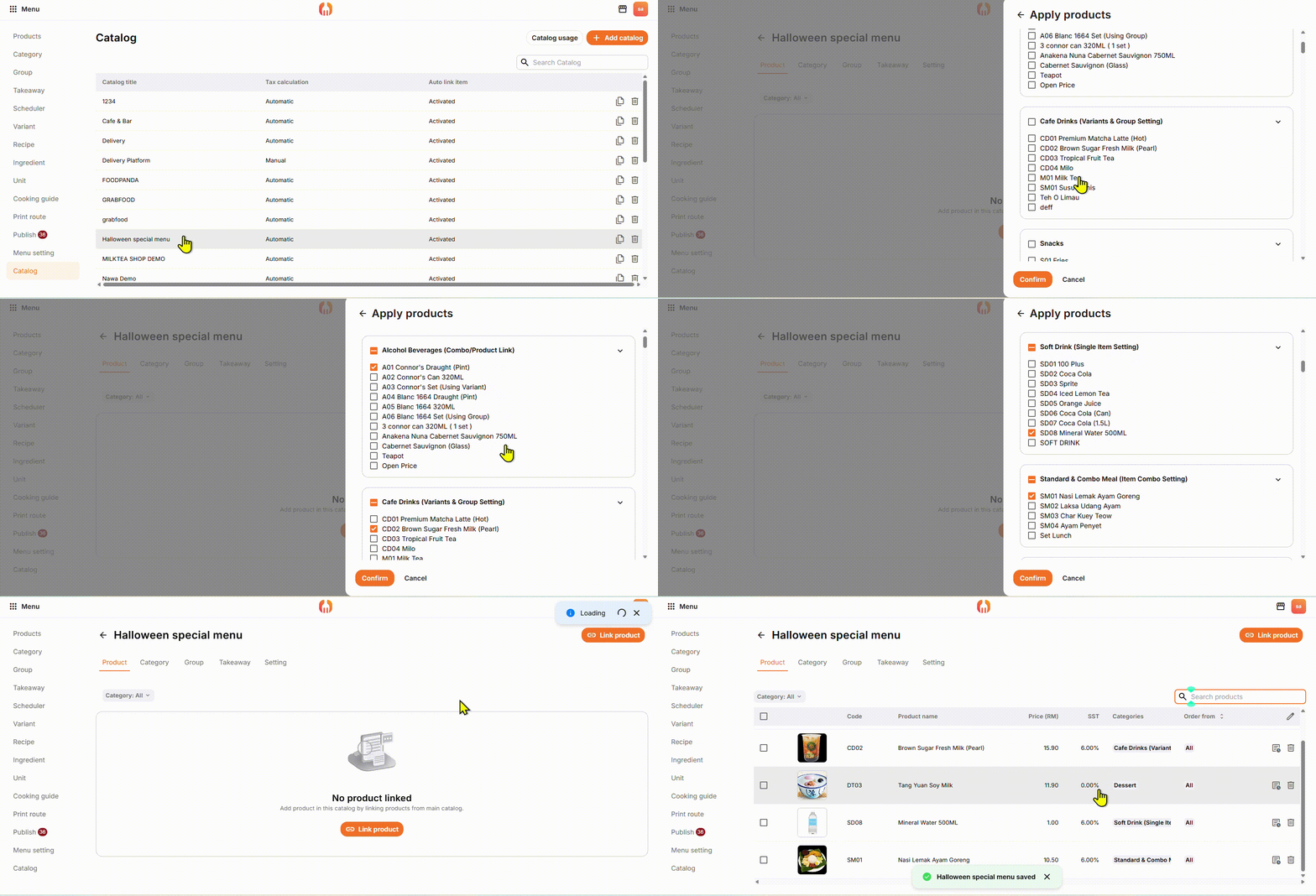
Step 2: Link Products
Click “Link Products”, select the Halloween limited-edition items you want to add, and then confirm.
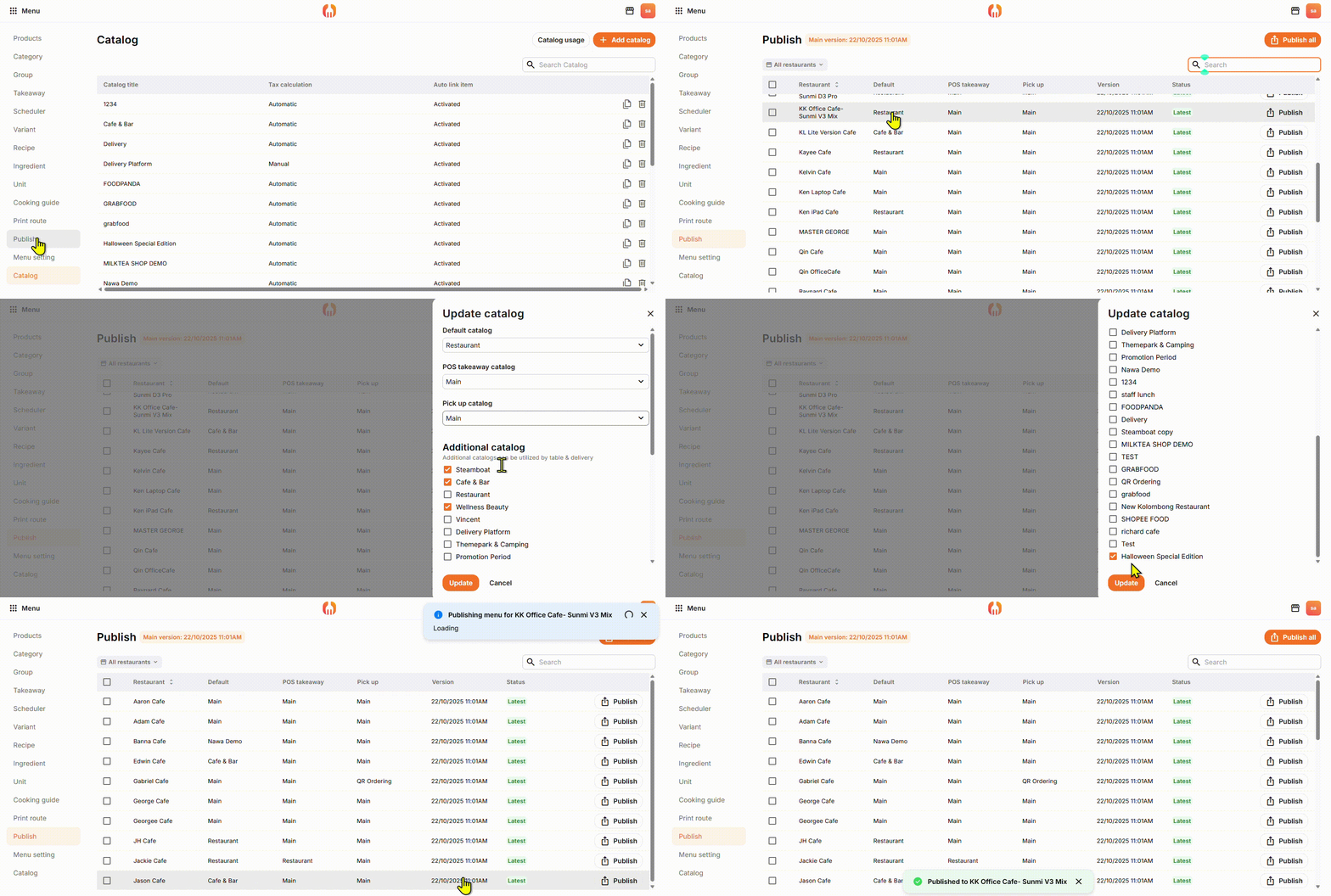
Step 3: Select the Restaurants for Release
Click “Publish”, choose the restaurants where you want to release the menu, check “Seasonal Limited”, and then click “Update.”
Step 4: Test in FeedMe POS
Open FeedMe POS, long-press the table, tap “Change Catalogue”, and select “Seasonal Limited” to start using the menu.
🚀 FeedMe POS is more than just a POS — it’s your ultimate marketing tool!
🔧 Key Features:
Bulk editing for multiple products: Set up your full menu in just 10 minutes
Store-specific product management: Different menus for different locations
Custom tags and promo slogans that catch attention and look professional
Support for combo meals and add-on recommendations to boost average order value
🎯 Why Choose Us? We don’t just offer POS hardware — we provide a complete one-stop solution:
🔹 Business consulting and tailored solutions 🔹 POS system sales and installation 🔹 Online technical support (24/7, including holidays)
📢 Want to stand out during holiday events? Join FeedMe POS now! Book a demo today and make your brand shine in seasonal and limited-time promotions!

Add a Comment
You must be logged in to post a comment