Managing quotations manually can become messy when dealing with multiple revisions, customer negotiations, and internal approvals.
The AutoCount Advanced Quotation Module is designed to solve this by helping Malaysian businesses manage quotations in a structured workflow — from drafting → approval → revision → conversion to sales order.
In this guide, you’ll learn step-by-step how to fully use the module in real business scenarios.
Why AutoCount Advanced Quotation Is Important
Compared to standard quotation, this module gives you full control over sales quotations.
Key benefits:
Track quotation revisions automatically
Manage approval workflow internally
Monitor quotation status easily
Convert quotation to Sales Order instantly
Reduce human error in sales process
Improve sales tracking and reporting
Ideal for:
Trading companies
Manufacturing businesses
Construction & engineering firms
Wholesale distributors
SMEs with approval-based sales process
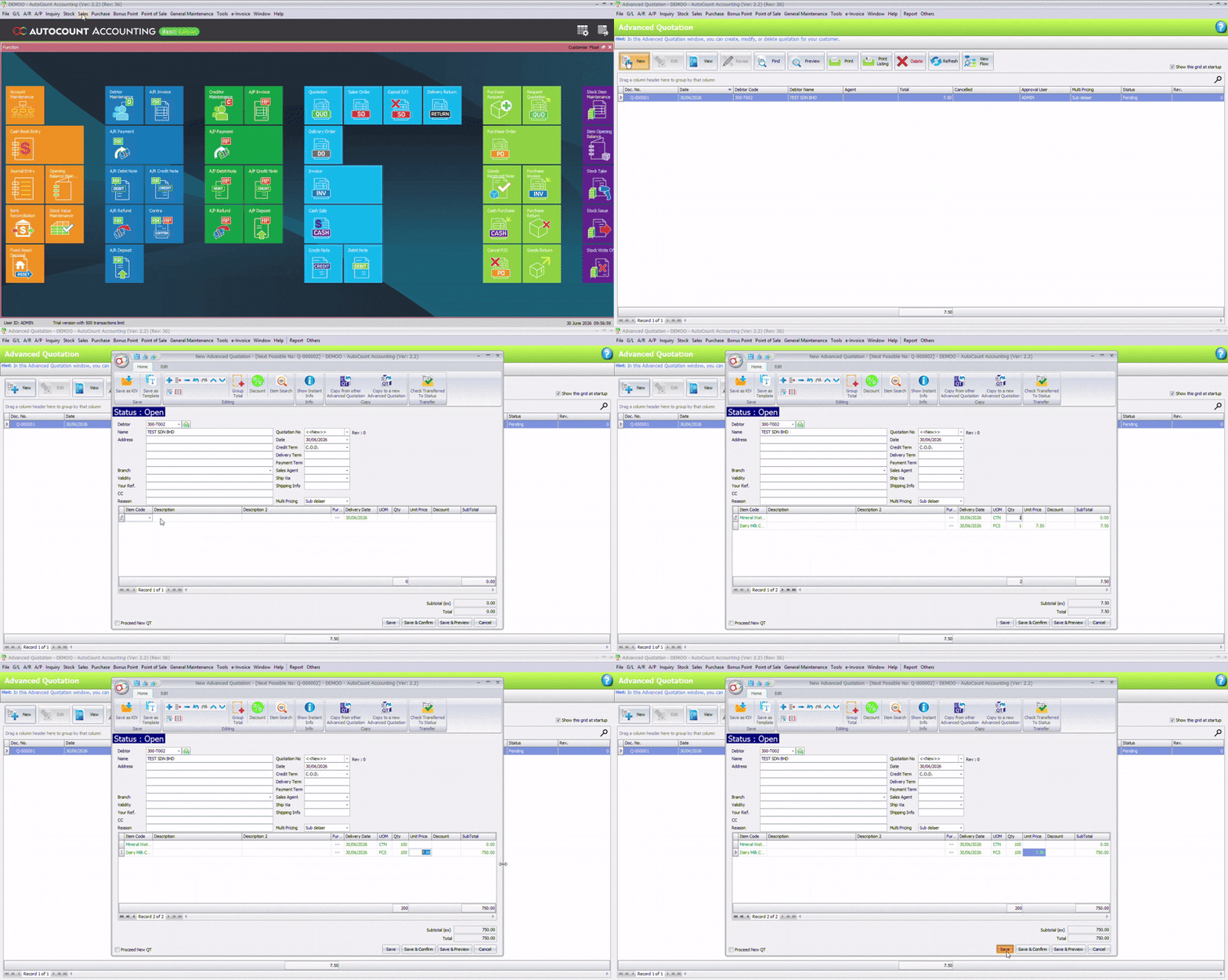
Step 1: Create a New Quotation
Steps:
Go to Sales → Advanced Quotation
Click New (System will set current status to Open.)
Fill in quotation details:
Customer name
Date
Item code
Quantity
Unit price
Remarks (optional)
Click Save
Step 2: Quotation Status
AutoCount uses status tracking to monitor quotation progress.
Status explanation:
🟡 Open
Quotation is still being prepared.
🟠 Pending
Waiting for internal approval.
🔵 Approved
Management has approved quotation.
🟢 Success
Customer has been accepted quotation.
🔴 Lost
Quotation did not proceed.
✔ This helps sales teams track every opportunity clearly.
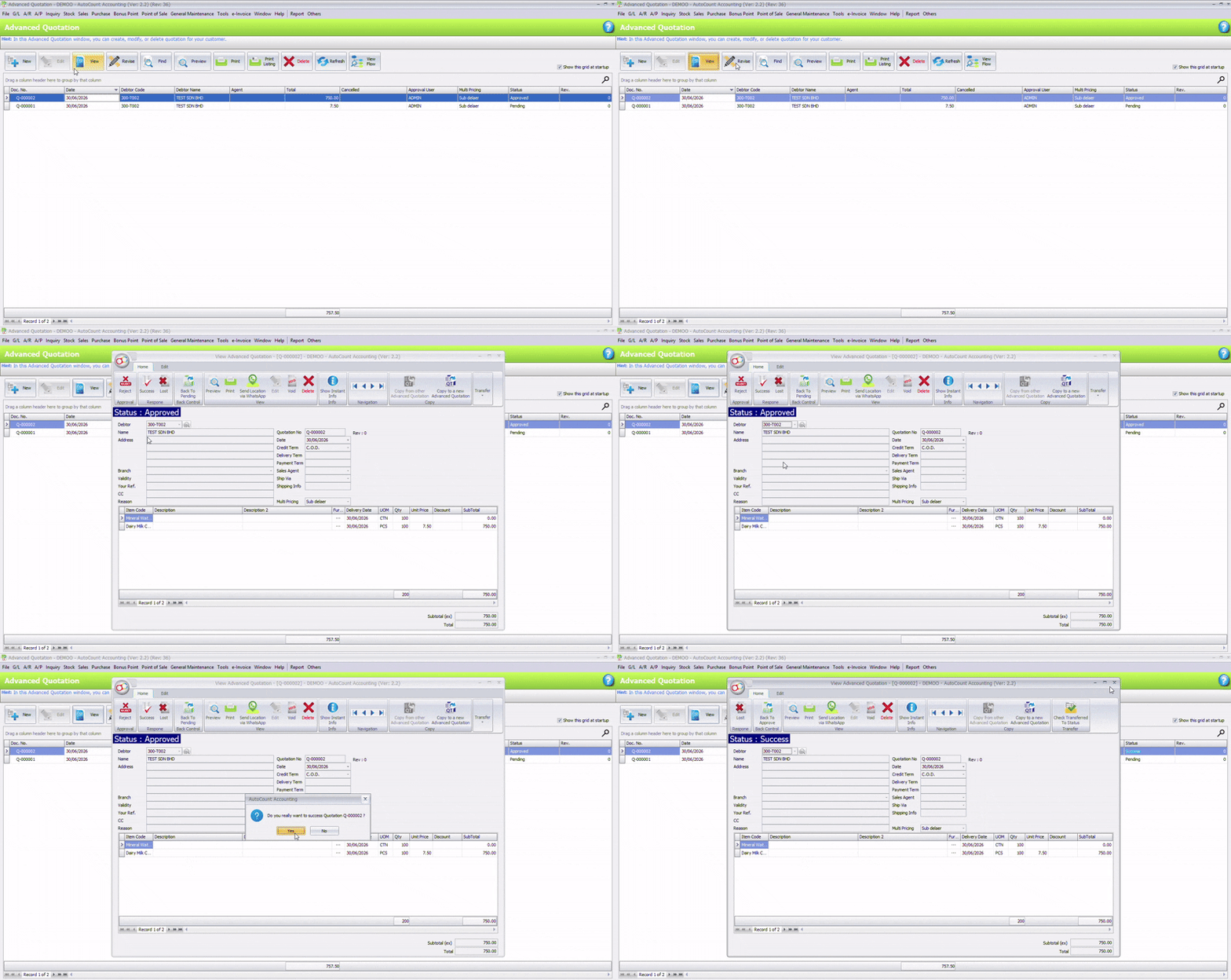
Step 3: Update Quotation Status
Steps:
Go to Sales → Advanced Quotation
Select quotation
Click View
Update status (Reject / Success / Lost)
Save
✔ Status updates help improve sales visibility in real time.
✔status set to Success to confirm the deal is closed.
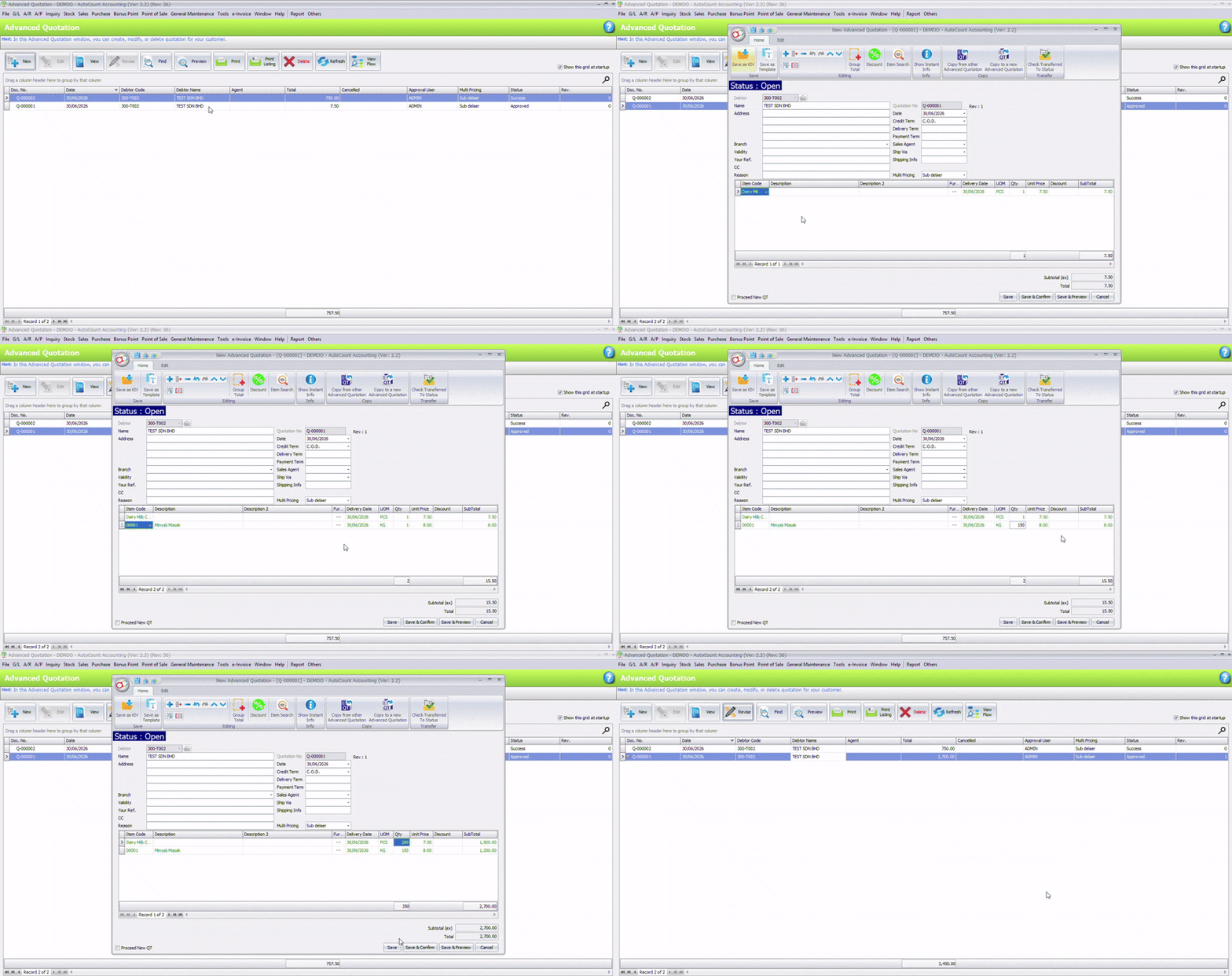
Step 4: Revise Quotation Without Losting History
Never edit an existing quotation after sending it to customers.
Instead, use Revise:
Select quotation
Click Revise
Add item, or make changes (price / quantity / items)
Save
✔ AutoCount will create a new revision automatically.
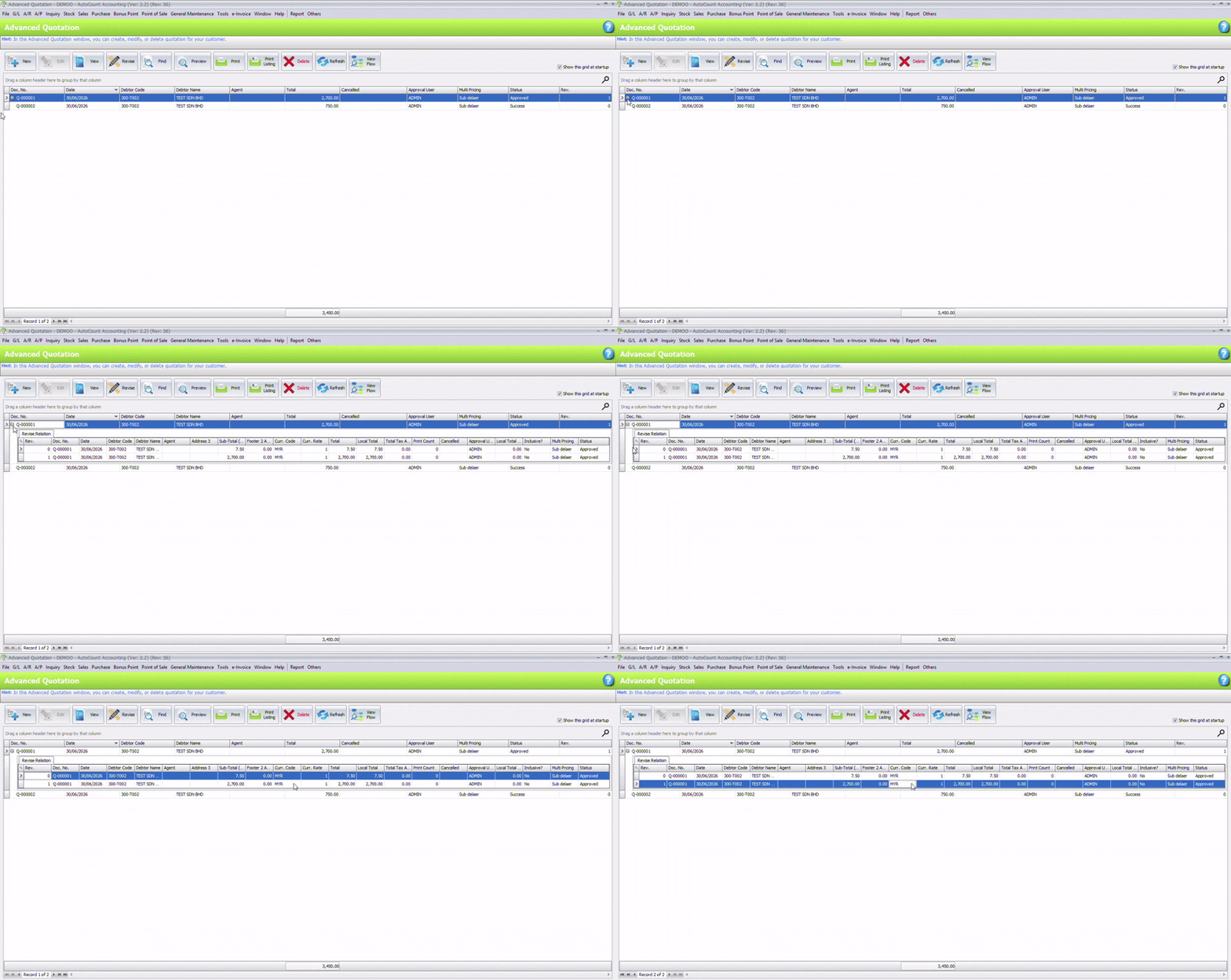
Step 5: View Revision History
Steps:
Find the quotation
Click “+” icon beside quotation
View all revisions
You can track:
Original quotation
Revision history
Latest version
Step 6: Convert Quotation to Sales Order
Once quotation is successful:
Steps:
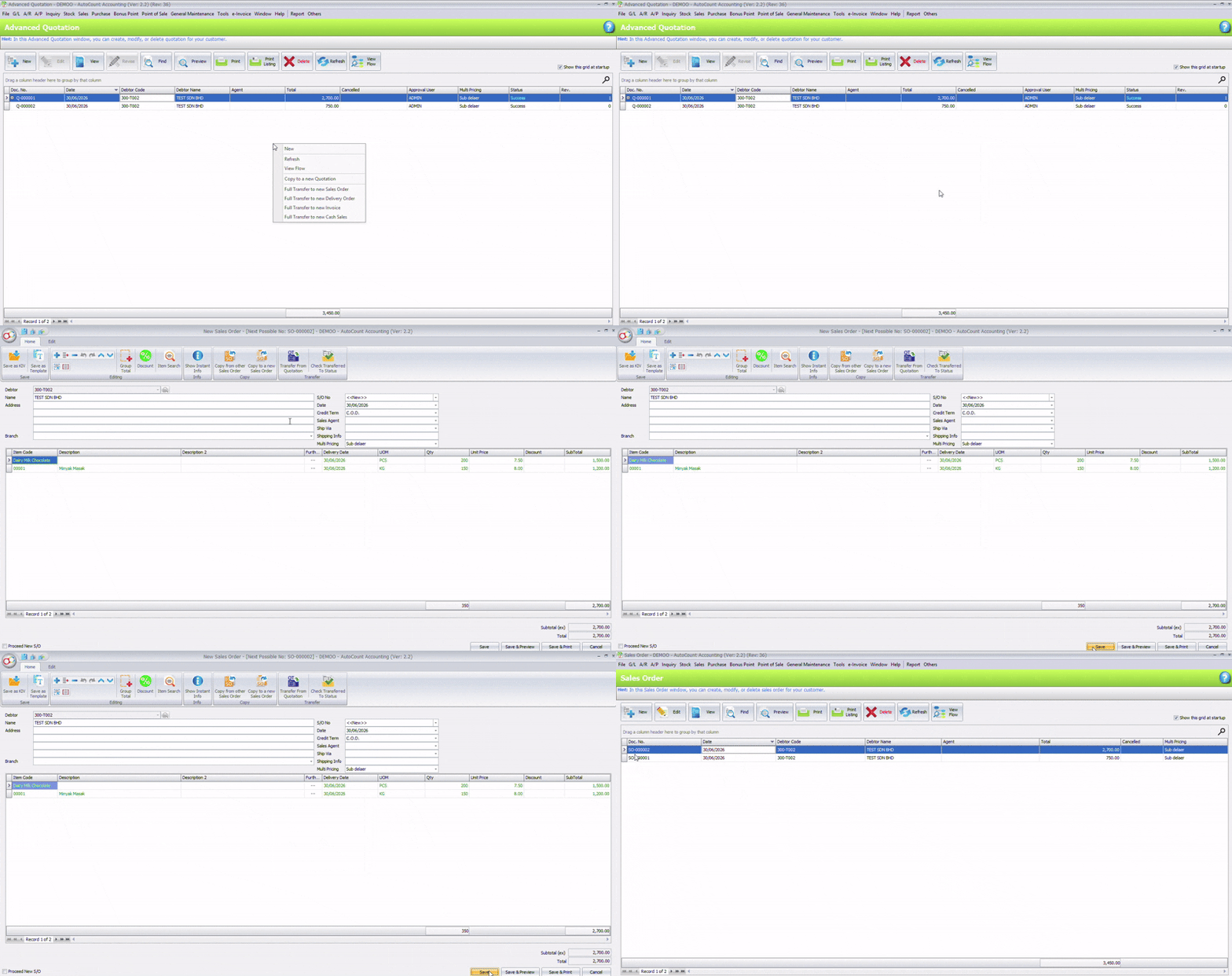
Right-click quotation
Click Transfer
Select Sales Order
✔ AutoCount automatically copies all data.
You can also transfer to:
Delivery Order
Invoice
Cash Sales
Step 7: Track Full Document Flow
Steps:
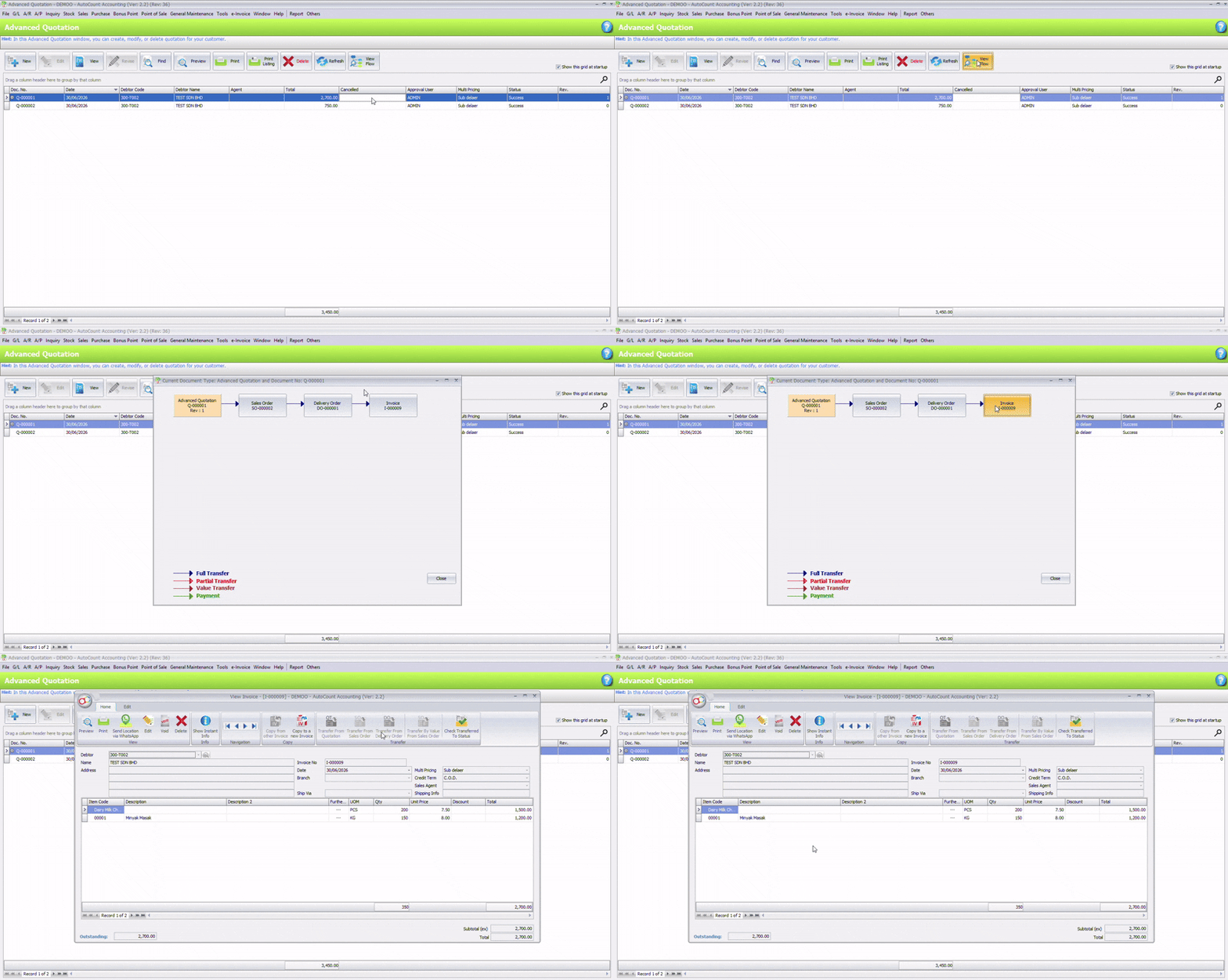
Open quotation
Click View Flow
You will see something like:
Quotation → Sales Order → Delivery Order → Invoice
✔ This is useful for audit, reporting, and customer support.
Conclusion
The AutoCount Advanced Quotation Module helps Malaysian businesses manage the entire quotation lifecycle in a structured and professional way.
By using proper status tracking, revision control, and document conversion, businesses can improve efficiency, reduce errors, and increase sales visibility.
If your business deals with frequent quotation updates and approvals, this module is essential for streamlining your sales process.