2026 AutoCount Multi Pricing Setup Guide for Beginners
Managing different selling prices for retail customers, dealers, and special customer groups can be challenging if you only use a single price list. Fortunately, AutoCount Multi Pricing allows you to assign multiple selling prices to the same stock item and automatically apply the correct price during invoicing. optimize your pricing strategy with AutoCount Multi-Pricing.
In this beginner-friendly guide, you’ll learn how to set up Multi Pricing in AutoCount step by step, from enabling the feature to testing it with an invoice.
Why Use AutoCount Multi Pricing?
Multi Pricing helps businesses:
Offer different prices to different customer groups.
Automate pricing during sales invoicing.
Reduce manual price adjustments.
Maintain consistent pricing across branches or regions.
Example price groups:
Sub Dealer
KL Price
KK Price
Step by step guidances
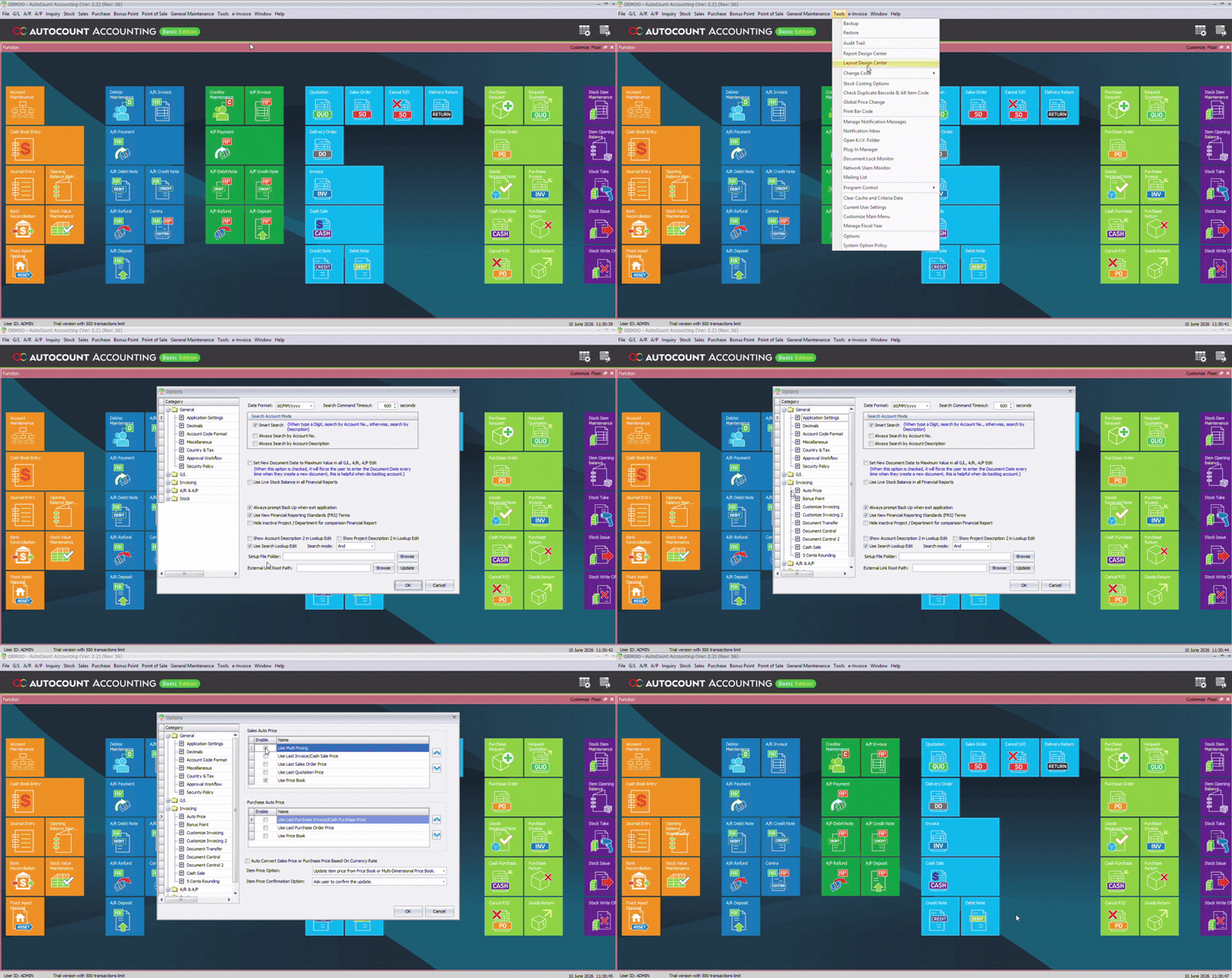
Step 1: Enable Multi Pricing
First, activate the Multi Pricing feature in AutoCount.
1. Go to Tools > Options.
2. Under Invoicing > Auto Price, tick Use Multi Pricing.
3. Click OK to save.
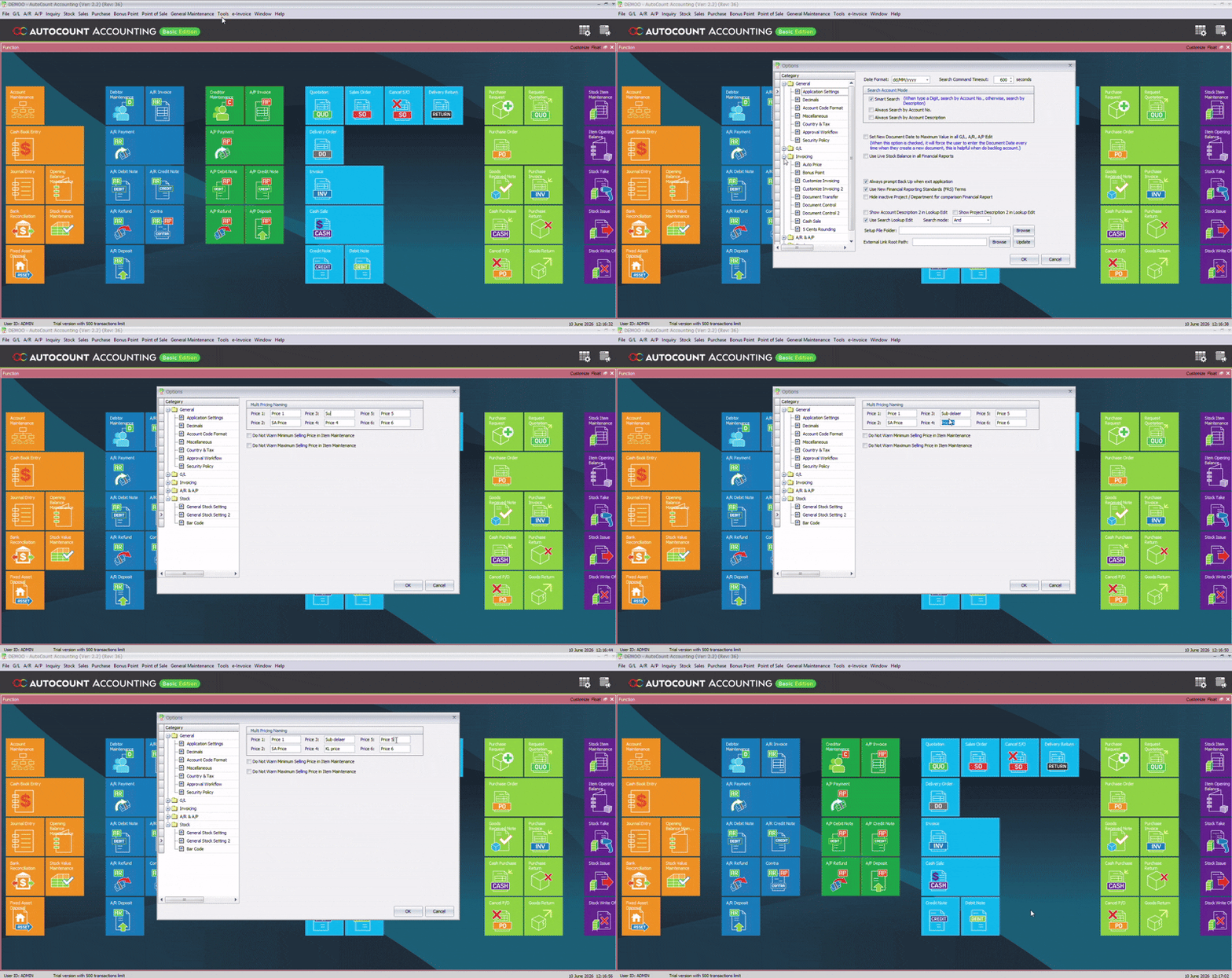
Step 2: Create Custom Price Names
Next, define the pricing groups you want to use.
1. Navigate to Stock > General Setting 2.
2. Click Set Price Name.
3. Add your custom price names, for example:
Sub Dealer
KL
KK
4. Click OK.
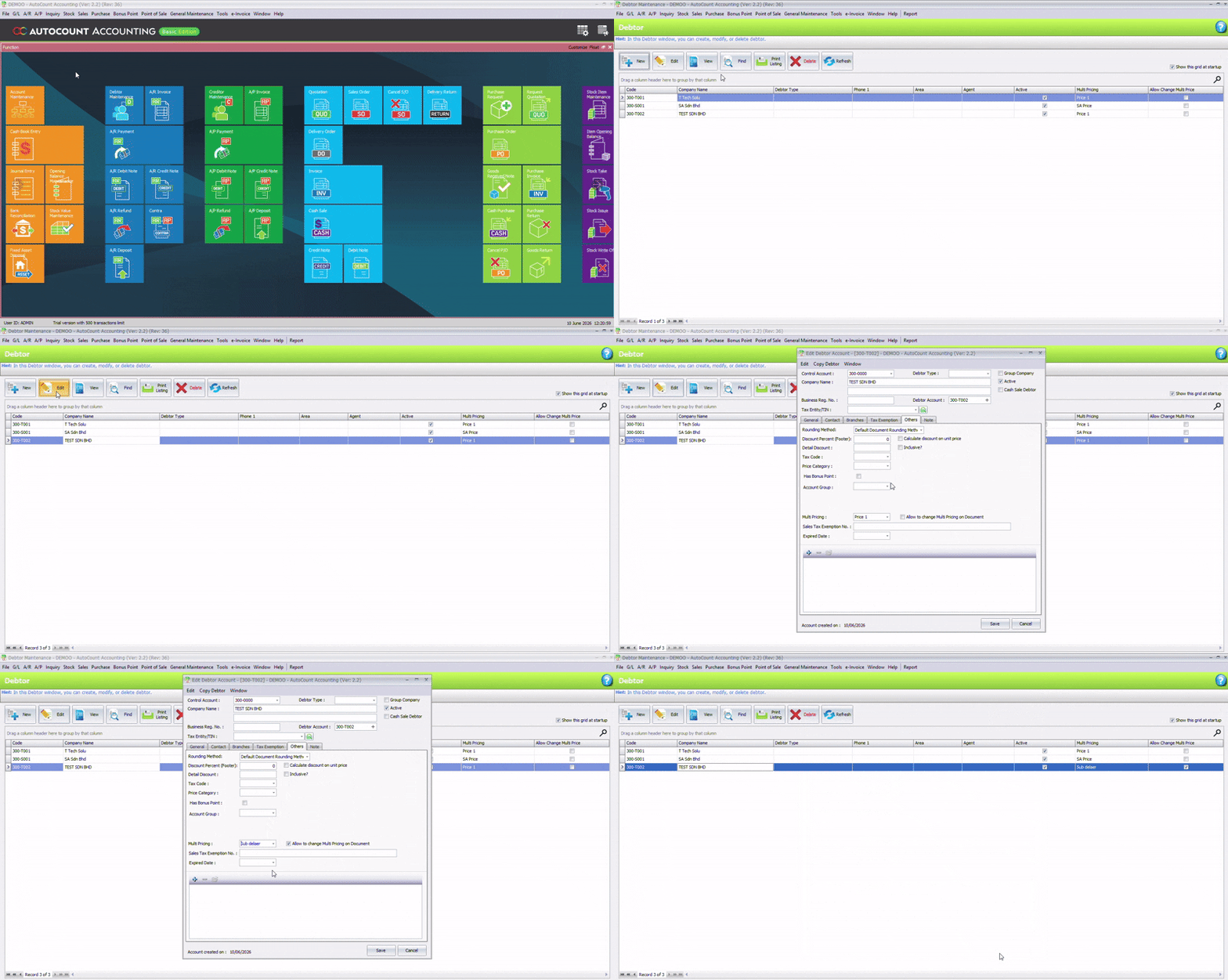
Step 3: Assign a Price Group to a Debtor
Now assign the appropriate pricing group to a customer.
1. Go to A/R > Debtor Maintenance.
2. Select an existing debtor to edit, or create a new debtor.
3. Open the Others tab.
4. Tick Allow to change Multi Pricing on Document.
i) Select the price name created in Step 2.
ii) Save the debtor record.
Example: For debtor TEST SDN BHD, choose Sub Dealer as the pricing group.
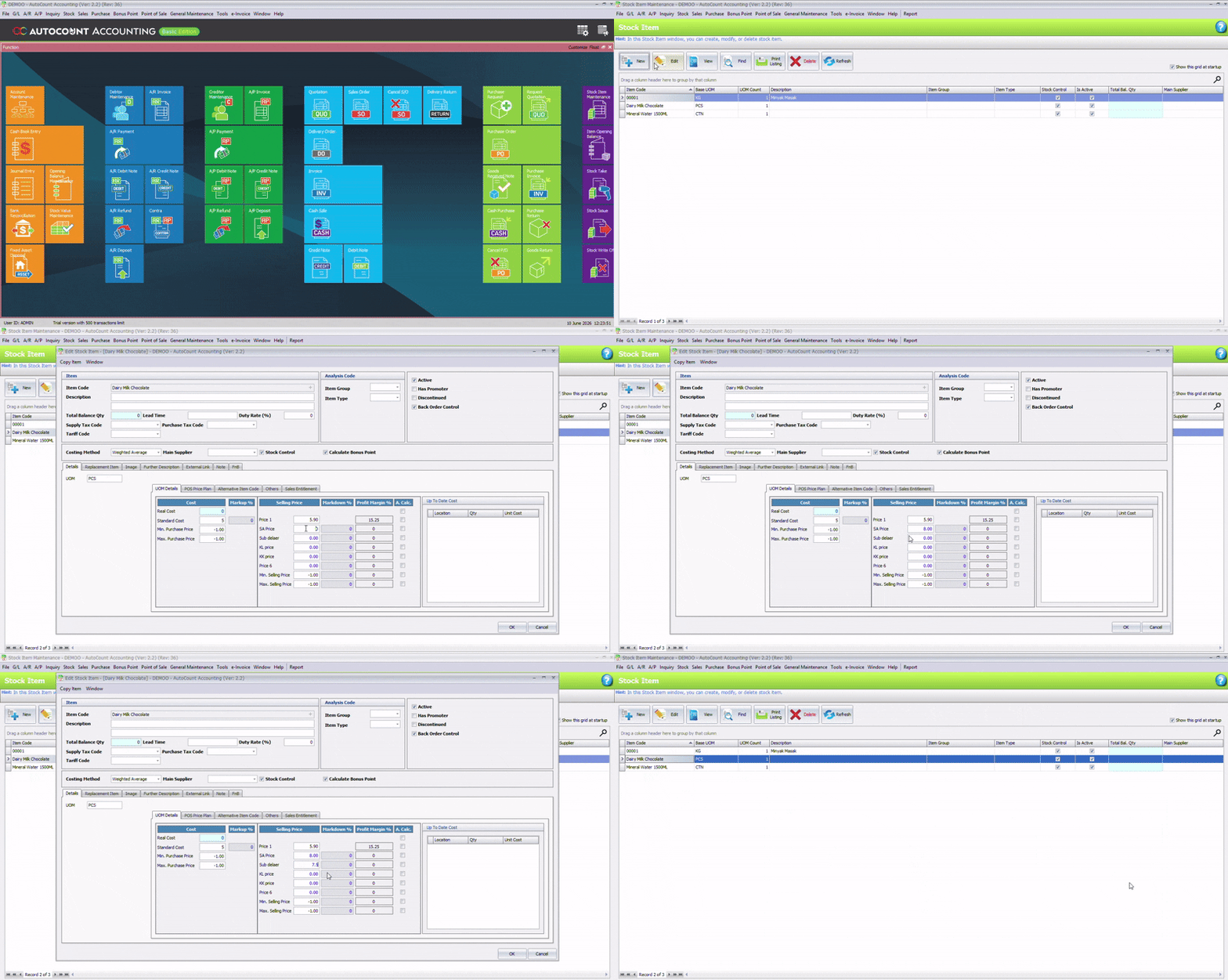
Step 4: Add Different Prices to a Stock Item
Set up item prices for each pricing group.
1. Navigate to Stock > Stock Item Maintenance.
2. Create a new item or edit an existing one.
3. Under UOM Details > Selling Price, enter prices for each price group.
4. Save the item.
Example pricing:
Price Group
Selling Price
Sub Dealer
RM7.50
KL
RM8.00
KK
RM8.50
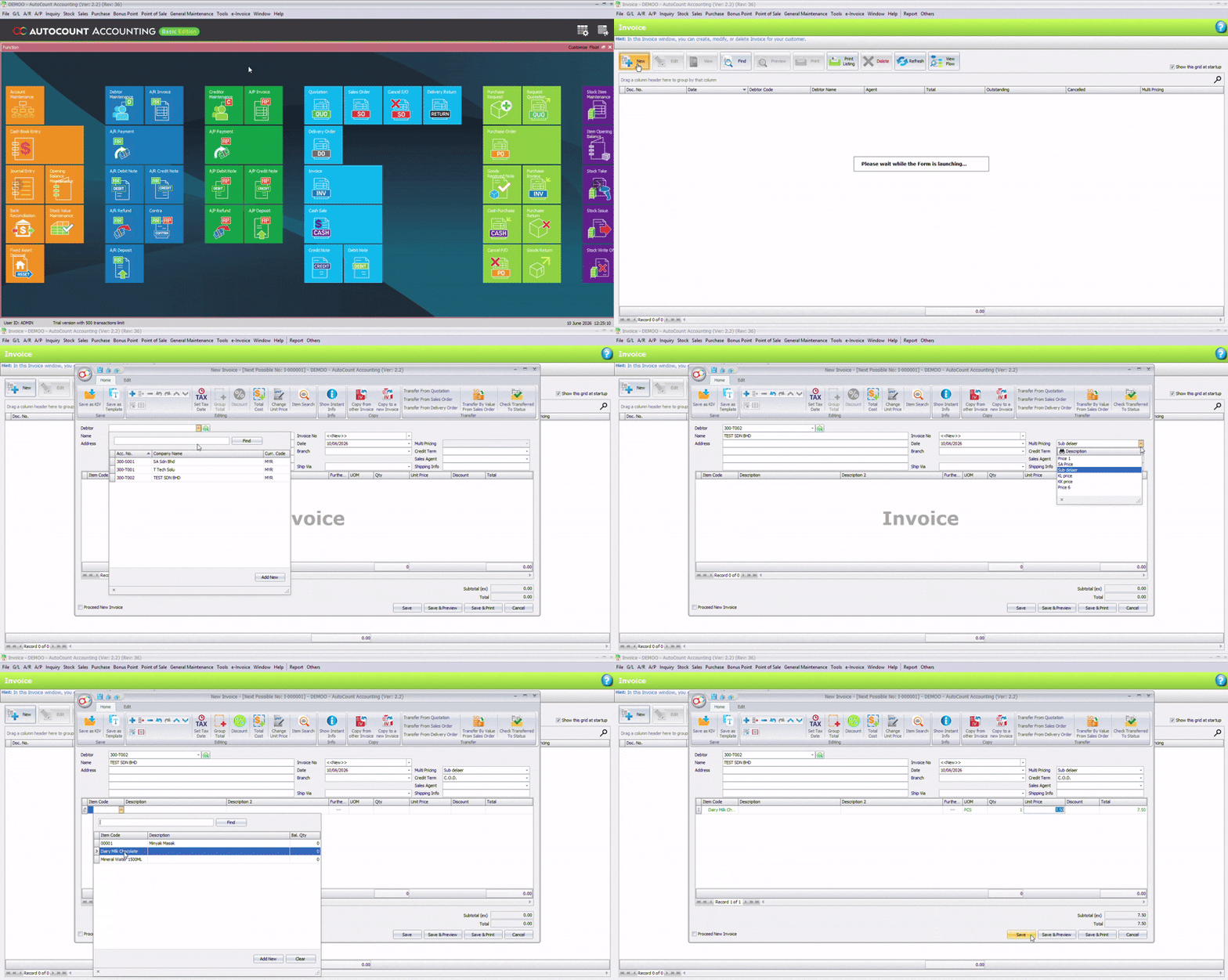
Step 5: Test the Setup with an Invoice
Finally, confirm that the correct price is applied automatically.
1. Go to Sales > Invoices.
2. Create a new invoice.
3. Select the debtor TEST SDN BHD.
4. Verify that the Multi-Pricing field automatically shows Sub Dealer.
5. Add the stock item to the invoice.
6. Check that the item price is automatically filled with RM7.50.
The invoice automatically applies the Sub Dealer price of RM7.50 for TEST SDN BHD.
Final Thoughts
AutoCount Multi Pricing is a powerful feature for businesses that need flexible customer pricing. By following these five steps, you can automate pricing, reduce manual errors, and speed up your sales process. Optimize your pricing strategy with AutoCount Multi-Pricing to get the most out of its flexibility and efficiency.
Whether you manage retail customers, dealers, or regional pricing, this setup ensures the correct price is applied automatically every time you create an invoice, helping you maintain consistency and accuracy across all transactions.
Need Help?
If you’d like assistance with AutoCount implementation, customisation, staff training, or our after sales services, feel free to contact us for professional support.