How to Set Up a Weighscale and Connect It to FeedMe POS (Step-by-Step Guide 2025)

If you operate a retail, F&B, grocery, or market-style business, connecting a weighscale to your FeedMe POS system is essential for fast and accurate checkout. In this guide, you’ll learn exactly how to set up your weighscale, connect it to FeedMe, and test it to ensure everything works perfectly.

This tutorial is designed for merchants, cashiers, and business owners who want a seamless integration between their weighscale and POS system.

Why Connect a Weighscale to FeedMe POS?

Integrating your weighscale with FeedMe helps you:

  • Improve checkout speed

  • Eliminate manual entry errors

  • Ensure consistent pricing for weight-based products

  • Create a smoother customer experience

Whether you’re selling fresh produce, meat, baked goods, or bulk items, this setup keeps your operations efficient and accurate.

Before You Begin

Before connecting your weighscale, make sure you have:

  • A product created in your FeedMe system (covered in the previous tutorial)

  • A compatible weighscale

  • Your cashier/POS device powered on

  • Stable internet connection

  • Weighscale cable ready for connection

Once everything is prepared, you can begin the setup.

Step-by-Step: How to Set Up and Connect Your Weighscale to FeedMe POS

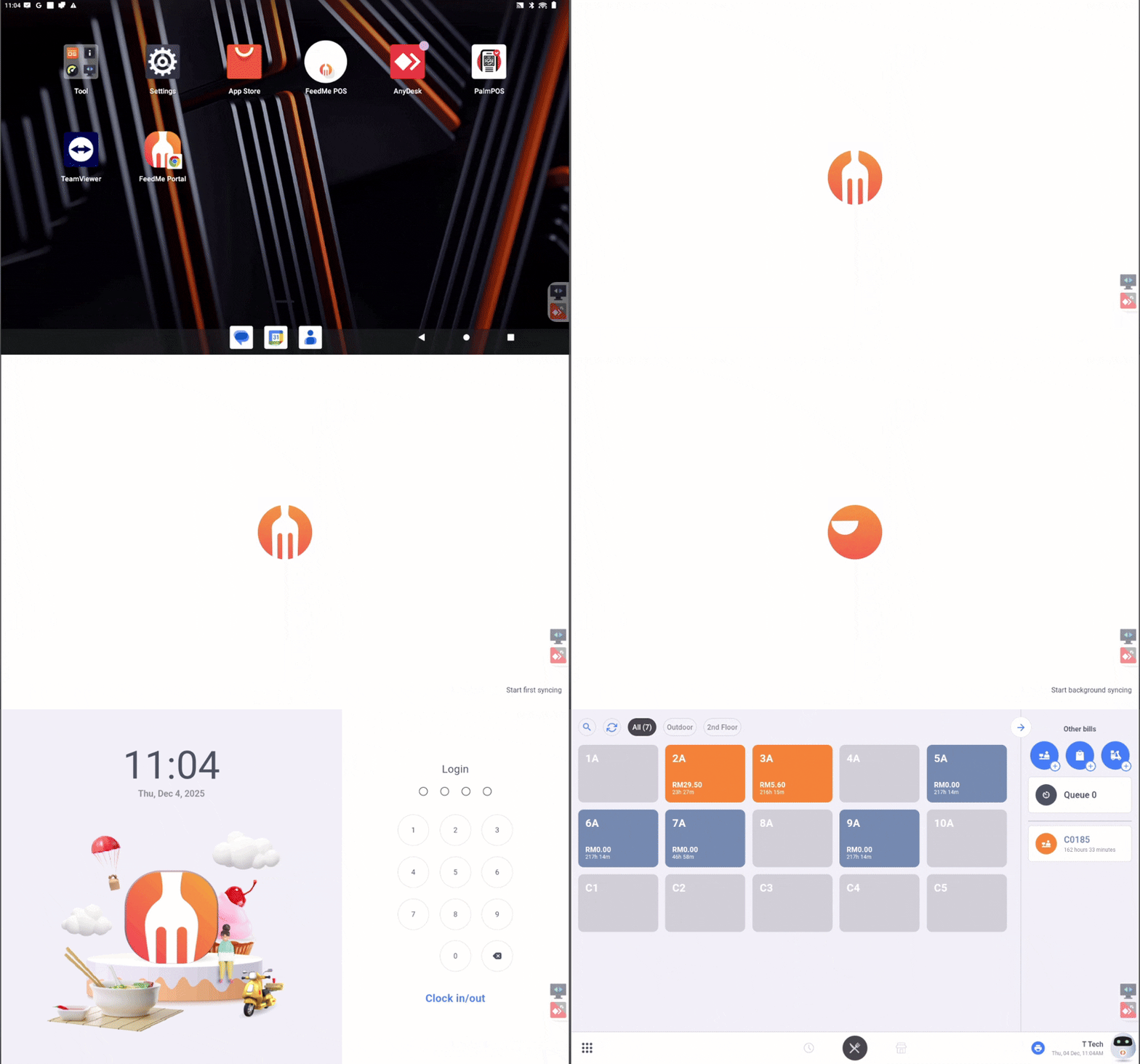
Step 1: Log In to the FeedMe

This gives you access to your FeedMe POS.

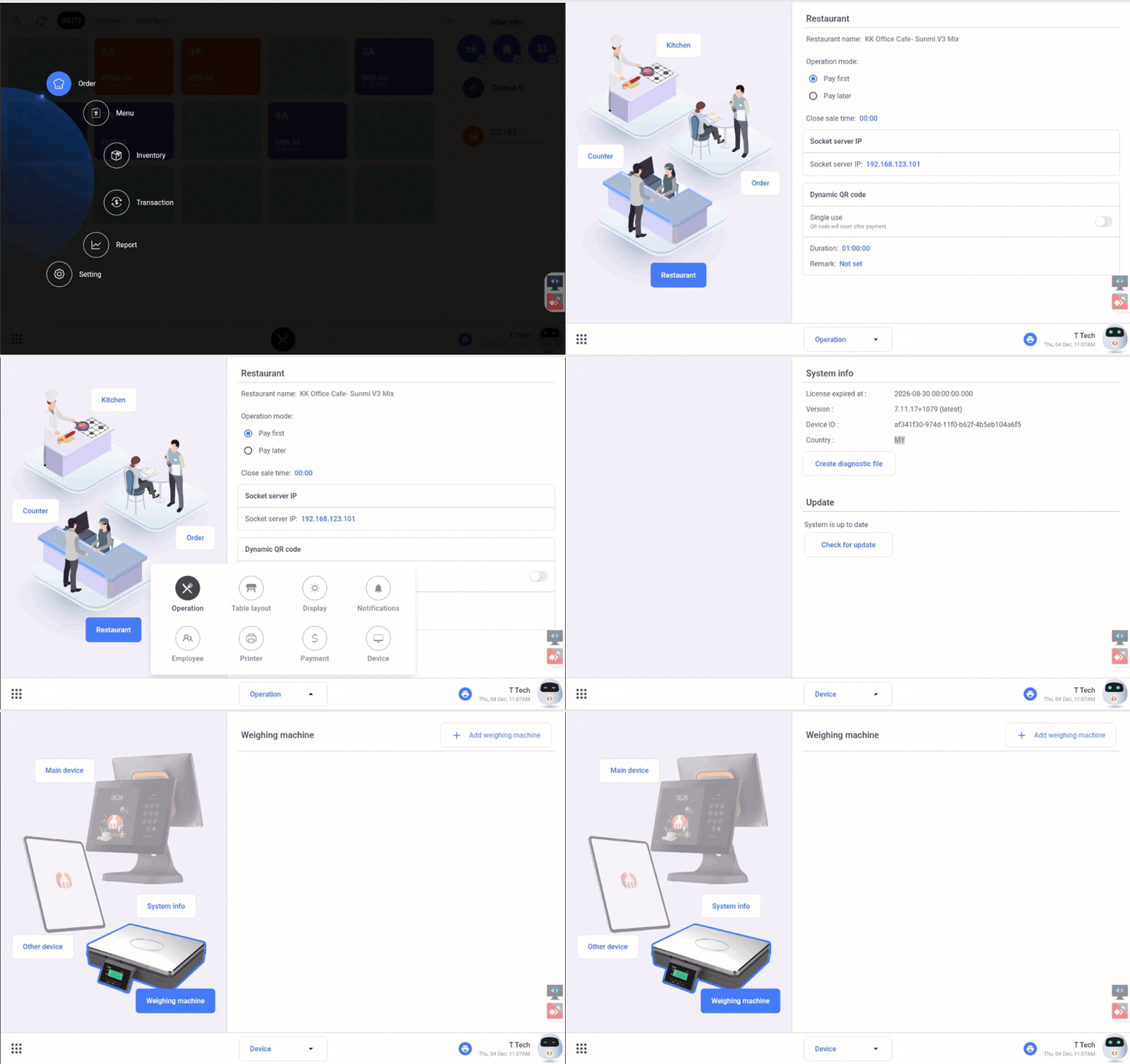
Step 2: Go to Settings → Weighscale

1. Click the left bottom icon, find “Setting”.

2. Click the “Operation” at the bottom middle, choose “Device”.

3. Find and choose the “weighing machine”.

Step 3: Plug In Your Weighscale

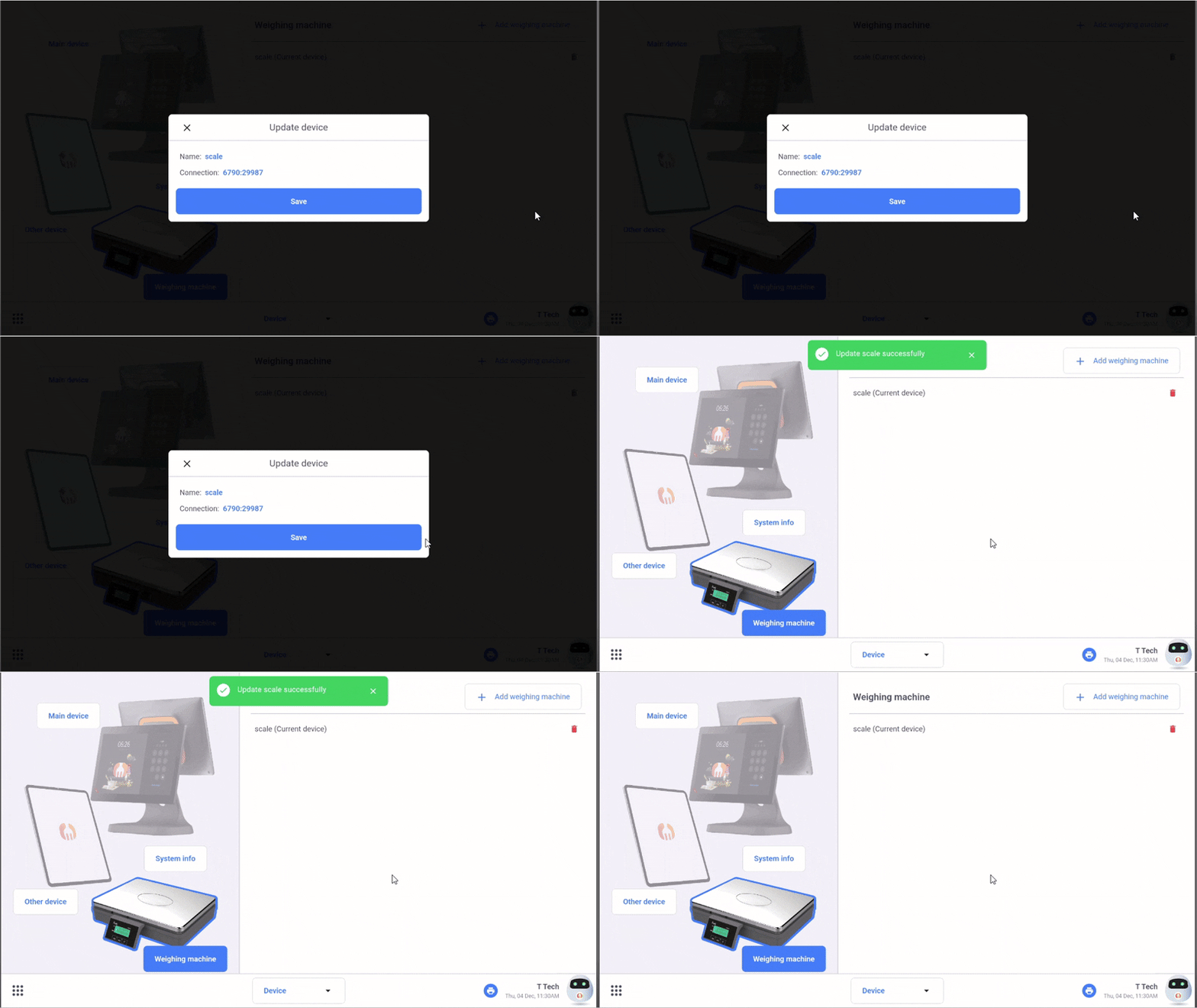
1. Add weighing machine

2. Set the Name and connection of your weighscale.

3. Connect your weighscale to the cashier device via the correct cable/port.

Check the following:

  • Cable is firmly connected

  • Weighscale is powered on

  • The device is placed on a stable, flat surface

  • No weight is resting on the scale during setup

After confirm, You will see a green notification pop up on-screen.
This is your confirmation that the weighscale has been successfully linked to the FeedMe POS system.

Step 4: Test the Weighscale

To verify the connection:

1. Place any item (such as a demo box) on the weighscale

2. FeedMe POS should immediately display the item’s weight on the screen—just like in the previous tutorial

If the displayed weight matches your scale reading, your setup is complete and fully functional.

Need Help With Your POS System?

If you have questions or need assistance integrating your weighscale or pos system, feel free to contact us at:

📞 014-6091088

Our team is ready to help you set up your POS system, troubleshoot hardware, or guide you through advanced features.

Add a Comment

Your email address will not be published. Required fields are marked *