Looking to boost sales or clear out slow-moving stock? Bill promotions are a great way to spotlight specific products and attract more customers.
In this tutorial, we’ll walk you through how to set up Bill Promotions step by step in the FeedMe Portal, and you’ll have your promo up and running in a short time!
(1) Login FeedMe Portal
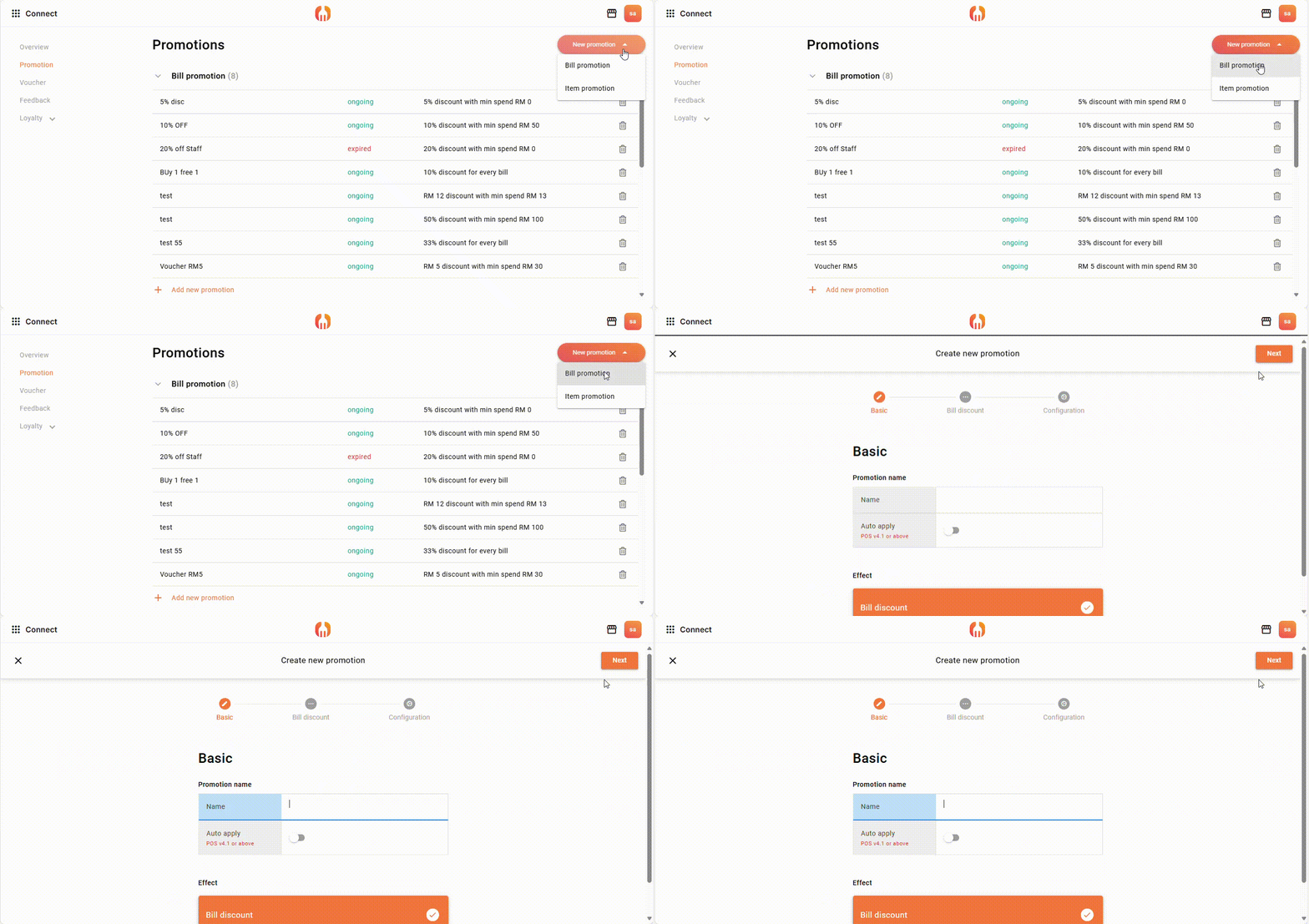
Find “Connect” > New Promotion > Bill Promotion to create a new bill promotion.
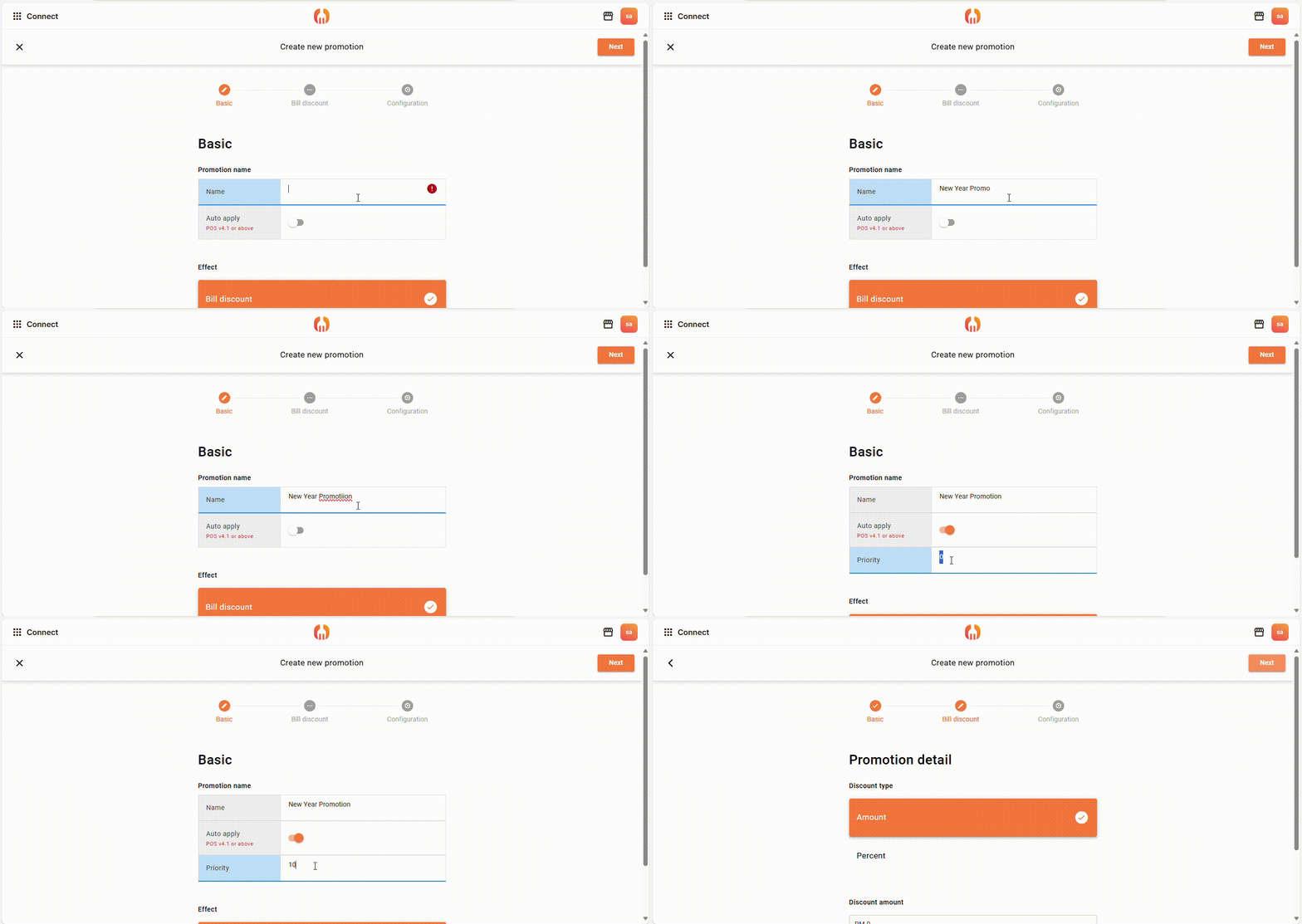
(2) Name your promotion
Open “Auto Apply” to let the promotion show out in POS. The “Priority” means first N number of people who can receive this promotion. Let ‘s say if keyin 10, then only first 10 people can get the promotion. If you don’t want to use the priority, then leave it 0.
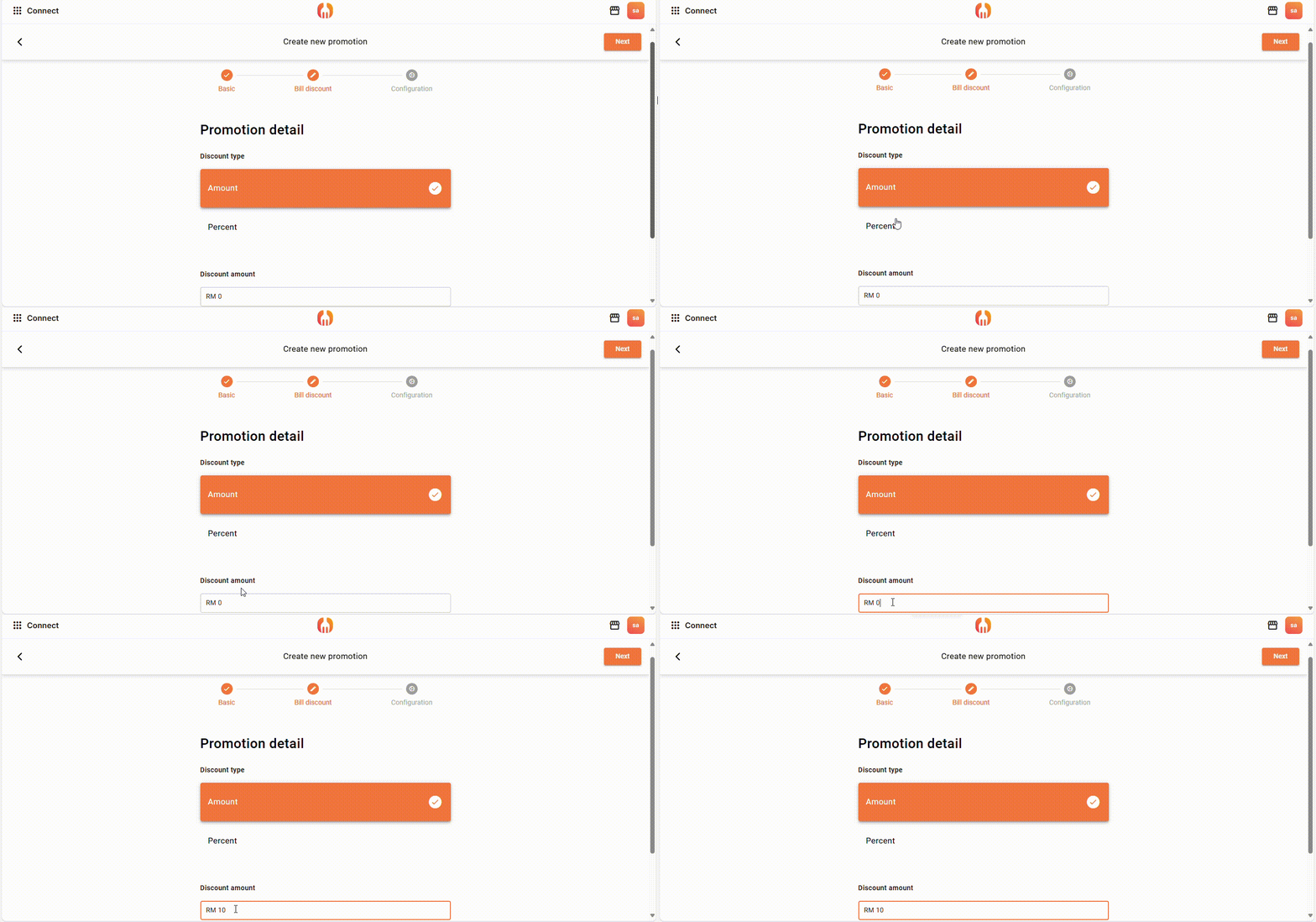
(3) Choose your discount type
You can choose either promotion by amount or by discount to be set.
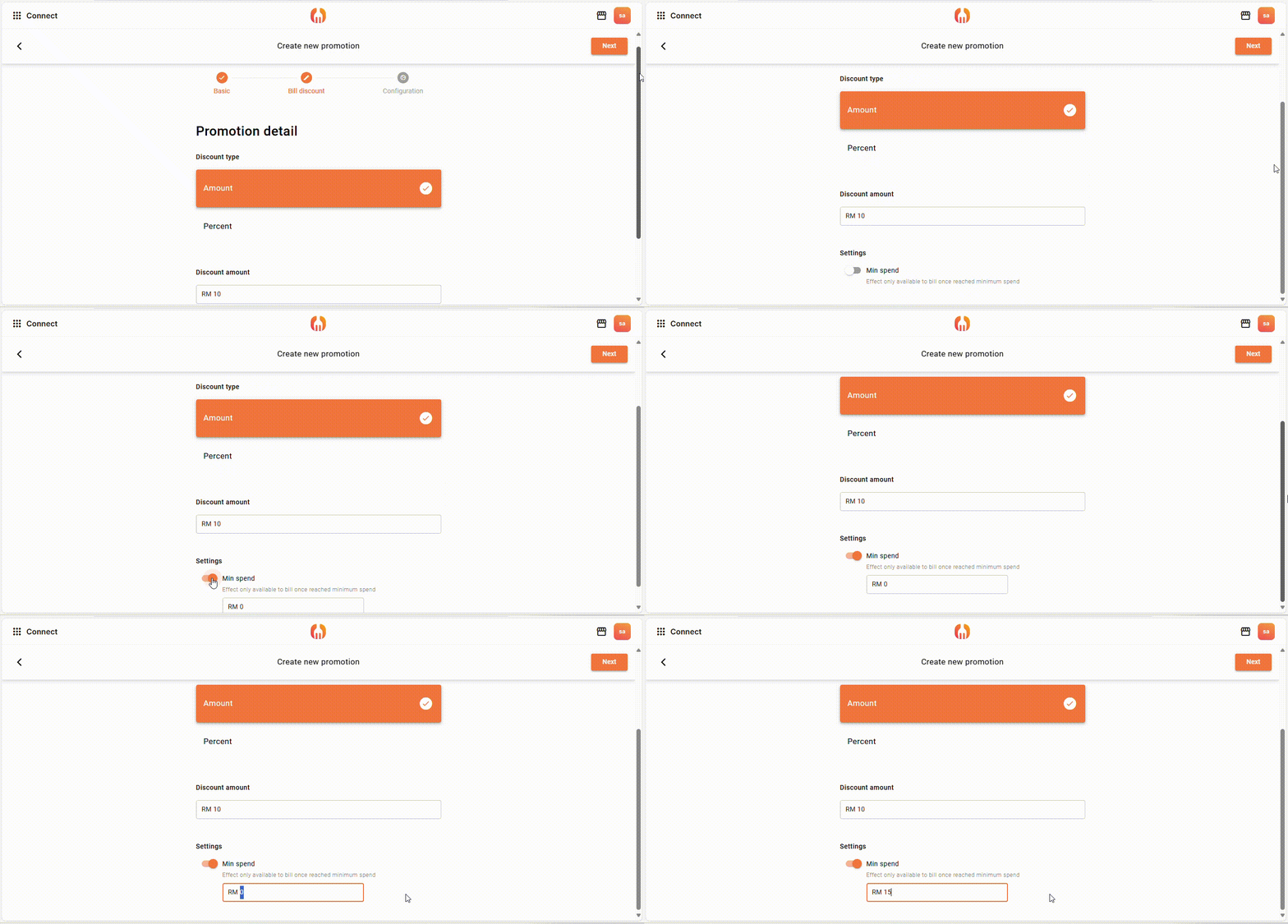
(4) On the Min. spend (Optional)
You can on the Min. spend so that your customers need to spend at least the amount you set, to use the promotion.
E.g: The min. spend here is set as RM 15, so the customers have to spend RM 15 or more, to get the New Year Promotion.
(5) Choose Availability (Optional)
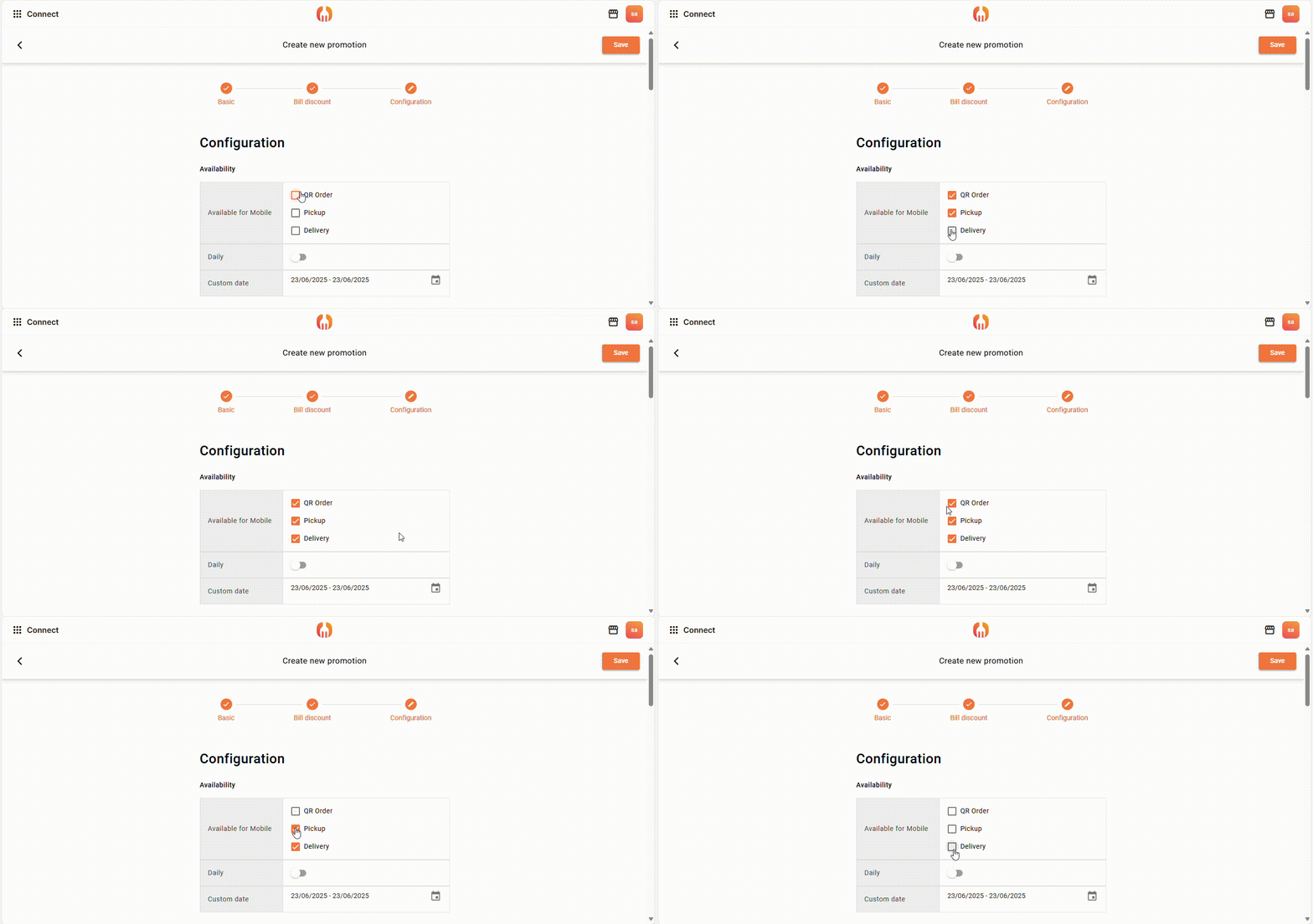
You can choose to show the promotion on mobile in 3 ways: by QR order, pickup, delivery.
(6) Choose Promotion Time
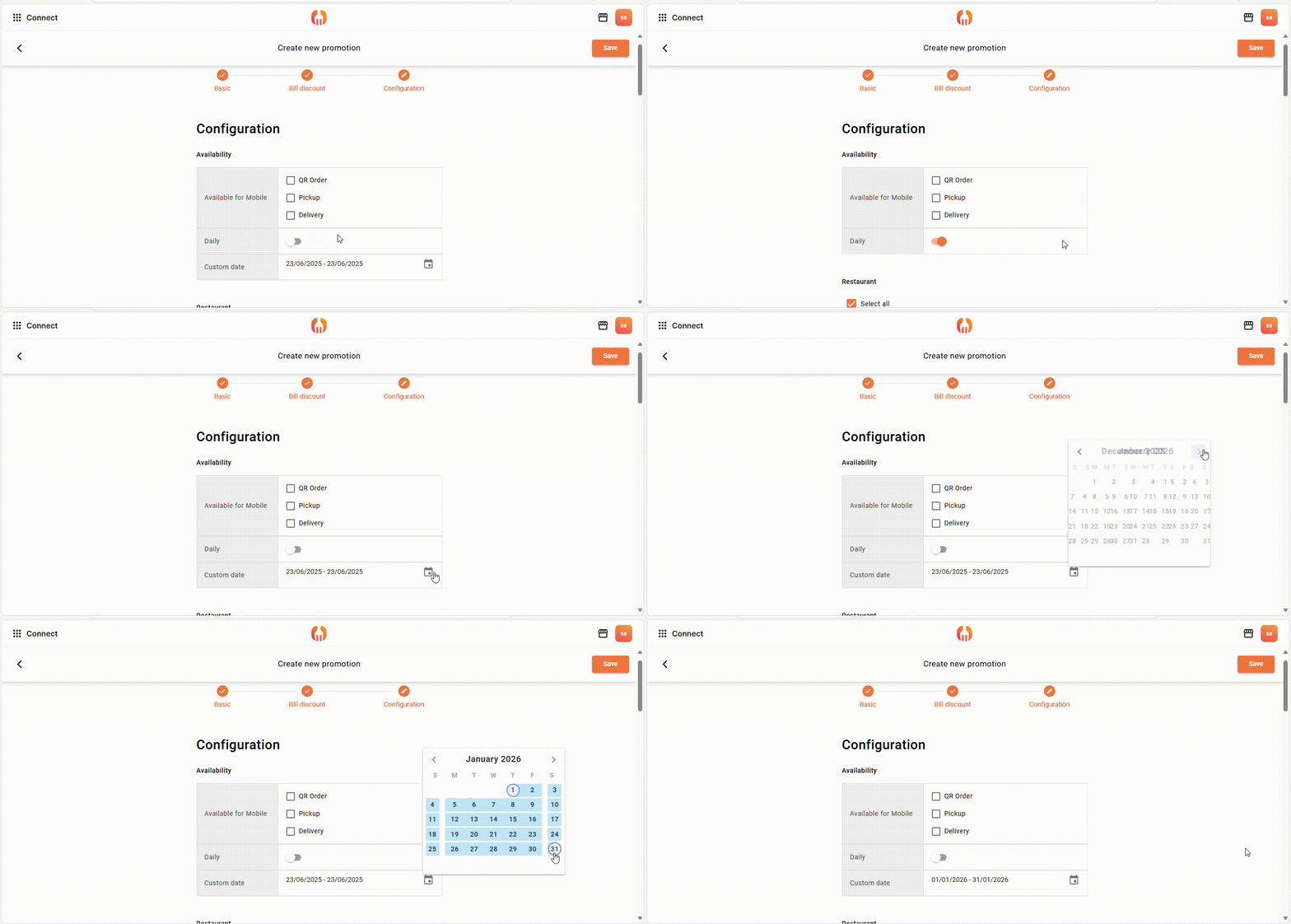
You can let the promotion available to use in daily, or in specific date range.
(7) Choose your restaurant
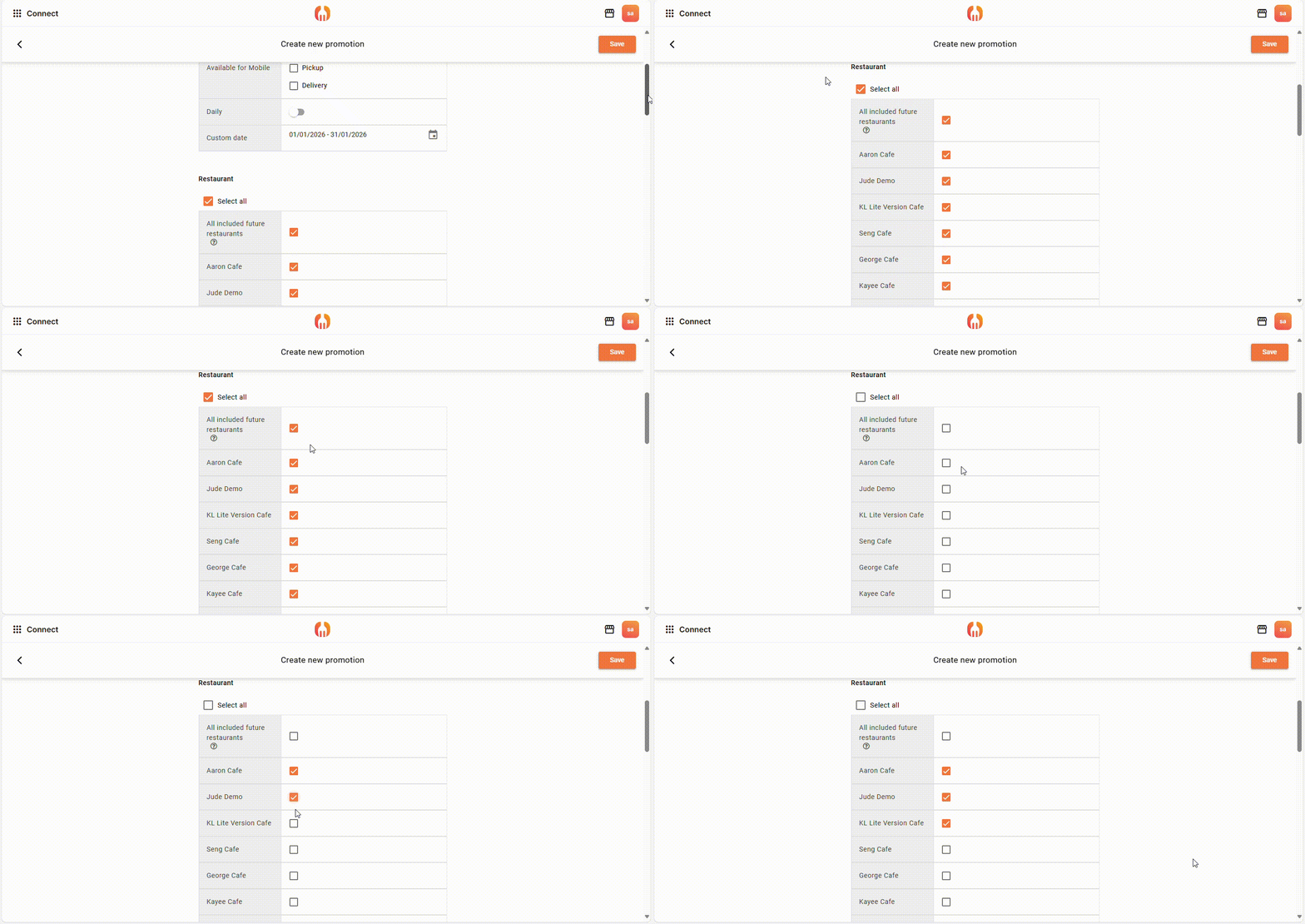
Here you can choose to let some or all your restaurants to have the promotion, if you also want your promotion to be available in your future restaurant, you can tick the tick the “All included future restaurants”.
(8) Promotion Status
The new year promotion (red) will show in the list under the bill promotion after save and create. Beside (orange) the promotions’ name is showing 3 different statuses: “incoming”, “ongoing”, “expired”.

Thanks for sharing this! I just tried it online and had a great experience. This blog is really helpful—appreciate the clear info and tips. Looking forward to more posts like this!